

LollyLaw’s all-in-one immigration case management platform is full of great features and functionality to simplify your day-to-day as a practitioner–from matter management and form completion to client communication, time tracking, and billing.
This article will show you how to seamlessly access these features through LollyLaw’s top navigation bar and widgets.
Understanding Navigation in LollyLaw
Navigation in LollyLaw is consistent across the entire platform. Between the left-side navigation and the top navigation bar, everything is only a click or two away.
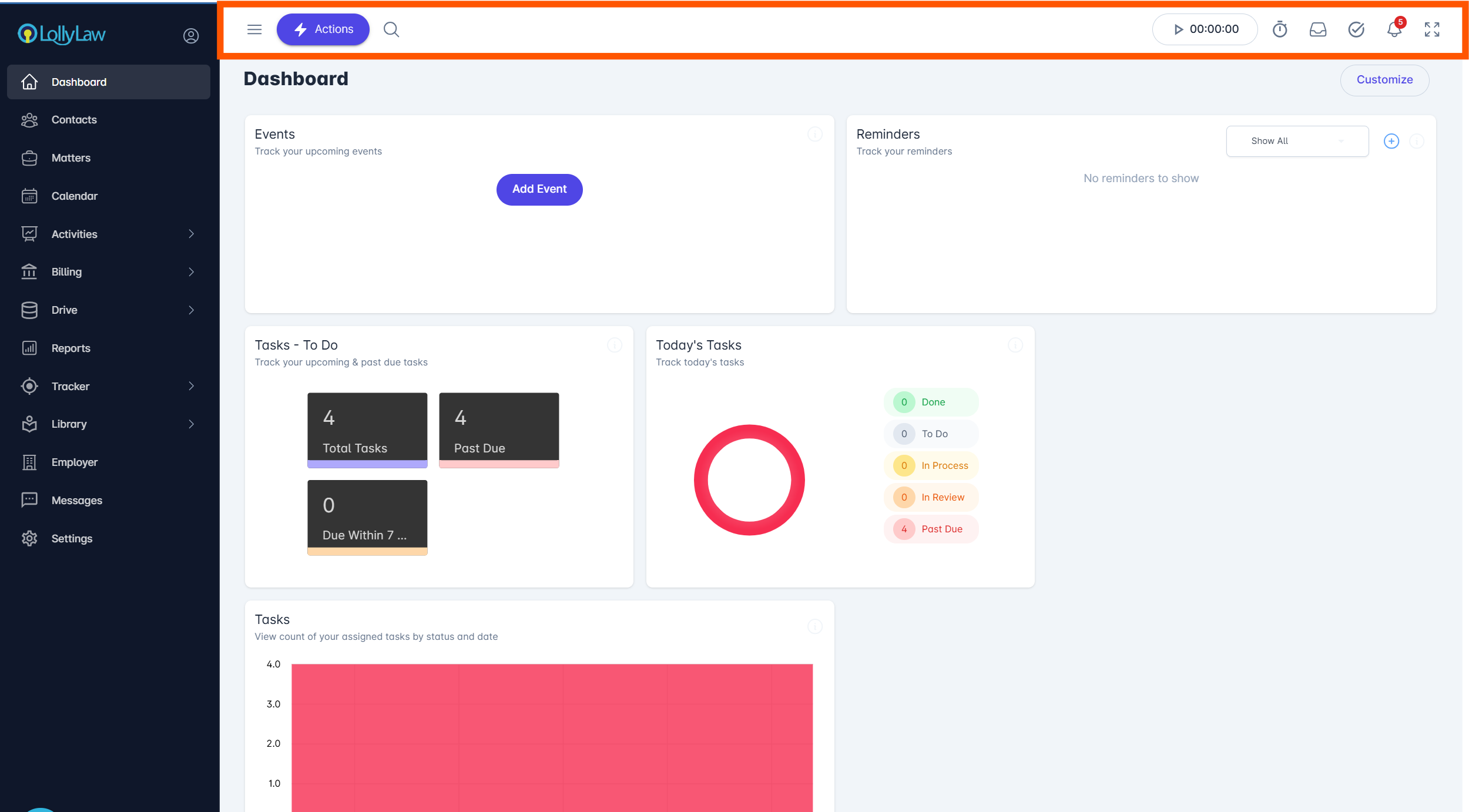
The top navigation bar lets you create new records—like contacts or matters—without leaving the page you’re on. It also includes quick-access widgets for timers, messages, tasks, and notifications.
Using the Top Navigation Bar
The top navigation bar provides easy access to what are likely the most common functions that you will need in LollyLaw.
Actions B\utton: The Actions button provides a dropdown list of actions you can click on to simply perform new actions in LollyLaw. This includes:
Add Contact
Add Consultation
Add Event
Add Expense
Open New Matter
Add Payment
Add Reminder
Add Task
Add Time
Add Note
Create Quick Bill
Search: The search bar allows you to easily search everything from, Contacts and Matters to Activities and Tasks. By using the standard search function, you can search for Contacts and Matters. With Advanced Search, you can perform searches for Activities, Tasks, and Reminders.
If you want to learn more about Advanced Search functions, please refer to our help article on performing Advanced Search functions.
Timer: The Timer widget is a powerful tool for users who need a simple, structured way to track time. You can create multiple timers, switch between them easily, and ensure that only one timer is running at a time. When you’re ready, you can log details and save your time entry.
If you want to learn more about creating time entries, please refer to our help article on Creating Time Entries
Timer Keeper: The Timer Keeper widget provides a recent list of recently logged time recordings
LollyMessaging: The LollyMessaging widget alerts you when new text messages arrive and lets you jump straight into the conversation. This feature requires LollyMessaging, so please reach out to LollyLaw Support if you’re interested in activating it.
If you would like to learn more about setting up LollyMessaging, please refer to our help article on setting up LollyMessaging.
My Tasks: The My Tasks widget shows tasks that are due today, along with a quick view of any past-due tasks. It’s a convenient way to stay focused, update progress, and mark tasks complete—without leaving your current page.
If you would like to learn more about creating and managing Tasks in LollyLaw, please refer to our help article on Managing Tasks.
Notifications: The Notifications widget displays updates and changes related to records you’re involved in, helping you stay informed without needing to click into multiple matters or contacts.
Seek Help if Needed
Take some time to explore the sections you have access to. If you ever need help, click the Support option to chat with us live or search our help documentation.