
LollyLaw's advanced search options allow users to search efficiently and precisely. In addition to LollyLaw's “type to search” search feature for Contacts and Matters, LollyLaw's advanced search option offers the ability to search by "exact full keyword match." Additionally, with targeted search functionality, users can also search by Activities, Tasks and Notes.
Type to Search
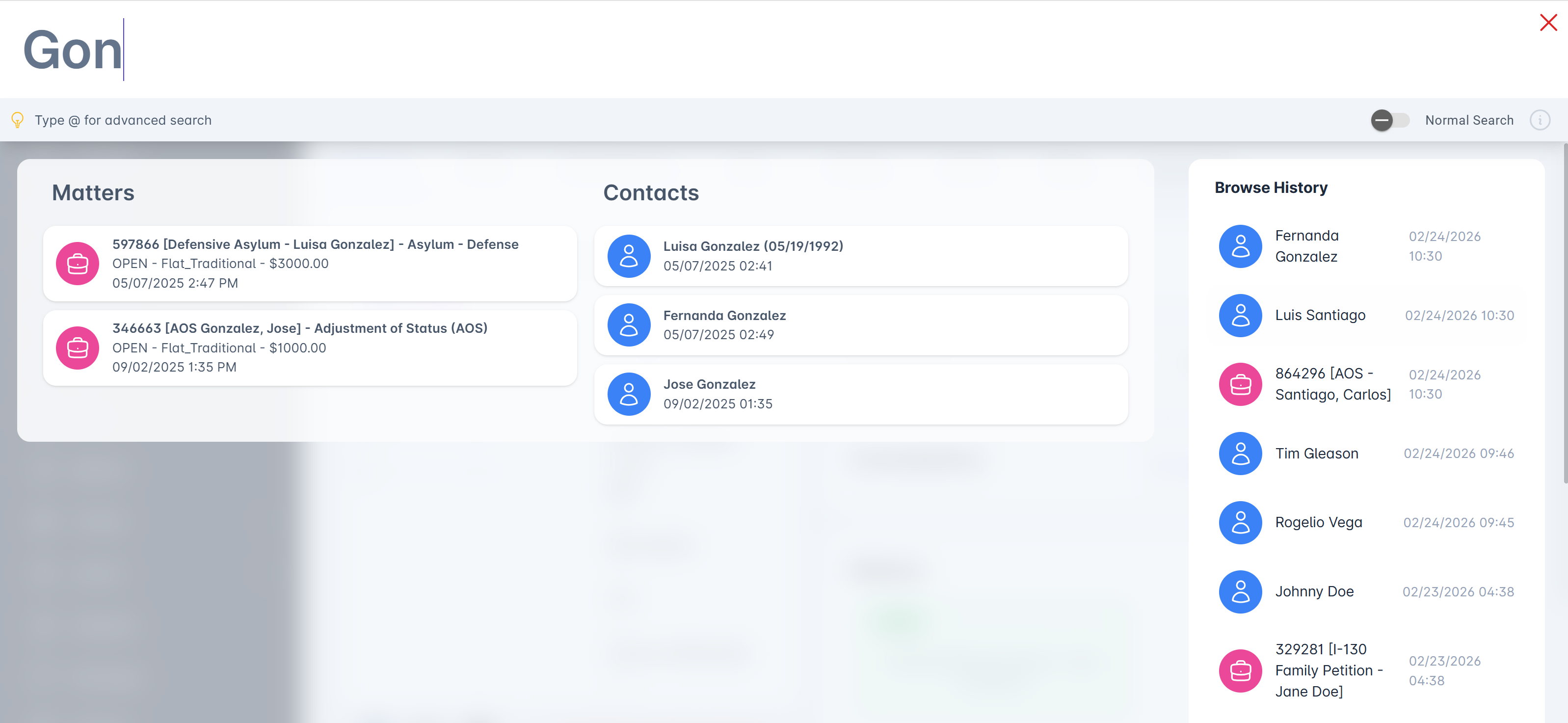
As you type into the search area, the software will display matching results. Contact records will be displayed with a blue indicator and a person icon. Matter records will be displayed with a red indicator and a briefcase icon. As you type additional characters, the search results will narrow and be more specific.
There are several search parameters you can use to search for Contacts:
first name
middle name
last name
email
alien number
phone number
or a custom search tag
Matters require a little more specificity. You can lookup a matter by its name/id or a custom search tag.
If for some reason you cannot locate a matter, but you know the client's name, then you can also pull up the contact record, view the list of matters that they are a party to and then jump to the matter record.
With LollyLaw's "type to search" function, users can type partial keywords or names into the search bar to pull any record that shares those partial characters. For instance, if a user searches for a contact with the last name "Gonzalez," but only types in the letters "Gon," the results will display any record which has "Gon" in the name.
Exact Full Keyword Search
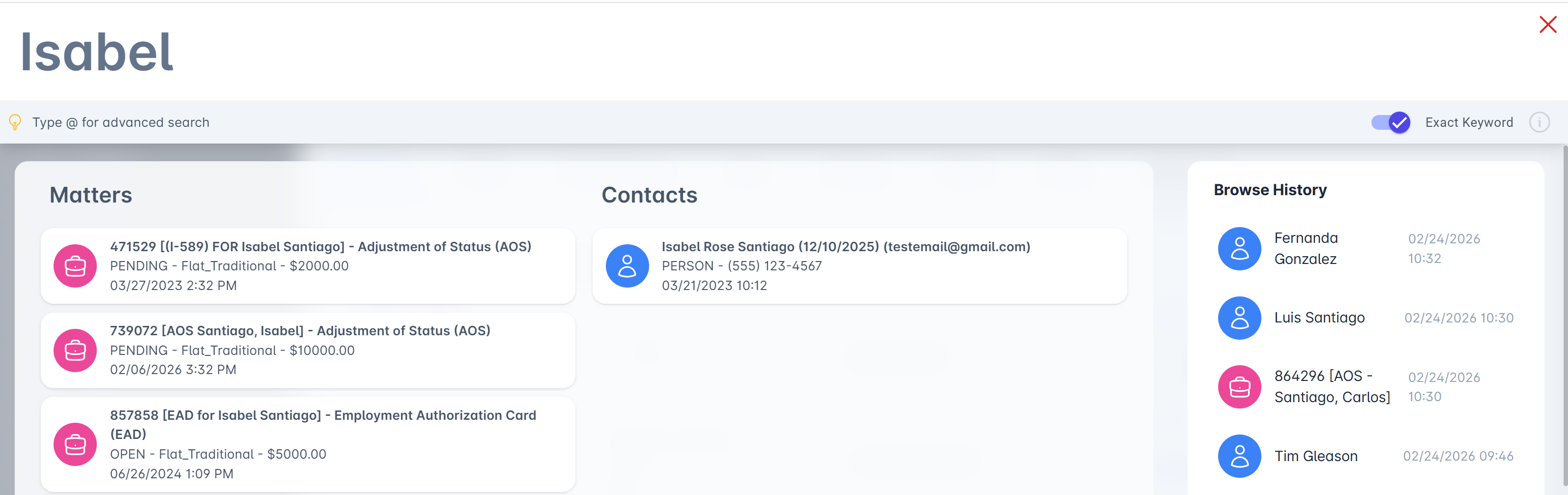
With the "Exact Full Keyword Search," users can search for records in LollyLaw by exact matches. For instance, if a user knows the exact name of a matter or contact, the user can type in the exact name to narrow the search results to only exact matches. "Exact Full Keyword "Search" allows users to search quicker for their contacts or matters if they type in the exact keyword or name.
Targeted Searches by Activities, Tasks, and Reminders
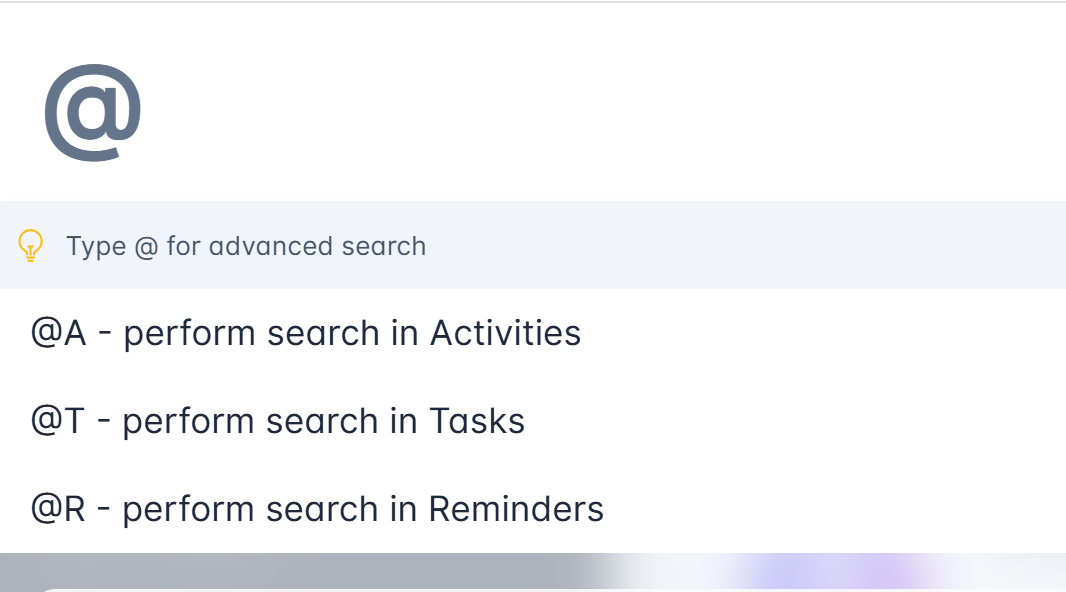
Users can also search for user activities, tasks, and reminders by using the "@" symbol in the search bar. Whether you are looking for a journal note or reminder, LollyLaw's targeted search feature allows users to search for and pull specific activity records so users can begin working on the exact activity at hand.
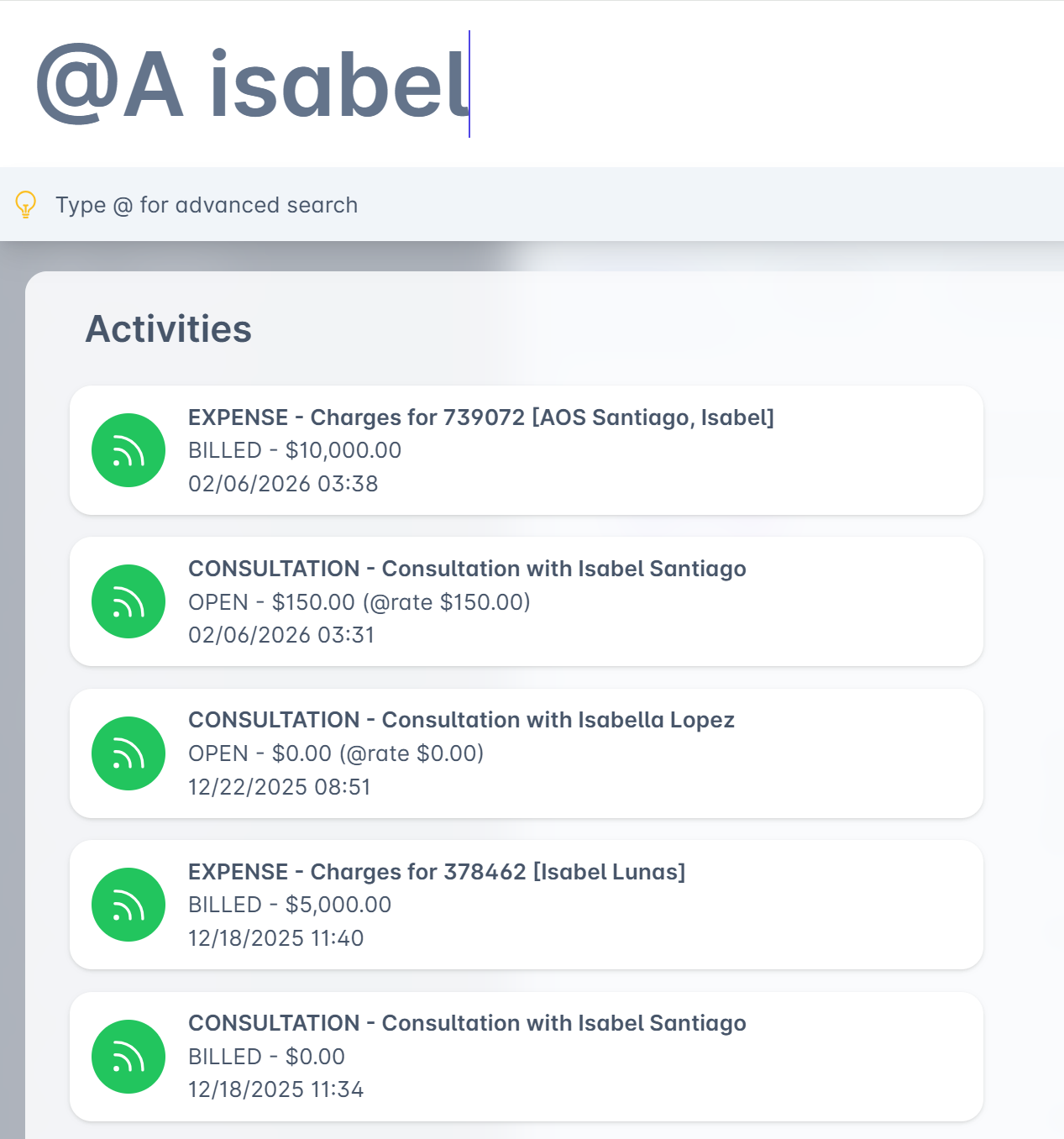
For example, if a user would like to search by activities, users will search by "@A" and add the name of the contact record or matter record they would like to search for activities in. To search by tasks, users will search by "@T" and add the contact or matter record name the tasks falls under. To search by reminders, users will search by "@R" and add the contact or matter record name the reminder falls under.