

When creating events or activities in LollyLaw, users have the option of designating an Activity Type for any record entry. These Activity Types provide users the ability to categorize activities based on their function in the case process—such as “Document Collection,” “Case Preparation,” “Interview,” etc. LollyLaw allows users to choose from a set of pre-built Activity Types or create custom Activity Types to fit their case requirements. These categorization tags can be useful for Contact and Matter data organization, search filtering, and building aggregate activity reporting.
This article will cover how to create and assign activity types to events and activities in your LollyLaw account.
Creating an Activity Type
To view, edit, or create an activity type:
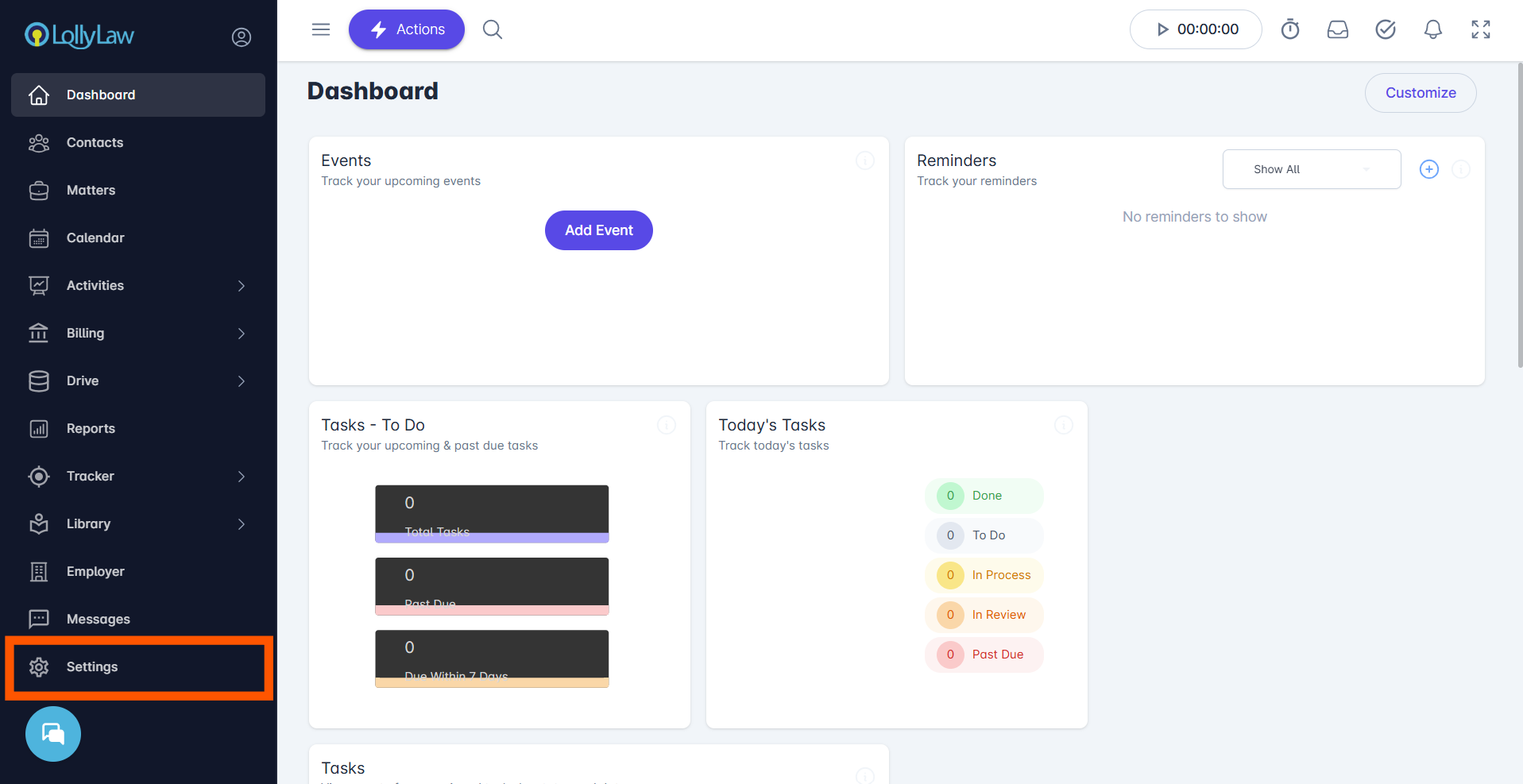
Select the Settings tab at the bottom of the main navigation menu on the left side of your screen.
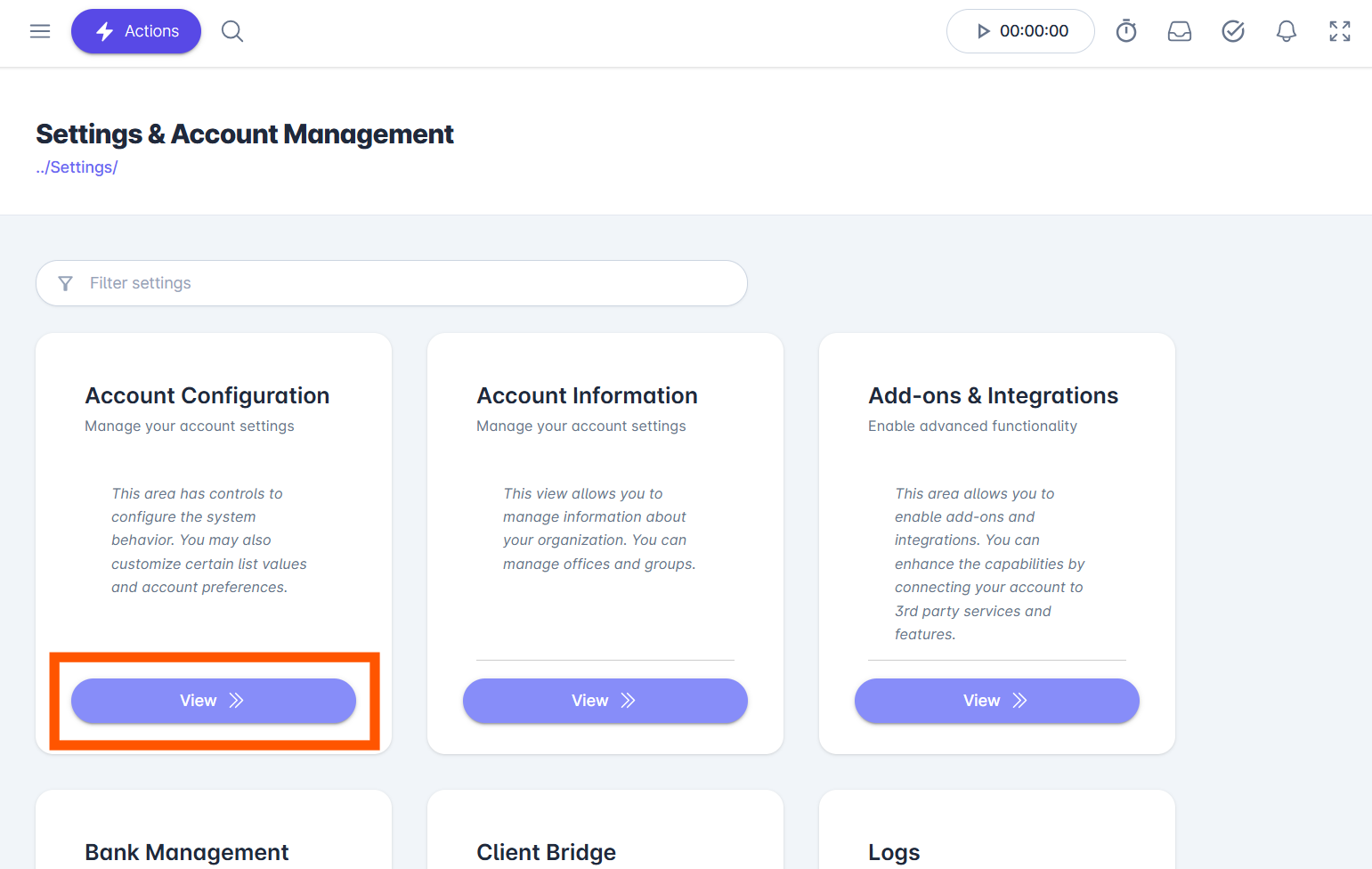
Click the View button on the Account Configuration menu card
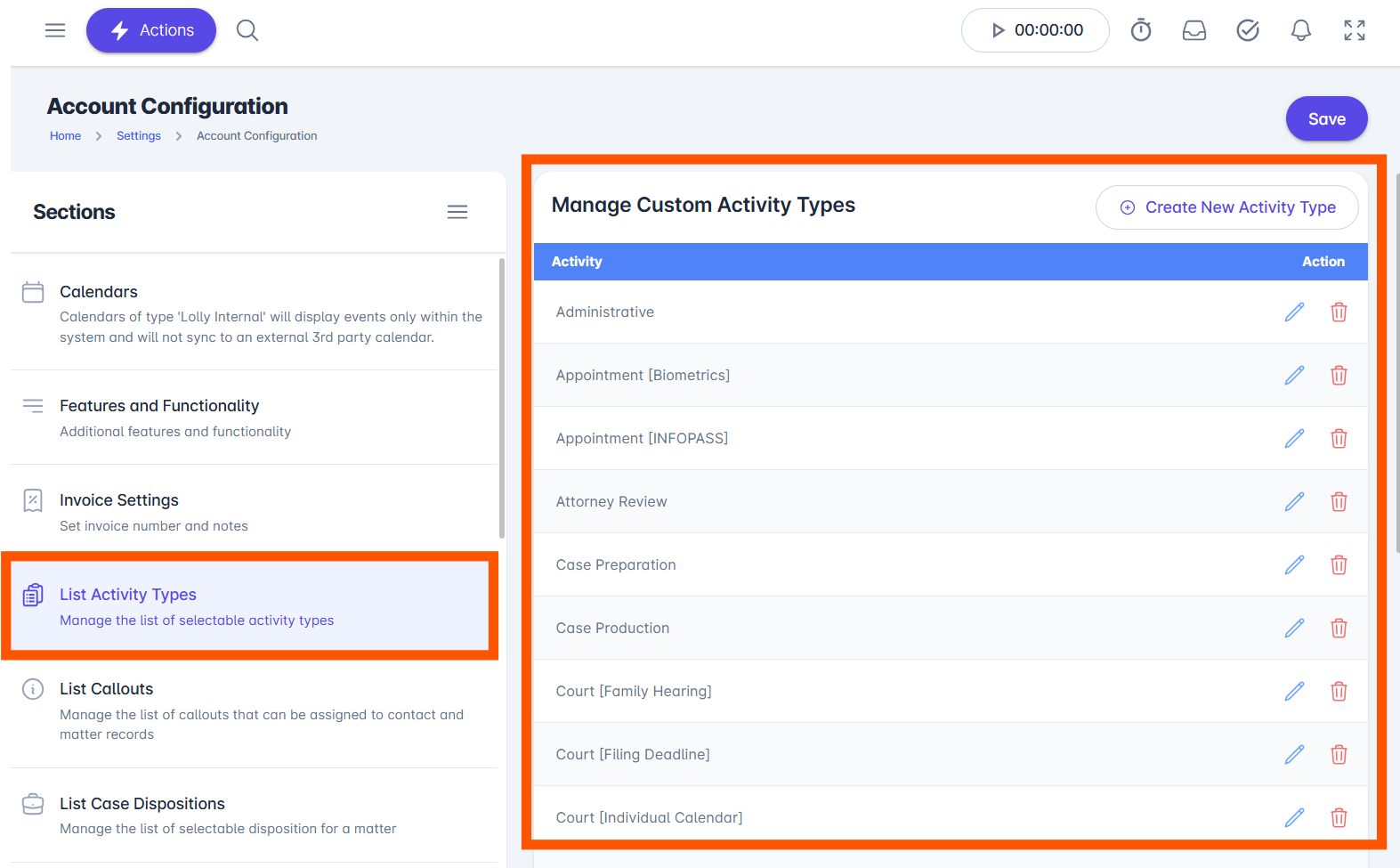
In the Section column on the left side of the screen, click the List Activity Types option, which opens the Manage Custom Activity Types menu on the right. This menu displays the list of all available default and custom Activity Types to select from when creating or editing an event or activity. See the full list of default Activity Types at the bottom of this article. Users can edit any activity type by clicking the blue ‘Pencil’ icon or delete any activity types by clicking the red ‘Trash Can’ icon. Click the Save button in the top right after any desired change is made to the activity type list.
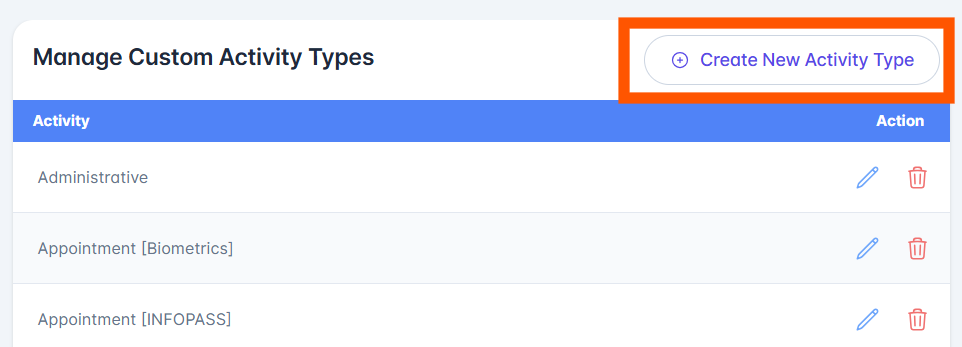
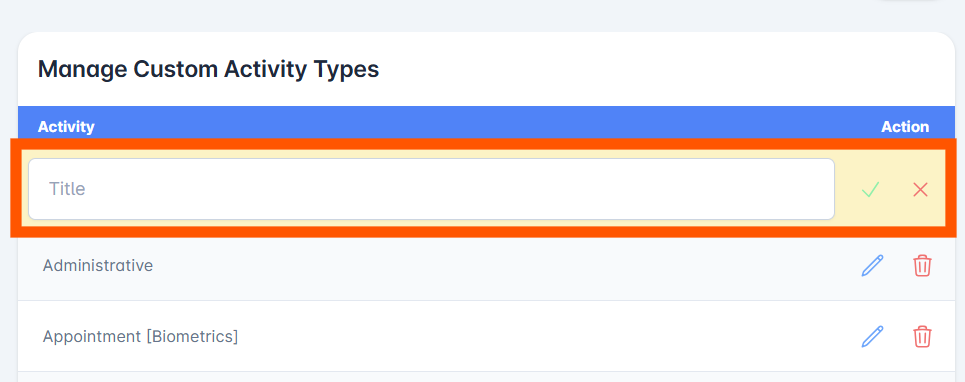
To create a new Activity Type, click the Create New Activity Type button in the top right. An empty field will appear where users can type in a custom activity type title. To save your created activity type, click the green checkmark icon and click the Save button in the top right.
Default Activity Types:
Administrative
Appointment [Biometrics]
Appointment [INFOPASS]
Attorney Review
Case Preparation
Case Production
Court [Family Hearing]
Court [Filing Deadline]
Court [Individual Calendar]
Court [Master Calendar]
Deadline [RFE]
Deadline [U Certification Expires]
Deadline [U Visa Expires]
Document Collection
Expiry [Biometrics]
Expiry [I-797 Approval Notice]
Expiry [Medical exam]
Forms
ICE Check-In
Interview [Adjustment of Status]
Interview [Asylum]
Interview [Credible fear interview]
Interview [I-130]
Interview [I-360]
Interview [I-485]
Interview [I-751]
Interview [Immigrant Visa Consular]
Interview [N-336 Naturalization Appeal]
Interview [N-400]
Interview [Naturalization]
Letter of Support
Pro Bono
Reporting [Deportation]
Reporting [ISAP]
Status Expiry Date
U-Visa (Domestic Violence)
U-Visa (Sexual Assault)
U-Visa (Stalking)
Assigning an Activity Type
With the Activity Type list set up, users can assign the Activity Type to any created contact and matter record interaction and activity entries. Assigning the Activity Type when creating these activity entries is useful for searching for specific records. Users can also filter firm reporting data by activity type.
Users can assign an Activity Type to:
Events
To assign an Activity Type:
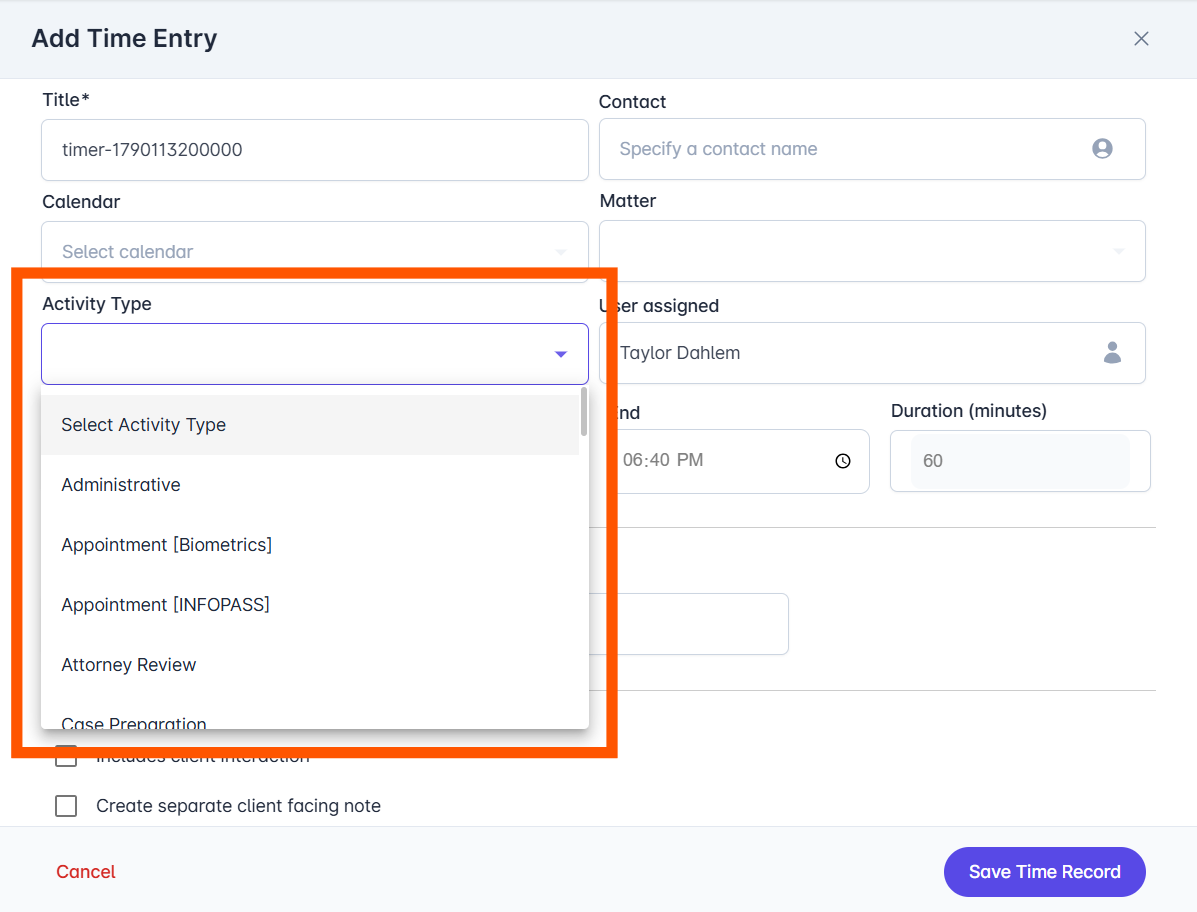
When creating a time entry, event, or case note, users can click the Activity Type field provided.
A dropdown menu will appear that reflects the Activity Type picklist referenced in the Creating an Activity Type section. Select one activity type and continue creating the activity from there.
If you need additional assistance, contact our support team at support@lollylaw.com.