

Sending payment requests electronically helps clients pay faster and gives them the flexibility to complete payments securely and from anywhere. Let's look at the steps:
Step 1: Open Matter Record
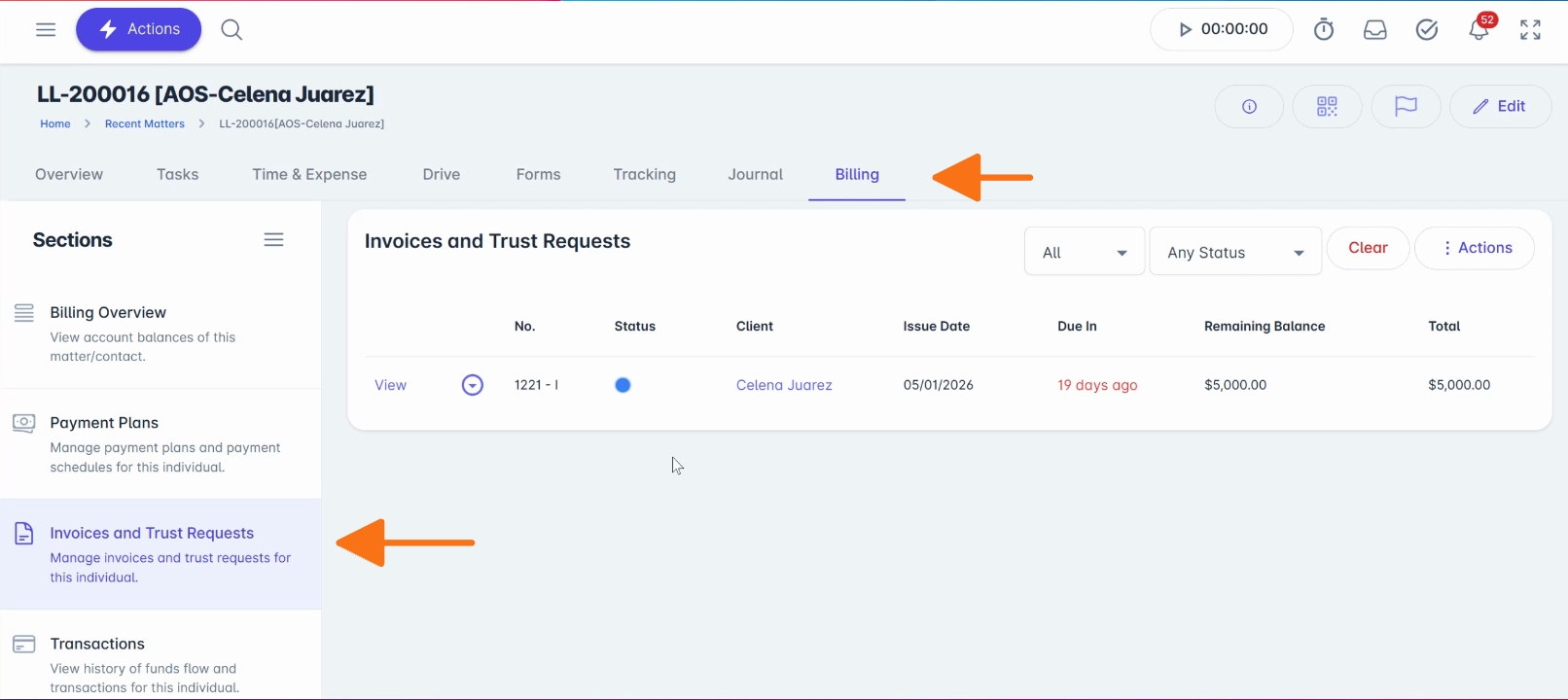
Open the Matter record and navigate to Billing, then Invoices and Trust Requests.
Step 2: Locate Invoice
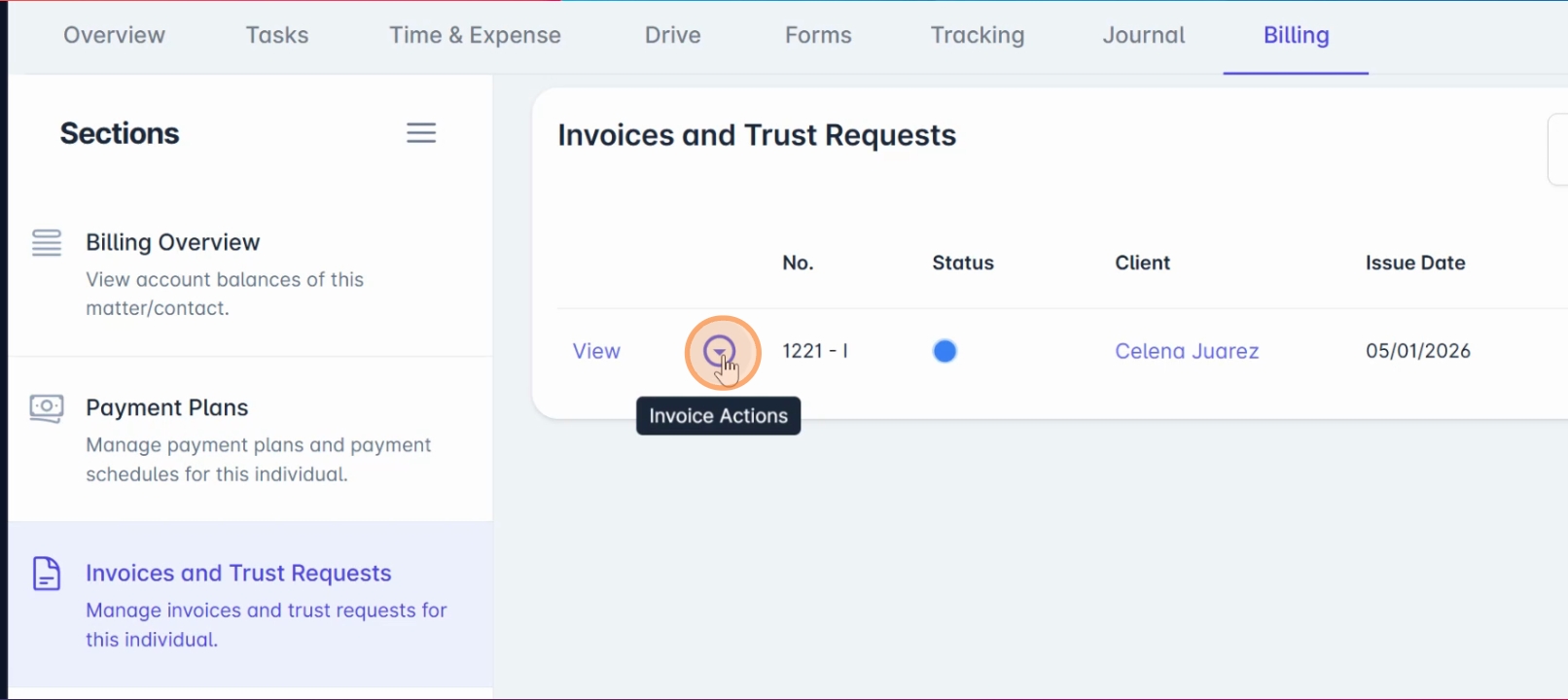
Locate the invoice and click the Invoice Actions menu.
Step 3: Select Send Invoice Option
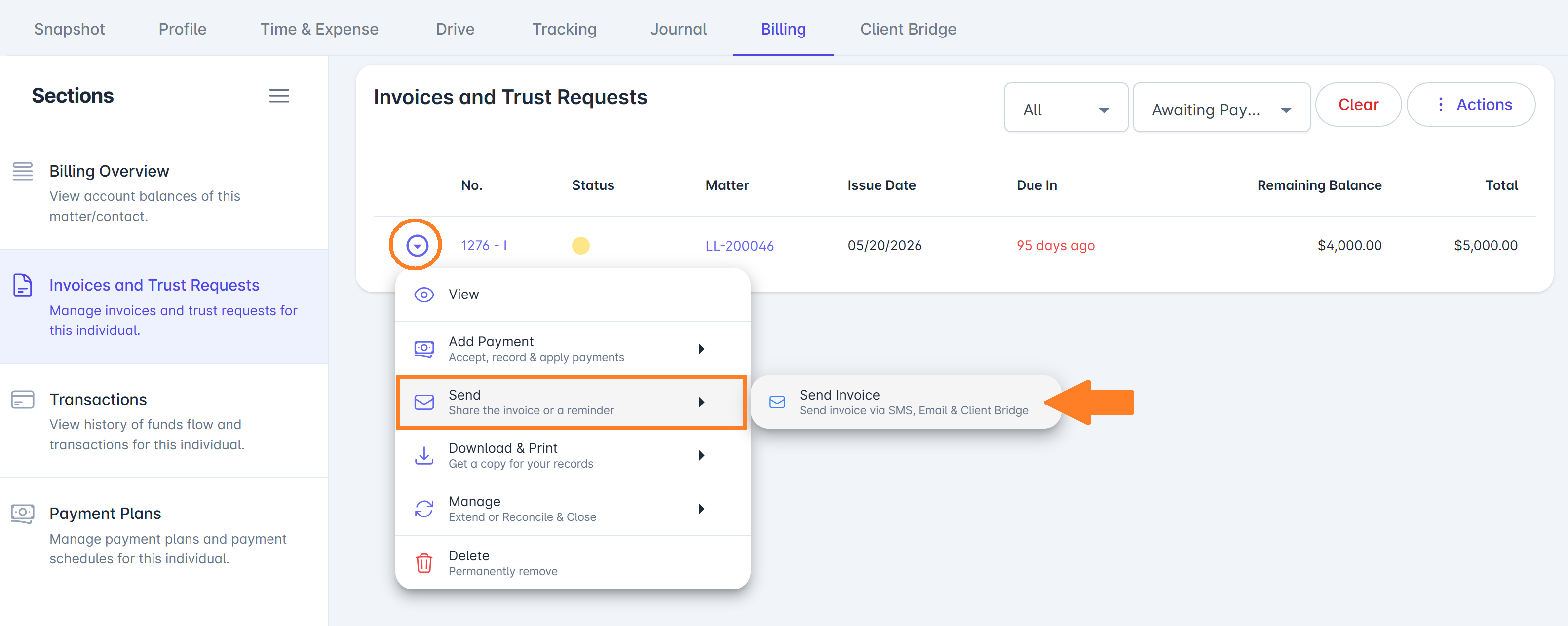
Select Send > Send Invoice from the menu.
Step 4: Choose Deposit Account
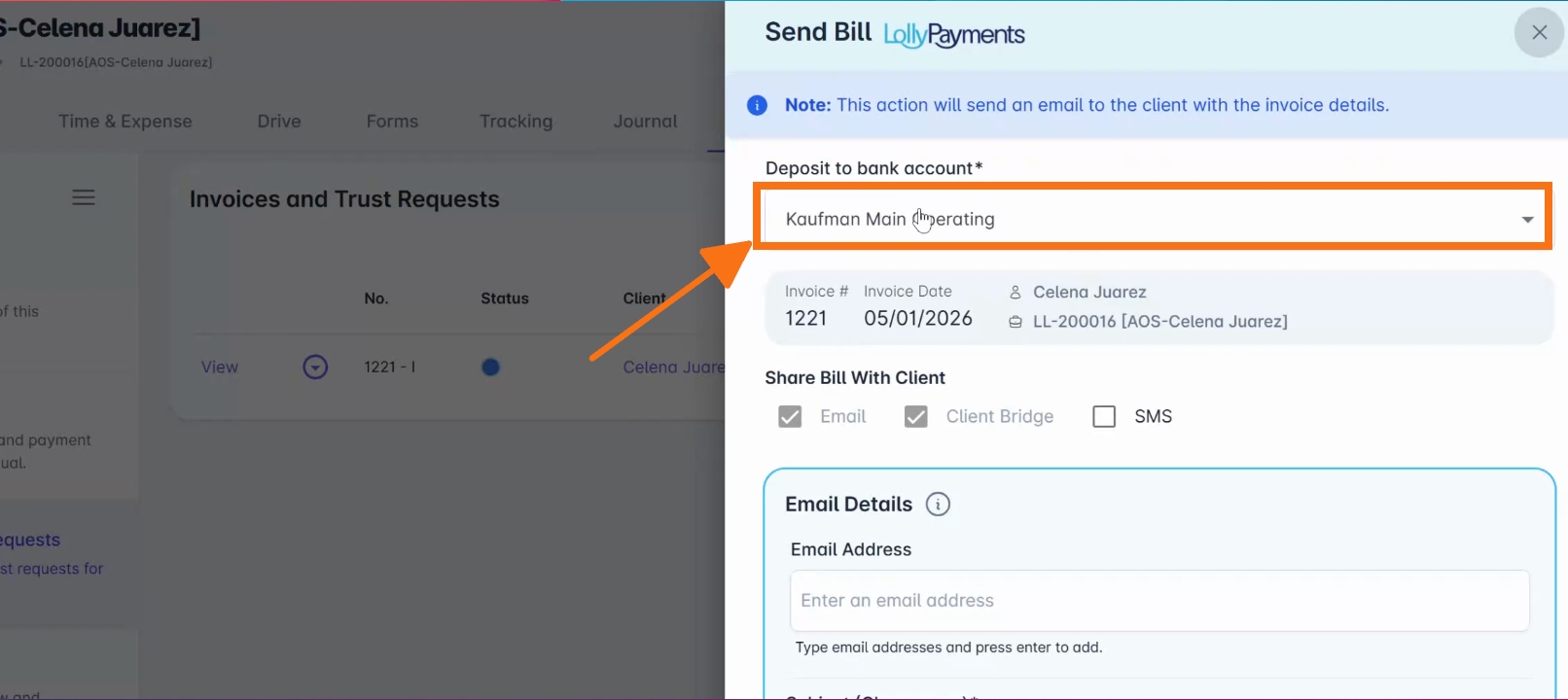
Select the Deposit to Bank account where the funds should be deposited.
Step 5: Choose Delivery Method
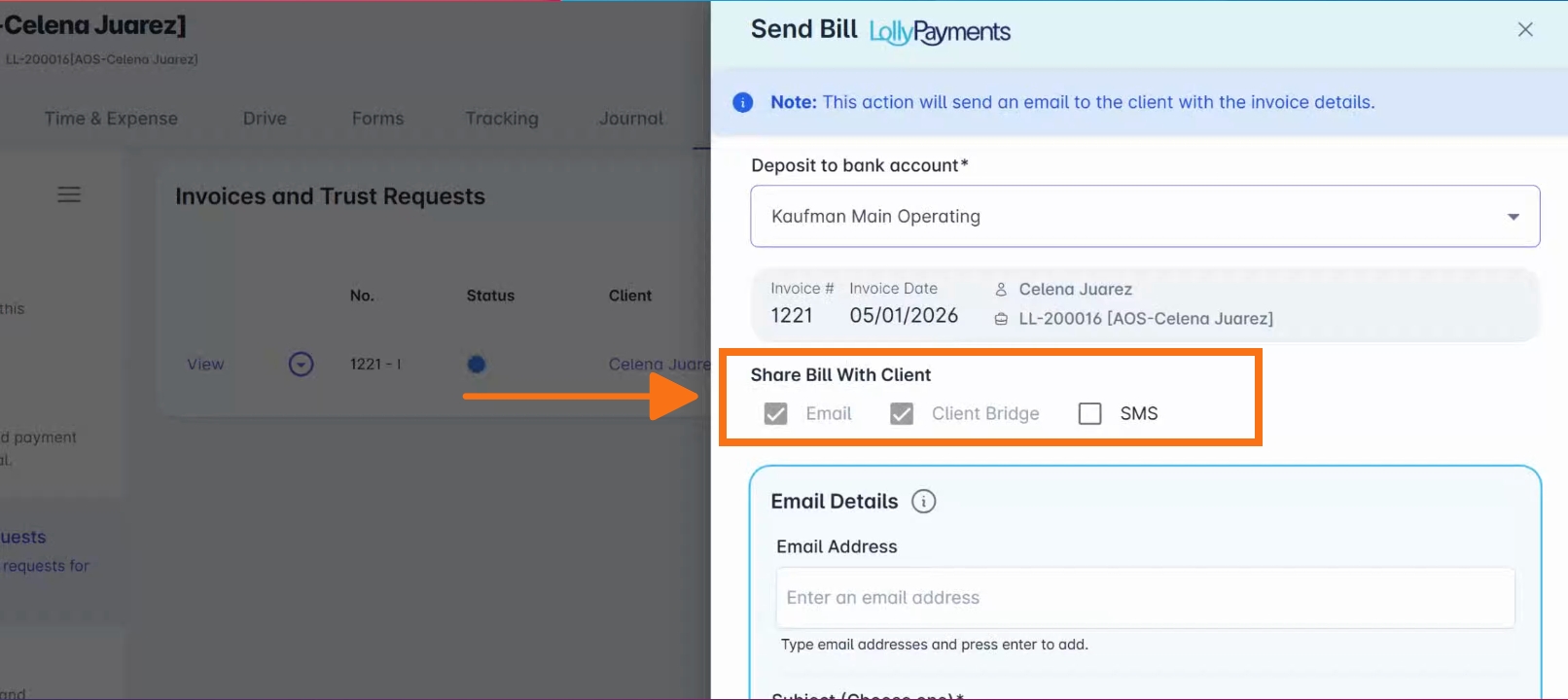
Choose how you'd like to deliver the bill. Payment requests can be sent via Email and Client Bridge Portal, or optionally via SMS text message if LollyMessaging is enabled in your account.
Step 6: Enter Recipient Info
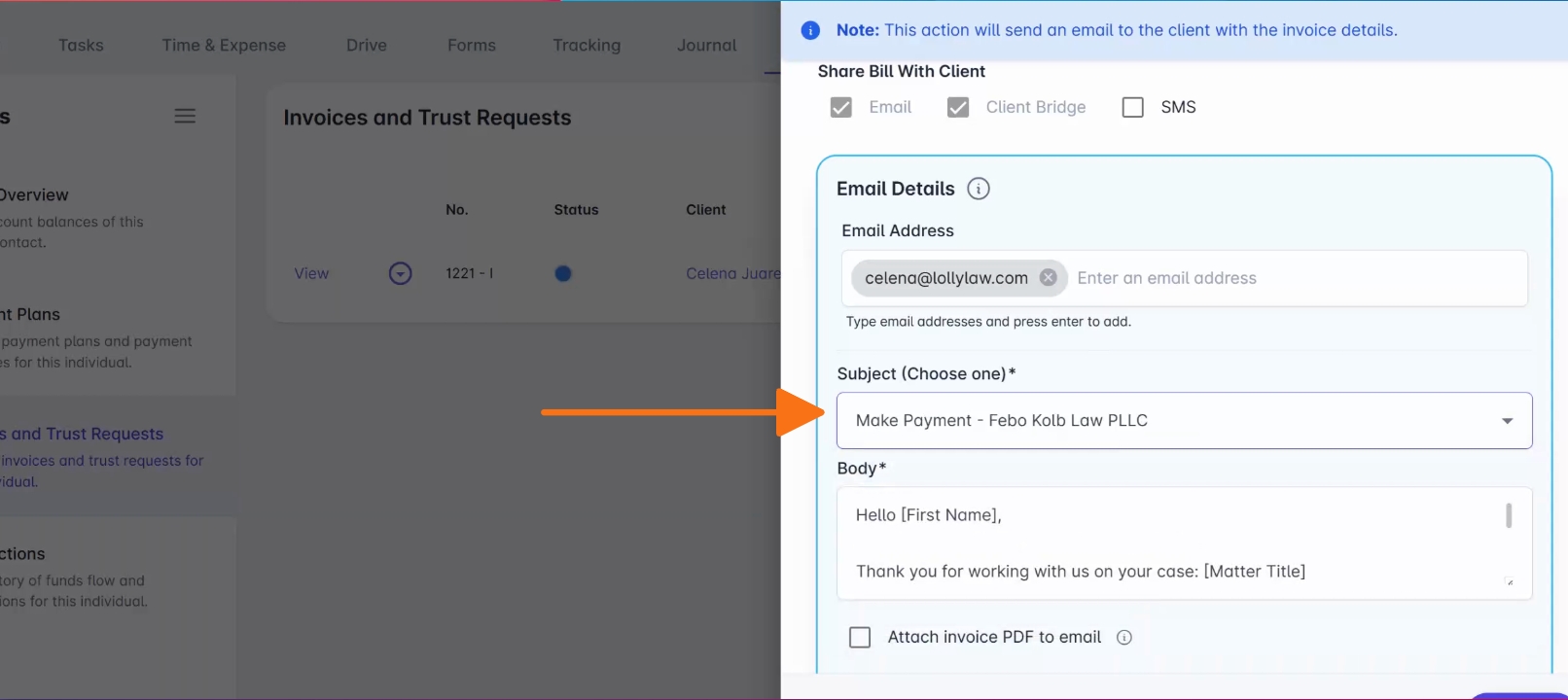
Enter the recipient information, such as your client's email address.
Step 7: Select Message Template
Select the message template you'd like to use.
Step 8: Send the Bill
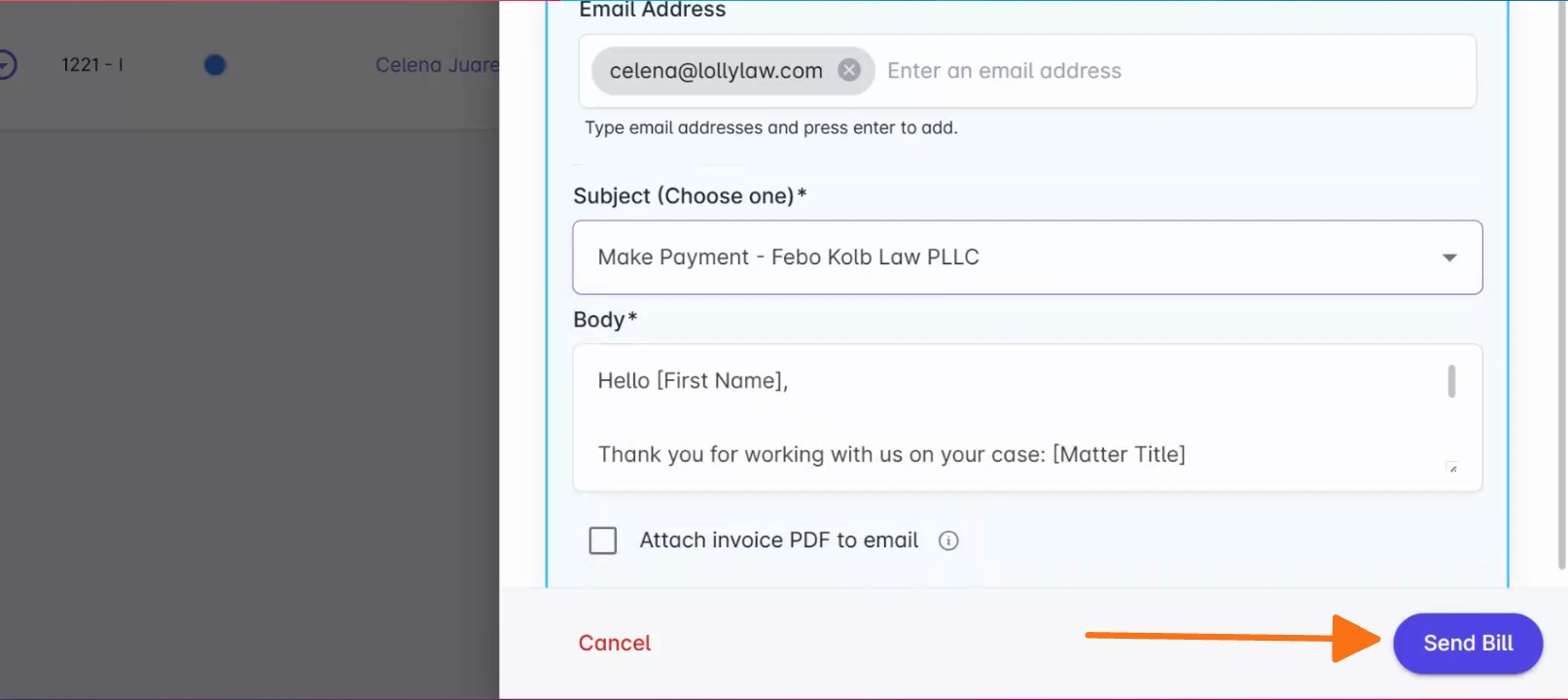
Once everything is ready, click Send Bill.
Your client will receive a secure payment link where they can pay the full balance, submit a partial payment, choose their preferred payment method, and complete payment securely online.
If the client later misplaces the payment link, your office can easily resend the bill directly from the Matter Record.
LollyPayments help simplify collections while giving clients a faster and more convenient billing experience.
To learn more, visit the LollyLaw Help Center or email us at support@lollylaw.com