

This guide explains how to quickly collect a consultation fee using LollyPayments. Consultation fees are often the first financial interaction a client has with your firm. LollyPayments helps make this process simple, professional, and convenient. Let's look at the steps:
Step 1: Open Contact Record
Open an existing contact record and navigate to the Consultation card.
Step 2: Create New Consultation Entry
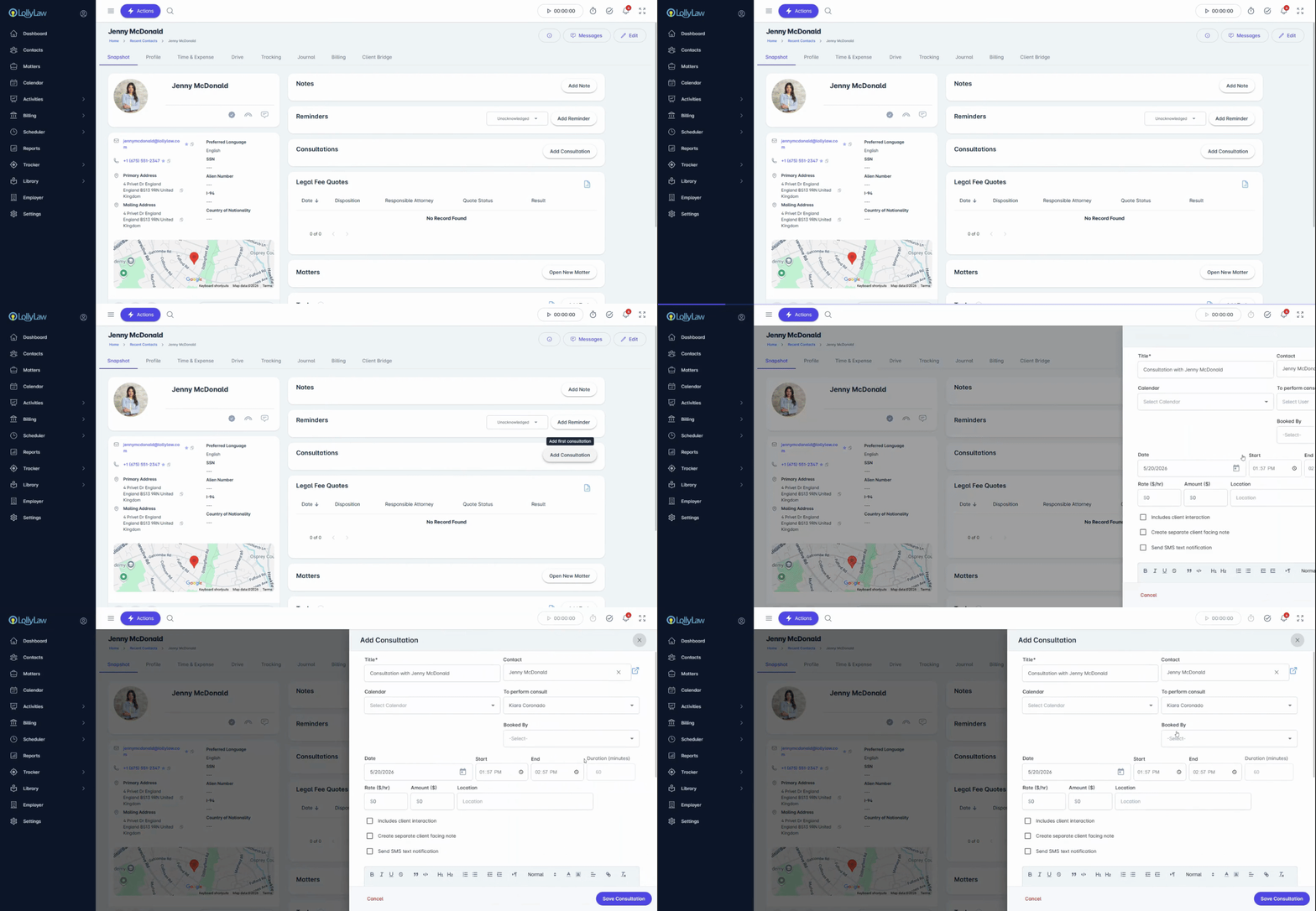
Click Add Consultation to create a new consultation entry. Fill in the consultation details, including the appropriate calendar, the user conducting the consultation, the date and time, and the amount to charge. Optionally, add notes to help you prepare for the consultation.
Click Save to create the consultation entry.
Step 3: Process Payment
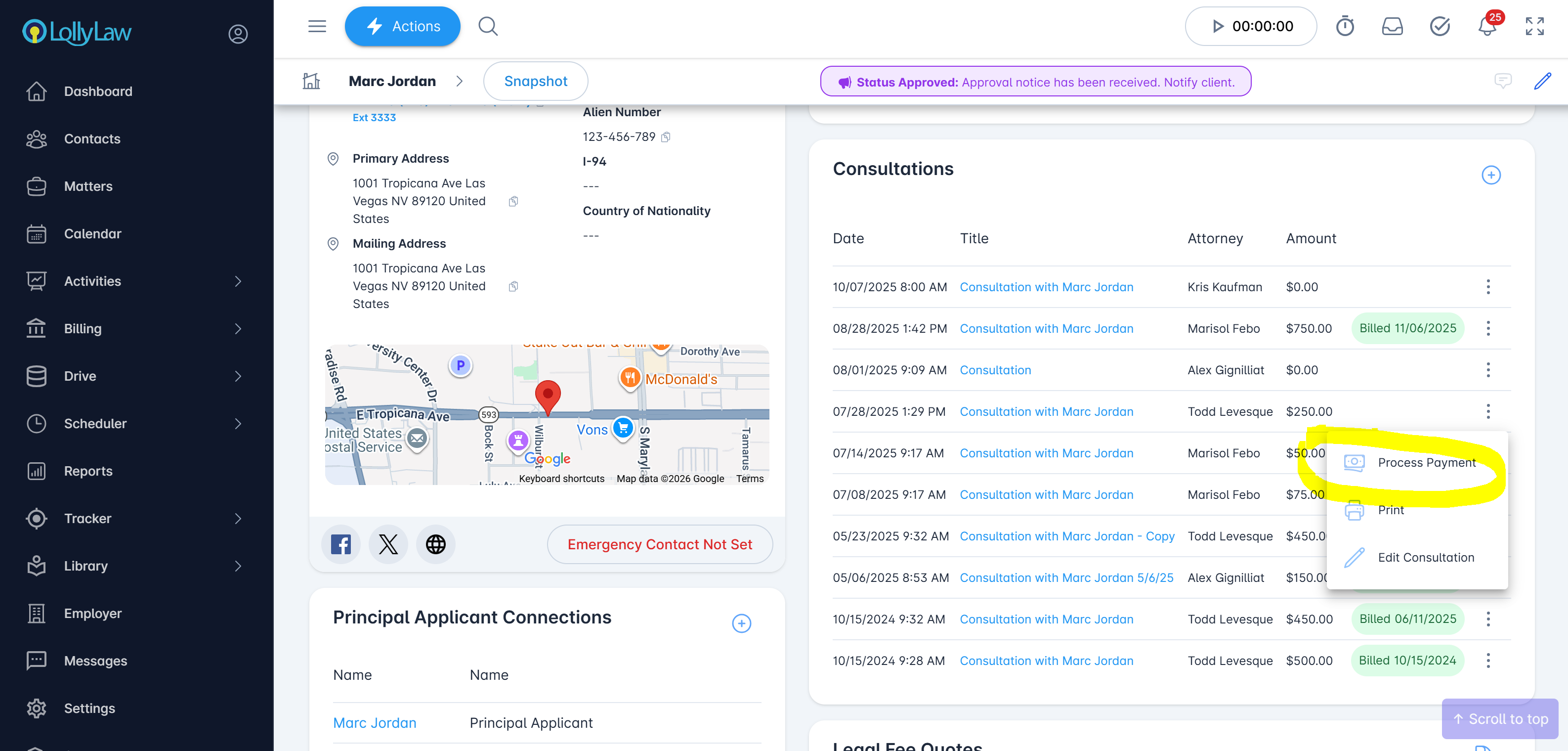
Click the Consultation action items on the side of the entry and select Process Payment.
Step 4: Choose Payment Option
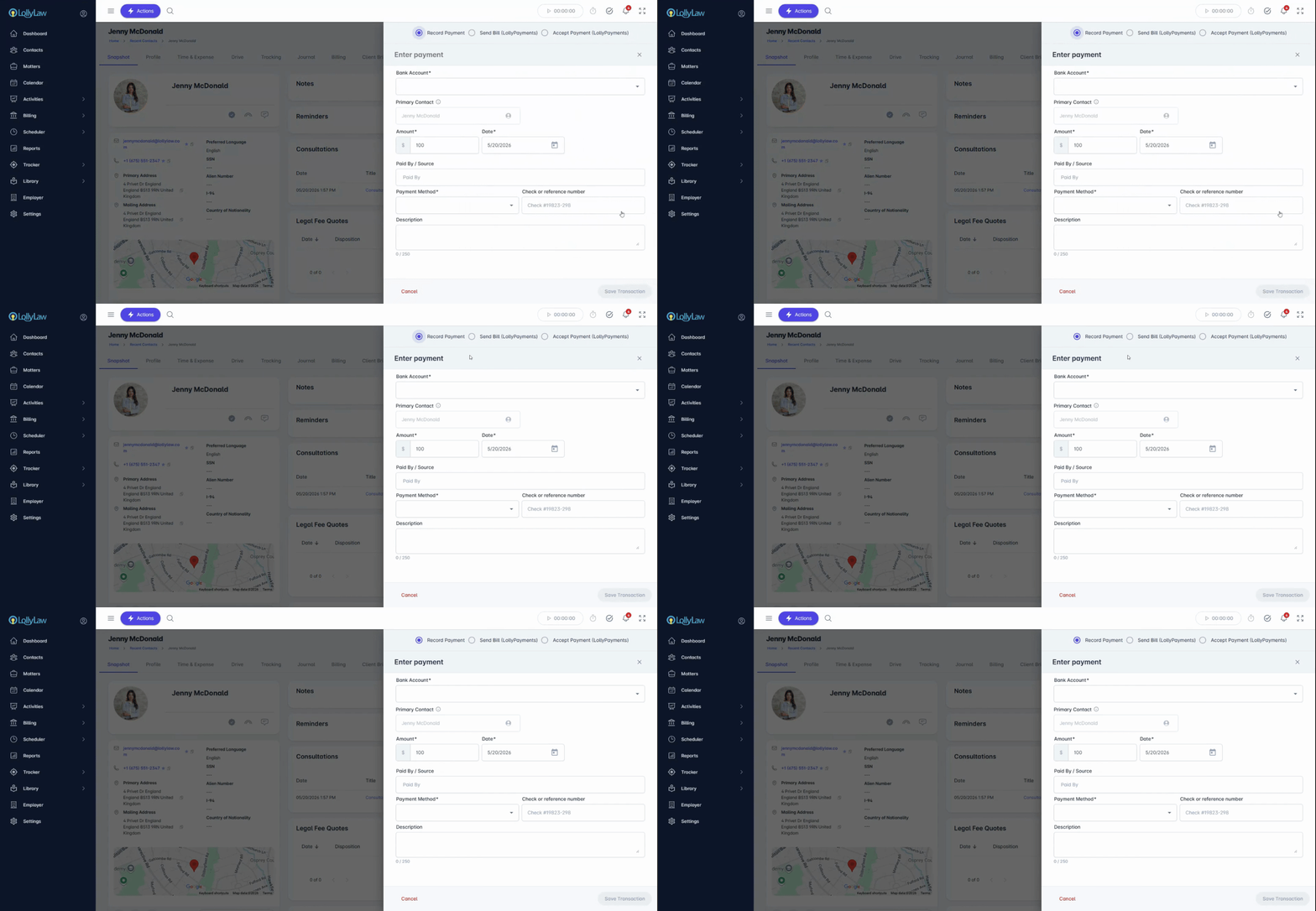
Choose from three options:
Record a manual payment (e.g., cash, check)
Send bill to client
Accept payment immediately
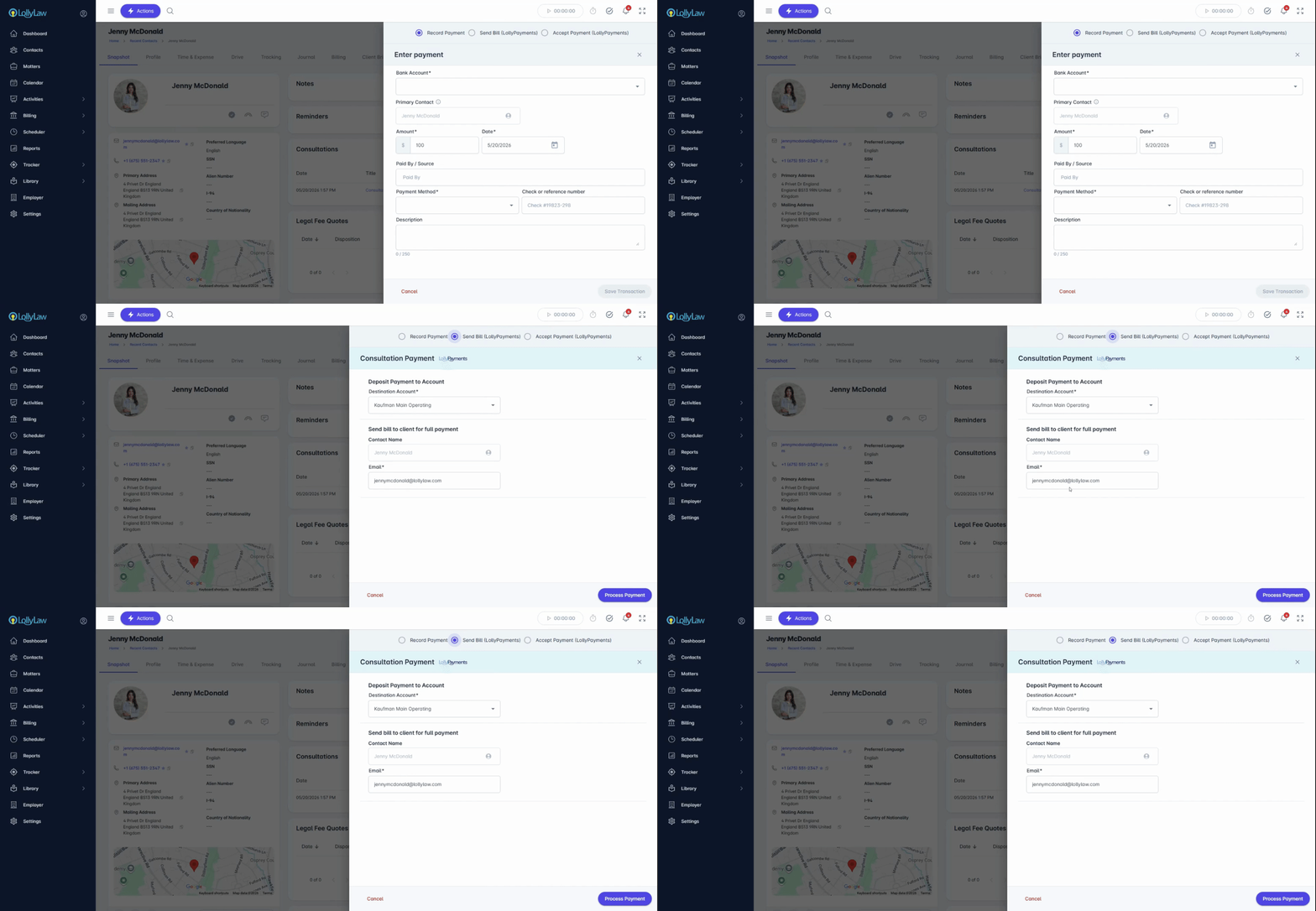
Send Bill to Client (LollyPayments)
If you choose to bill the client, select the destination account and send the payment request. The client will receive an automated payment link by email to securely complete the payment.
Accept Payment Immediately (LollyPayments)
If you choose to accept payment directly, your staff can process the payment immediately.
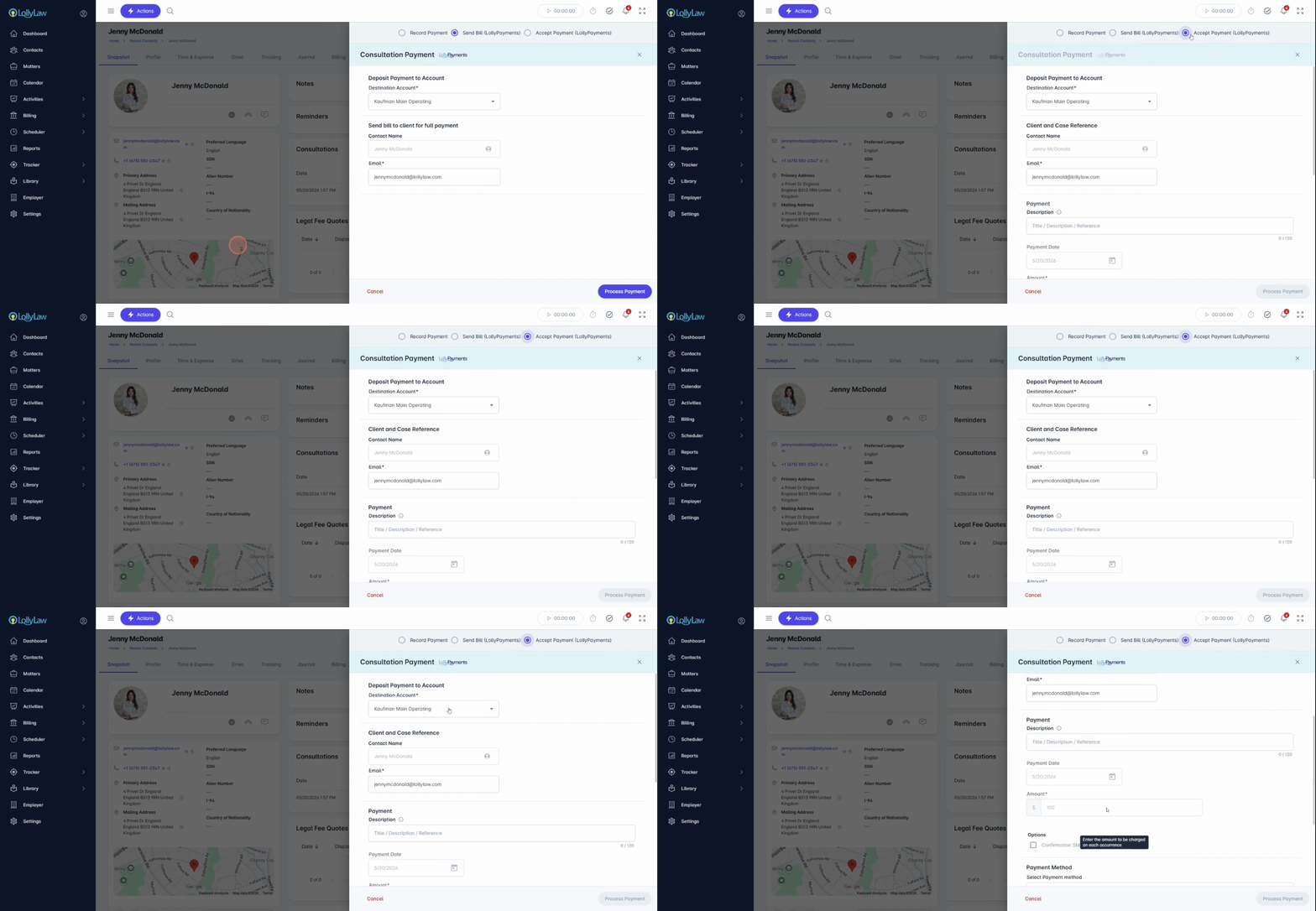
Enter Payment Details
Select an existing card on file, or add a new credit/debit card.
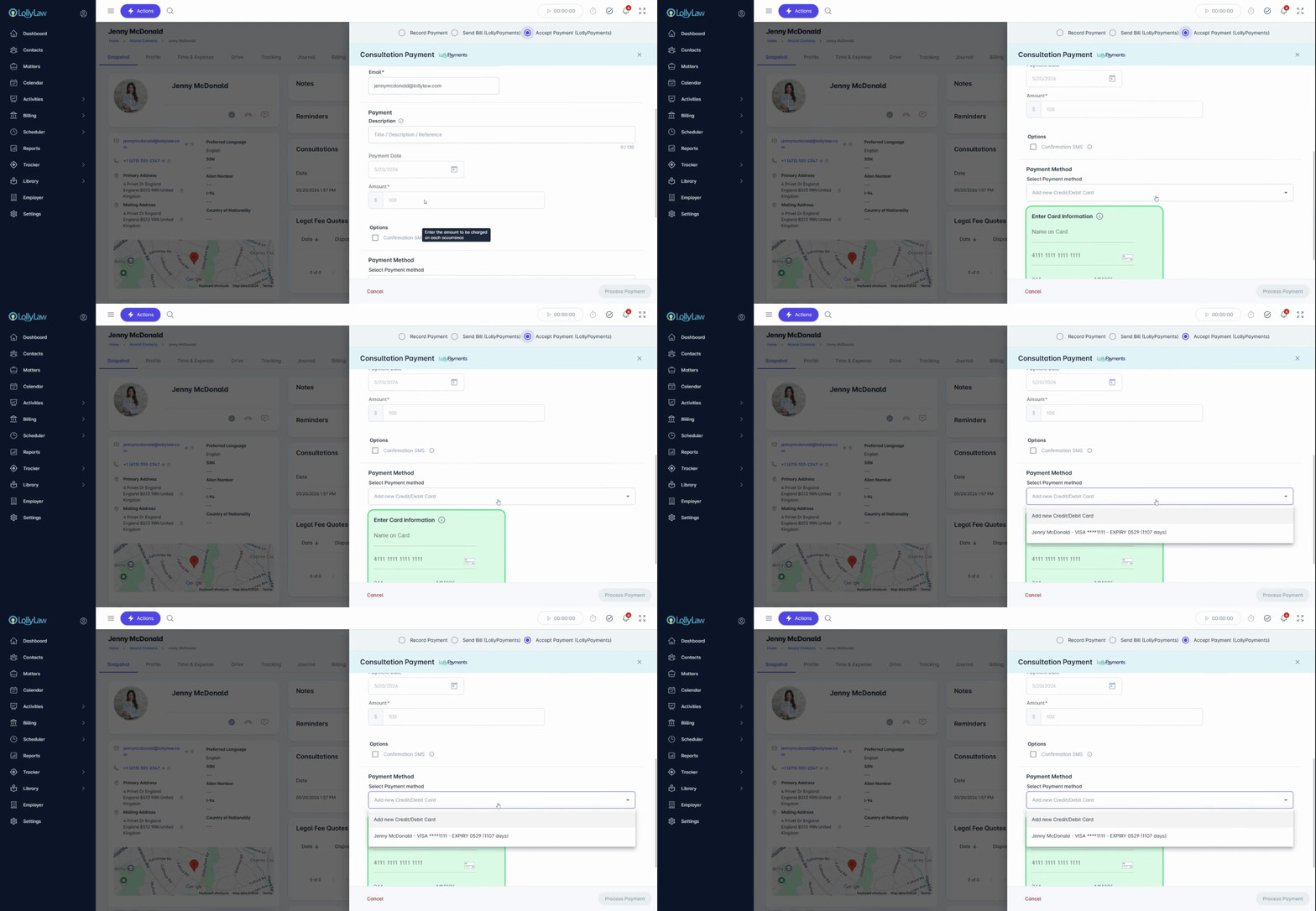
If the client has previously paid through LollyPayments, their saved payment method will appear automatically. Otherwise, you can securely add a new card or bank account.
Step 5: Process Payment
Once payment information is entered, click Process Payment to process the transaction for the consultation entry.
You will receive a confirmation notification, and the consultation entry will automatically show that payment was collected.
Step 6: Review Transaction
To review the completed transaction, go to Billing, then the Transaction tab, and select the appropriate bank account.
Collecting consultation fees with LollyPayments is quick and helps create a smoother intake experience for your staff and clients.