

Accessing your firm’s contacts in LollyLaw is quick and simple.
While navigating to the Contacts tab in LollyLaw provides a simple way to view all of your firm’s contacts, it may not always provide the most efficient way to quickly bring up the specific contact you need. This said, the search feature in LollyLaw is often the preferred method of bringing up the specific contact you are looking for.
The search feature is accessible via the Contact search field that exists in just about all actions under the Action button, as well as via LollyLaw’s top navigation bar.
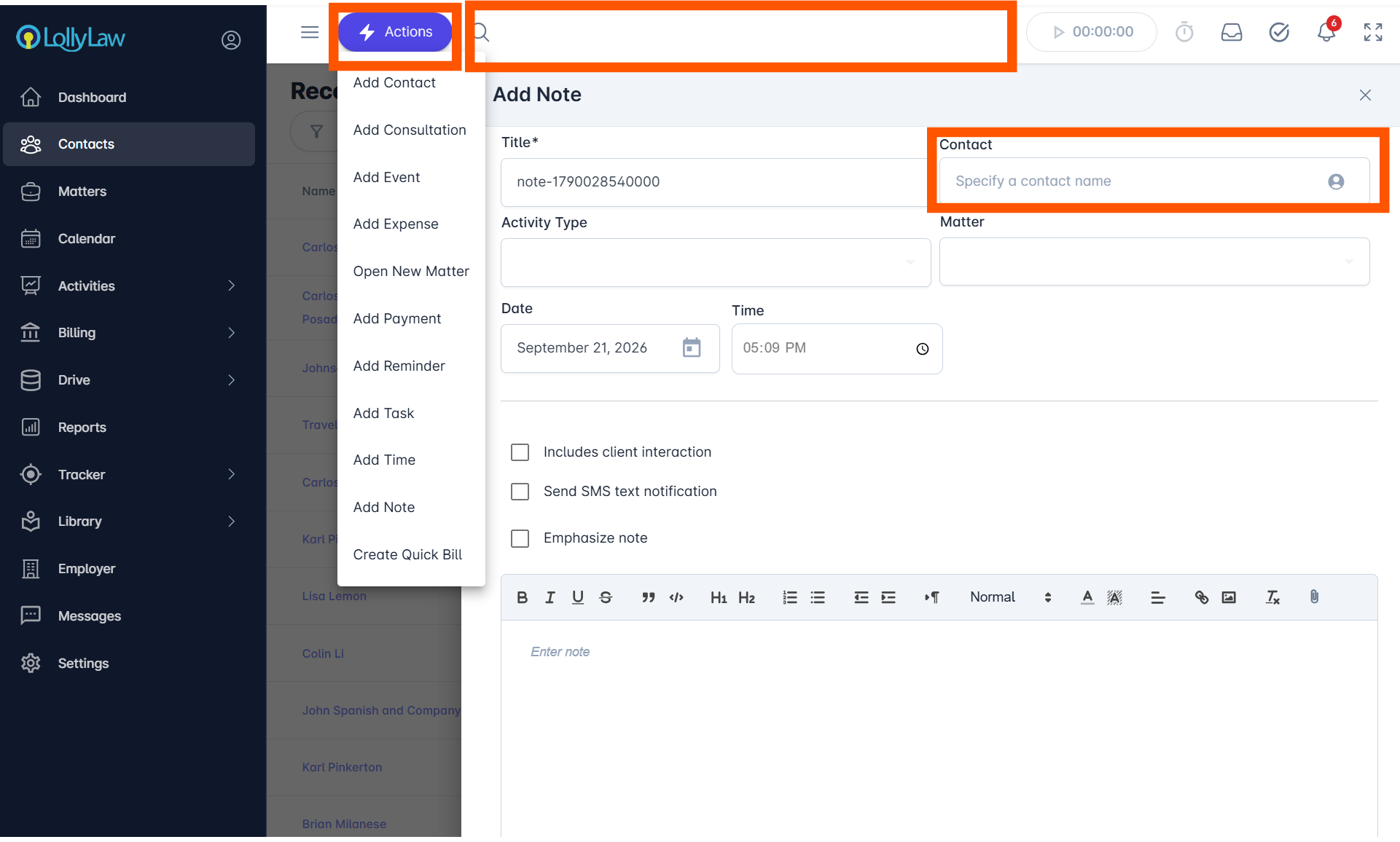
Using the Search Feature for Contacts
As discussed, the search feature can save lots of time when looking to access contact records, but to avoid selecting the wrong person, particularly when there can be people of similar names, let's take a look at how the search feature works.
You can search for a Contact record by any of the following parameters:
First name
Fast name
Email
Alien number (###-###-###)
Phone Number (primary)
Custom Search Tag
When typing in the search field, the search will initiate after the 3rd character you type. As you continue to type in the name, the search will narrow further and show you possible matches. If you have entered the first name you can continue to enter their last name and get matching results.
Results are displayed as a list of records below the search field. The matches display the Contact's full name, date of birth (MM/DD/YYYY) and alien number, if previously entered.
Clicking on the desired Contact from the search results will set that value into the field.
If you would like to learn more about using the Advanced Search feature, check out our help article on the topic.