

This guide explains how to process a one-time or partial payment on an invoice using LollyPayments. This workflow is useful for collecting retainers, installment payments, or partial balances during an active matter. Let's look at the steps:
Step 1: Open Matter Record and Go to Billing
Open the relevant matter record. Navigate to the Billing tab and then select Invoice and Trust Requests.
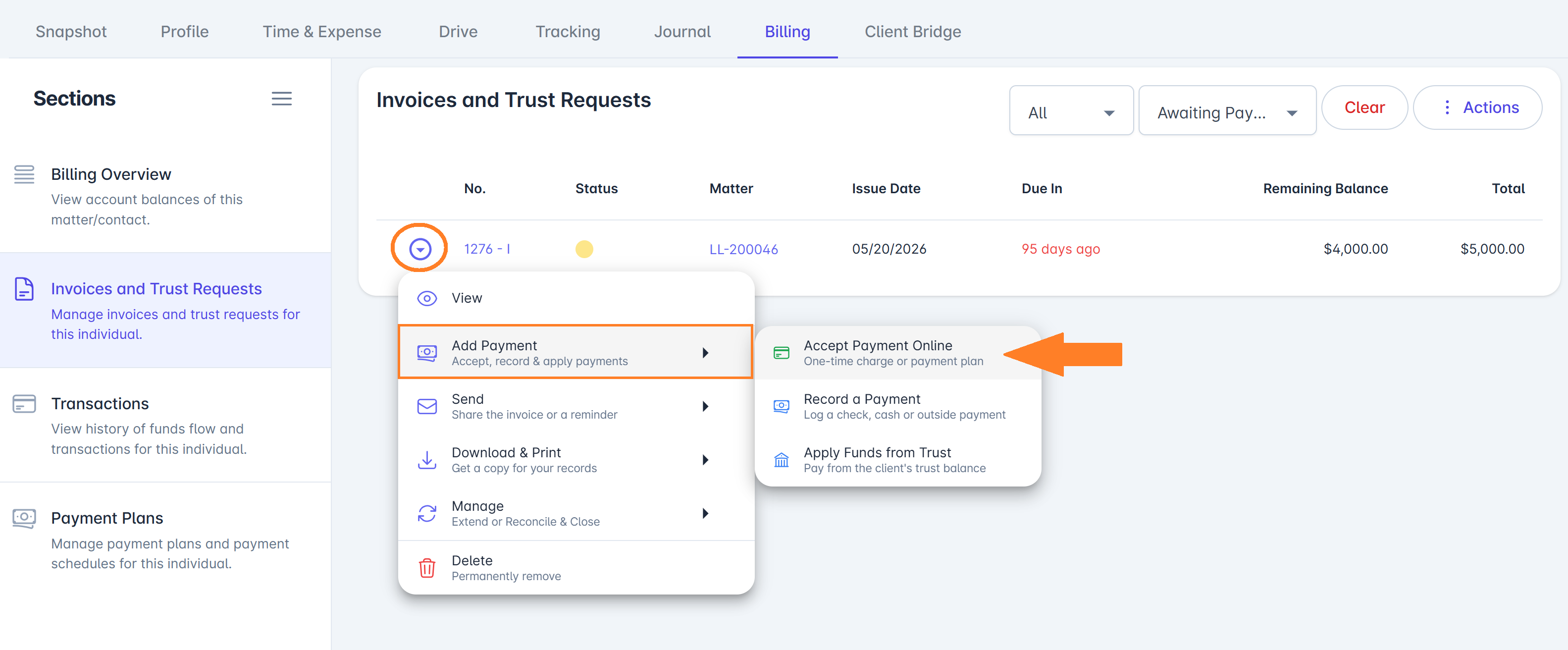
Step 2: Locate Invoice and Accept Payment Online
Find the invoice you want to process. Click the action menu and select Add Payment > Accept Payment Online.
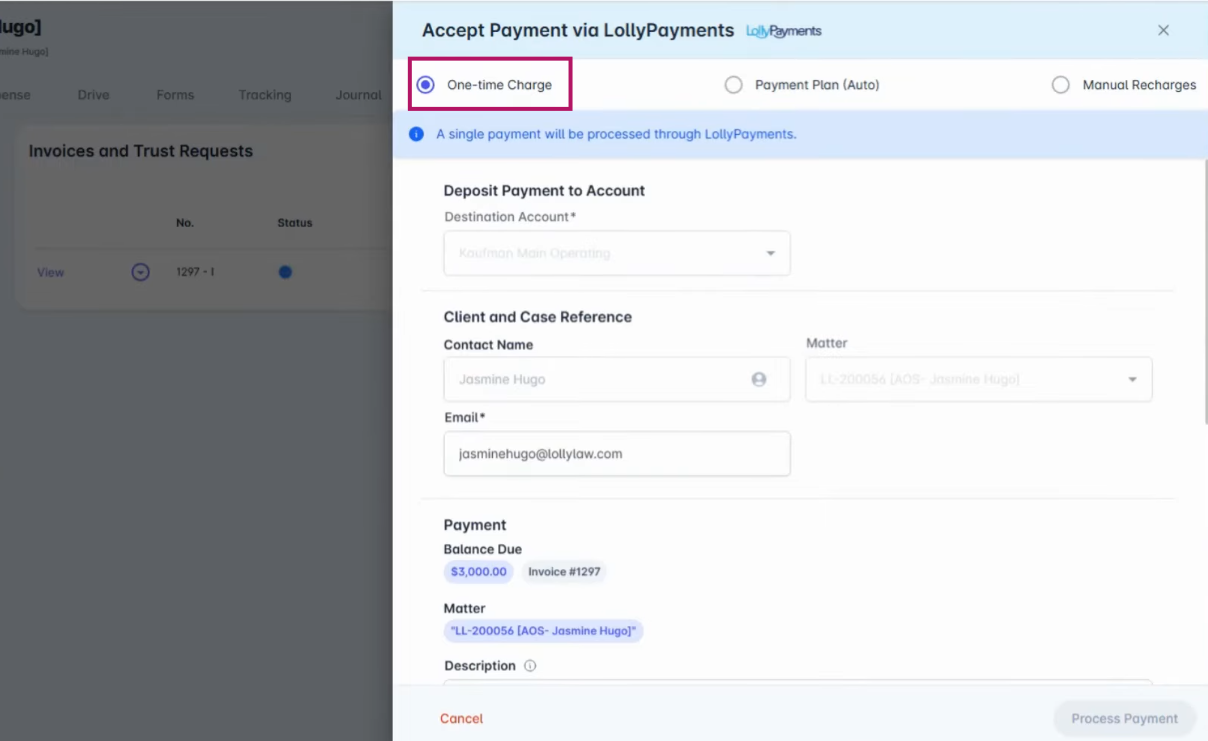
Step 3: Choose One-Time Charge
Select One Time Charge to process either a partial payment or a single payment towards the invoice balance.
Step 4: Select Operating Account
Choose your operating account where the funds should be deposited.
Step 5: Enter Payment Description (Optional)
Optionally, enter a payment description for your records.
Step 6: Enter Payment Amount
Enter the payment amount. For example, you can select a partial payment such as $1,000.
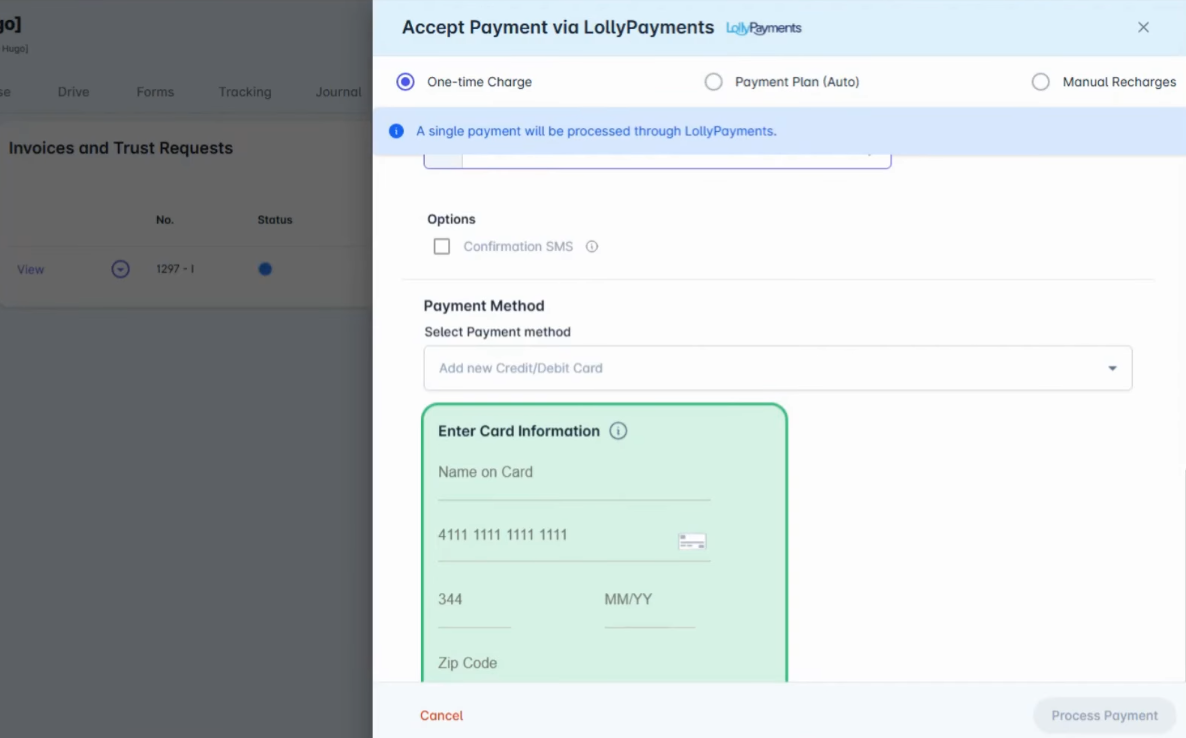
Step 7: Enter Client Payment Method
Below the amount, select the payment method. If your client has previously used LollyPayments, their saved payment method will appear automatically. Otherwise, securely add a new card.
Step 8: Save and Process Payment
Once all information is correct, save and process the payment. A confirmation notification will appear once the payment is successfully completed.
Step 9: Review the Transaction
To review the transaction, navigate from the Billing tab to the Transactions tab. Select the appropriate bank account to review the payment record.
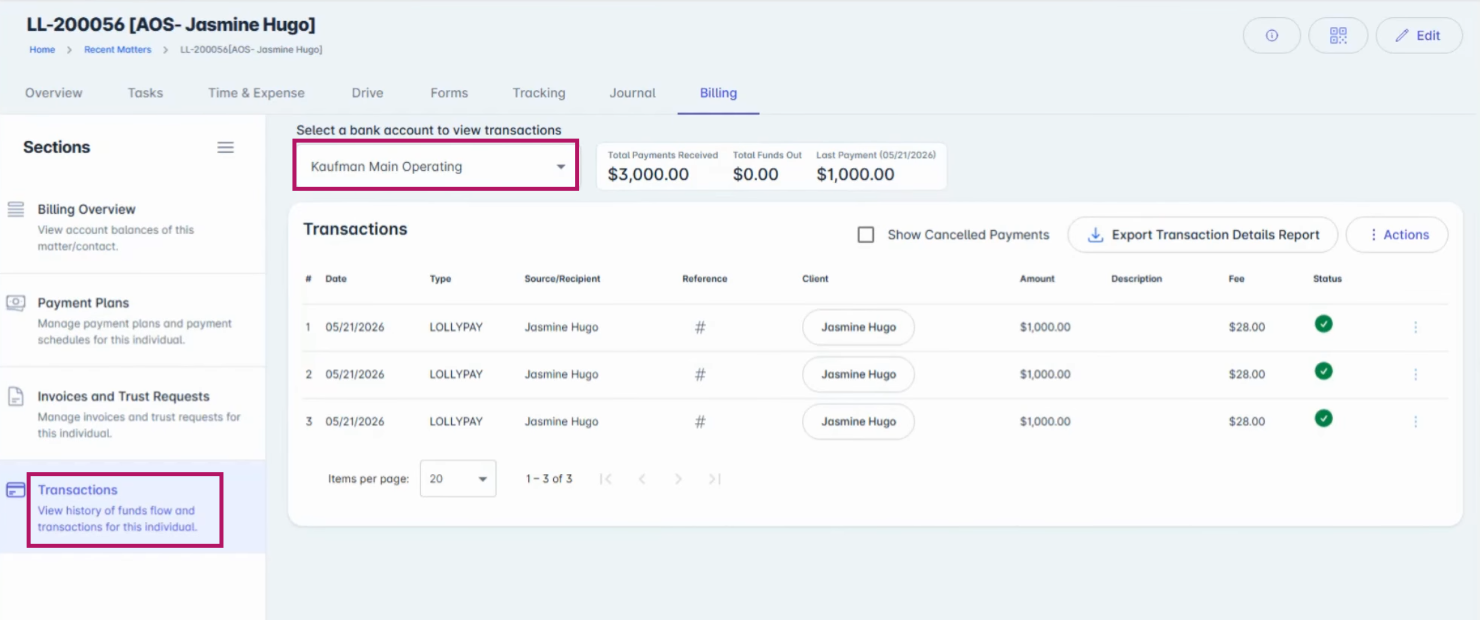
LollyPayments allows firms to quickly collect one-time payments without leaving the matter workflow.