

Tags in LollyLaw are custom labels that your firm can use to associate specific attributes with your contacts and matters. These can include a marketing source, contact or case classification, file ID, Receipt Number, or anything you’d like. While tags are completely optional, they can provide a useful means for filtering or even searching for specific contact and matter records.
Setting Custom Tags for Matters
There are two methods to add a custom search tag to an existing matter:
Option 1: Use the Matter Menu
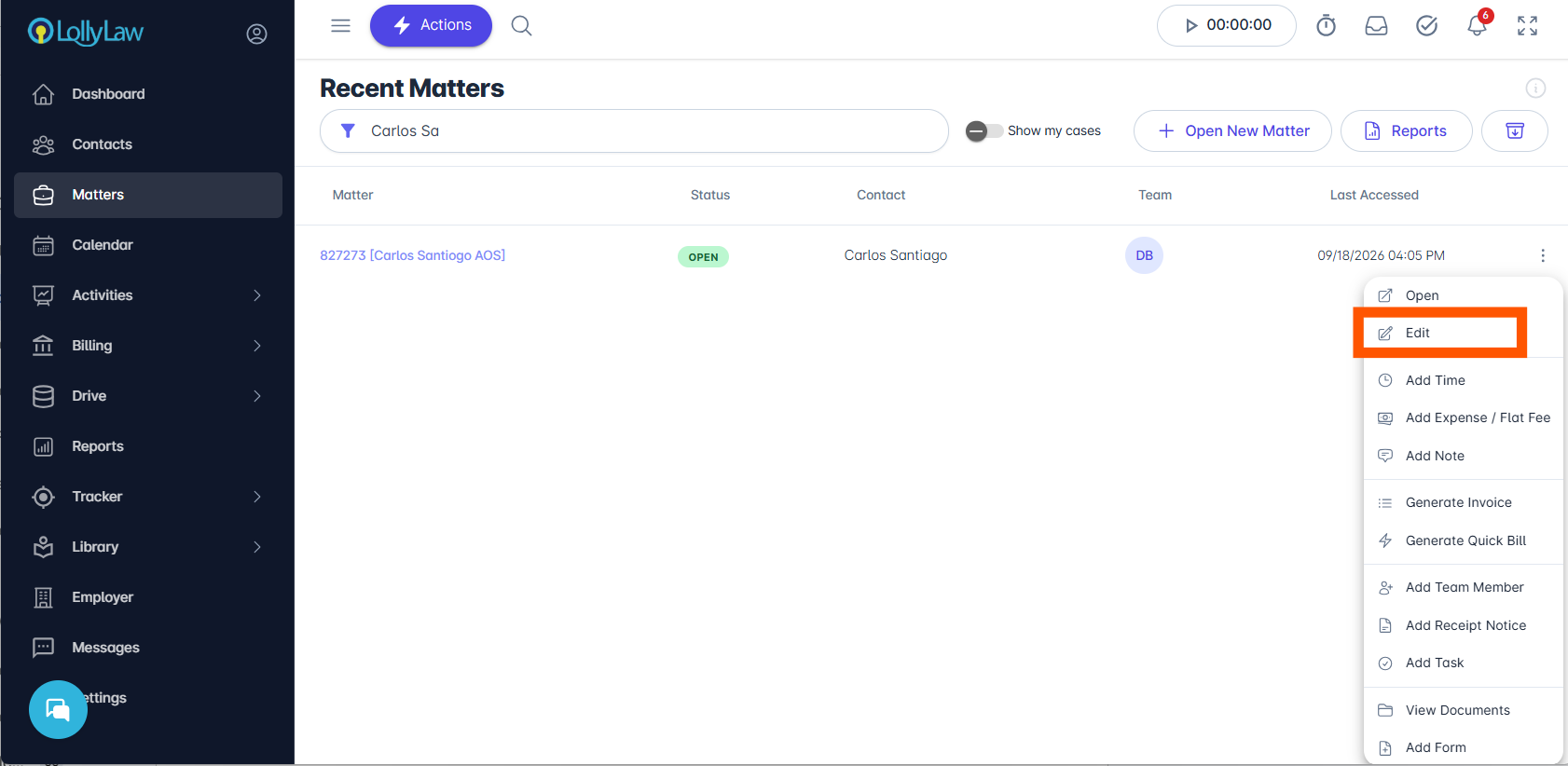
Find the matter you’ll be editing in the Matters tab. You can use the Recent Matters search bar to filter for the matter if needed. Click on the more options icon to access the Contact Menu

Click Edit
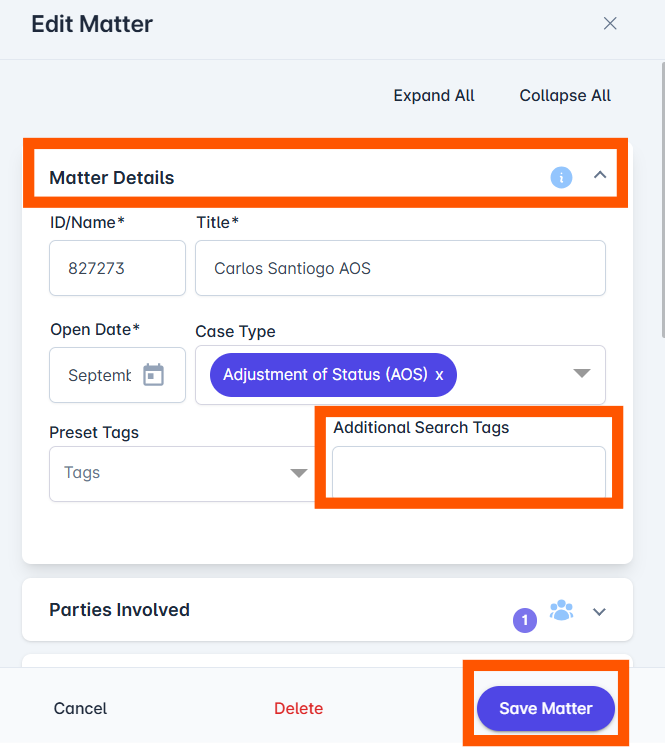
Expand the Edit Matters pane. Add the desired tag to the Additional Search Tags field, then click the Save Matter button
Option 2: Through Matter Overview tab
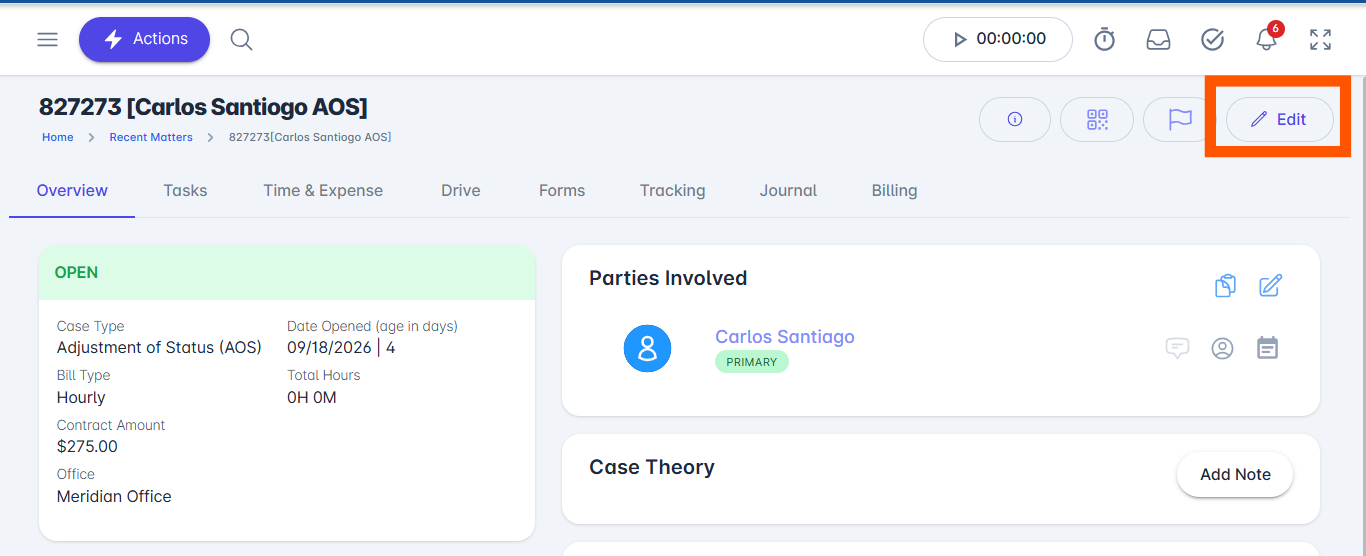
Find the matter you’ll be editing in the Matters tab. You can use the Recent Matters search bar to filter for them if needed. Click on the matter to open the record.
Click the "Edit" button in the top right corner.
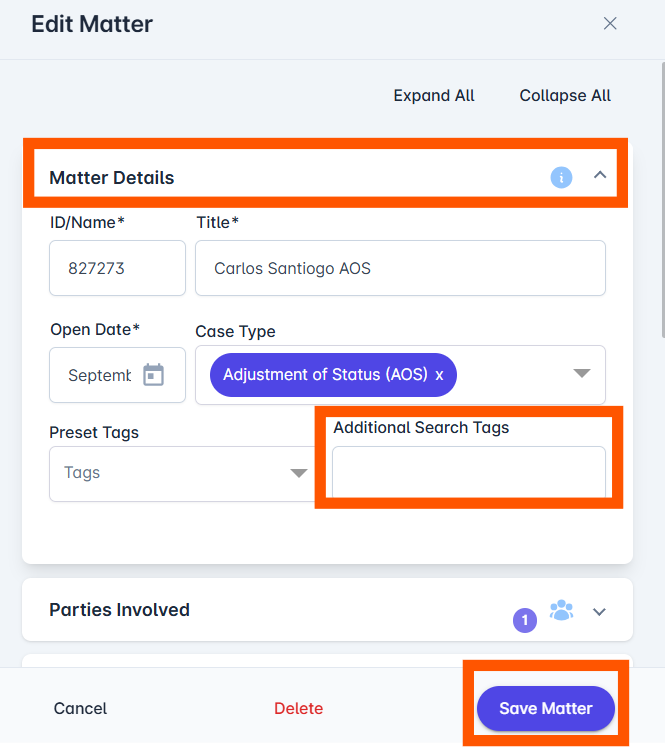
Expand the Edit Matters pane. Add the desired tag to the Additional Search Tags field, then click the Save Matter button.
If you would like to learn more about how to add Custom Tags while you’re creating a new matter, read our help article on Creating New Matters.
If you need additional assistance, contact our support team at support@lollylaw.com.