

A Matter record represents a case being handled by your firm. These records serve as a central hub for organizing related tasks, parties, documents, notes, billable time and expenses, invoices, and deadlines, ensuring streamlined case management in one platform.
You can create a matter at any time, then link it to consultations, documents, and forms as needed. All information saved to a matter record can be automatically populated in forms, questionnaires, documents, messages, and invoices.
This article will cover how to create new matter records in your LollyLaw account.
Opening a New Matter Record
To open a new Matter Record:
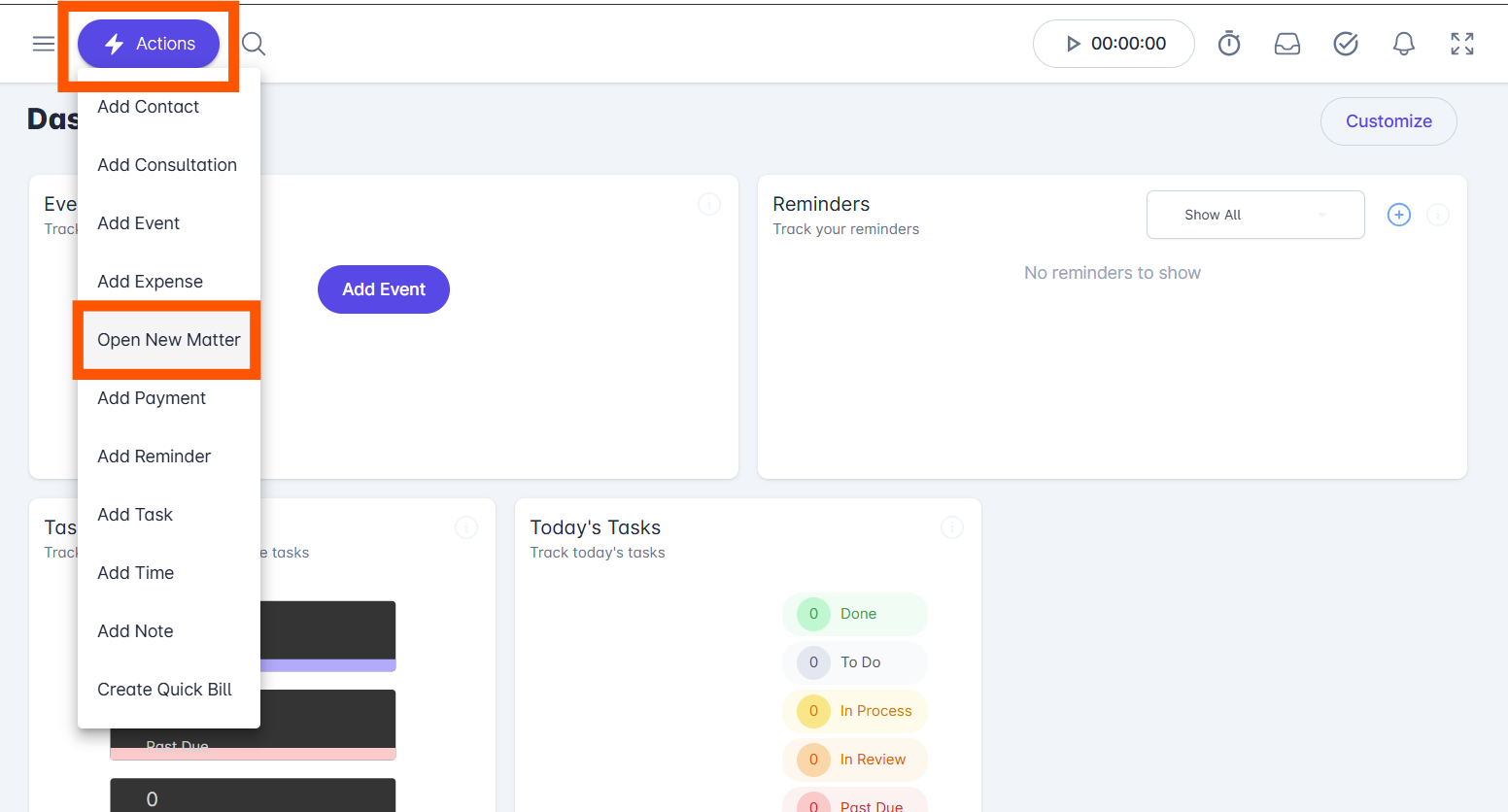
Select Actions at the top left of your screen and choose Open New Matter
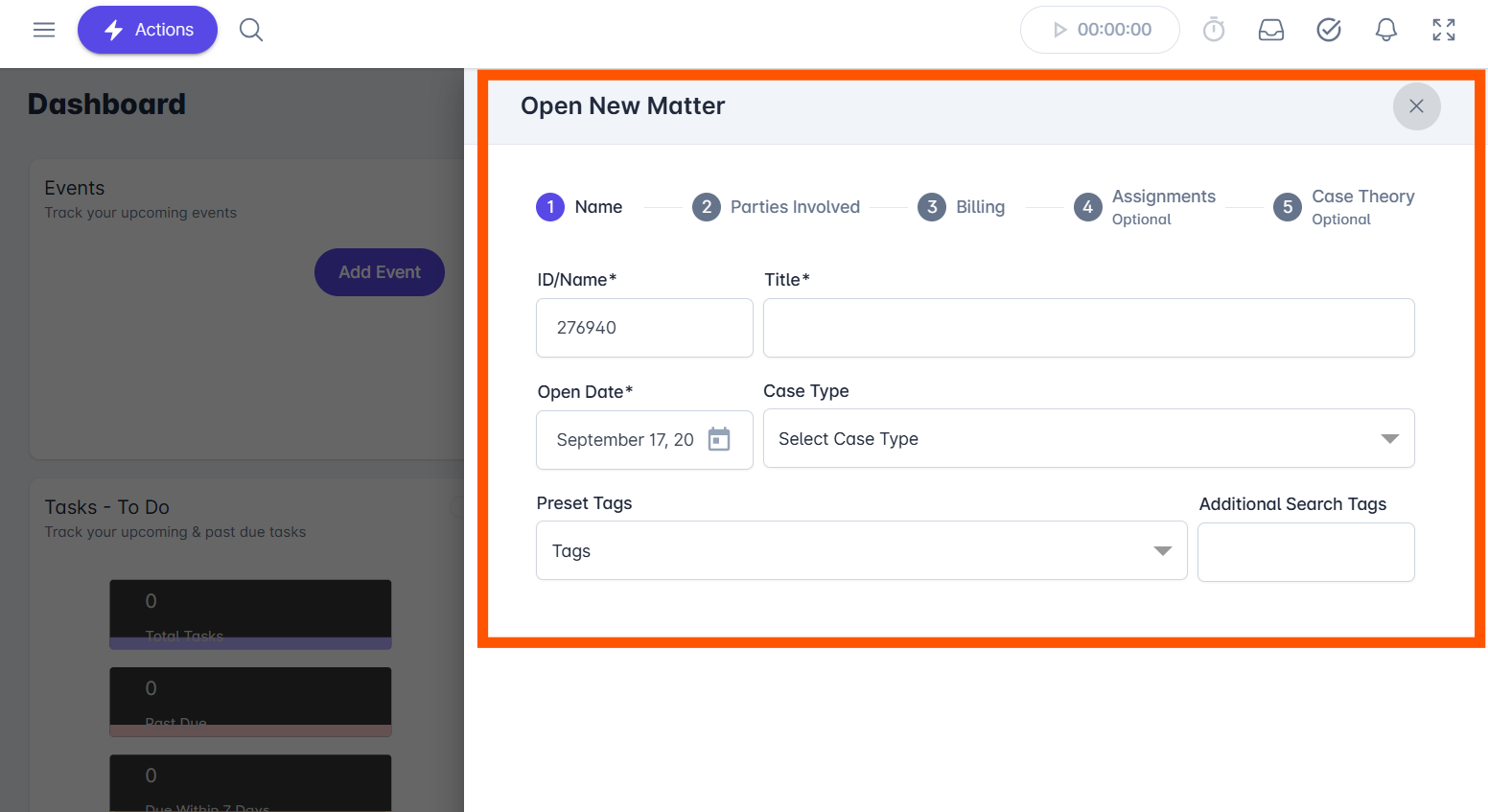
Fill in the Name Info fields for the New Matter. This includes ID/Name, Title, Open Date, Case Type, as well as any necessary Preset Tags and Additional Search Tags.
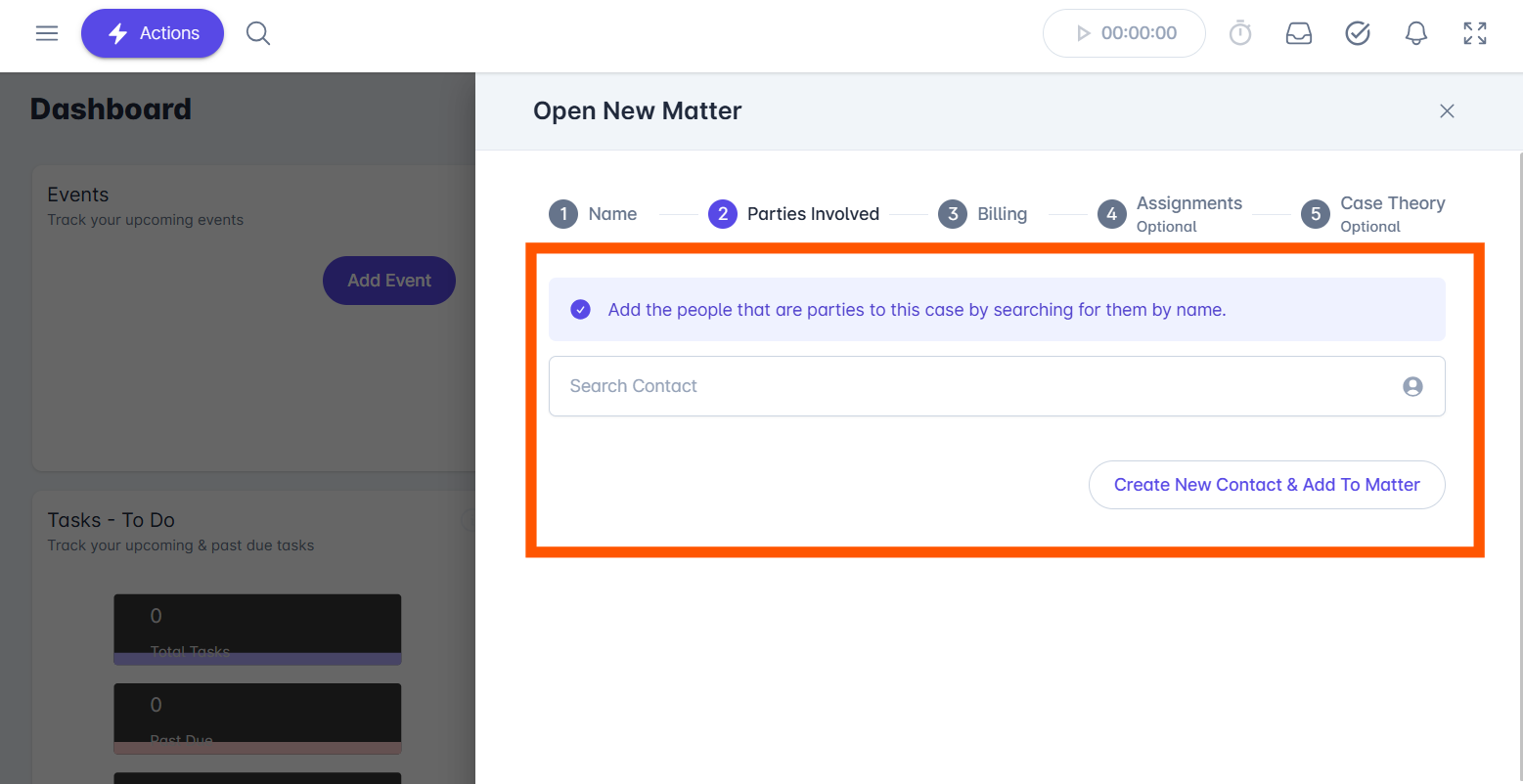
Click Next >> to Parties Involved to search and connect related existing Contacts to the New Matter.
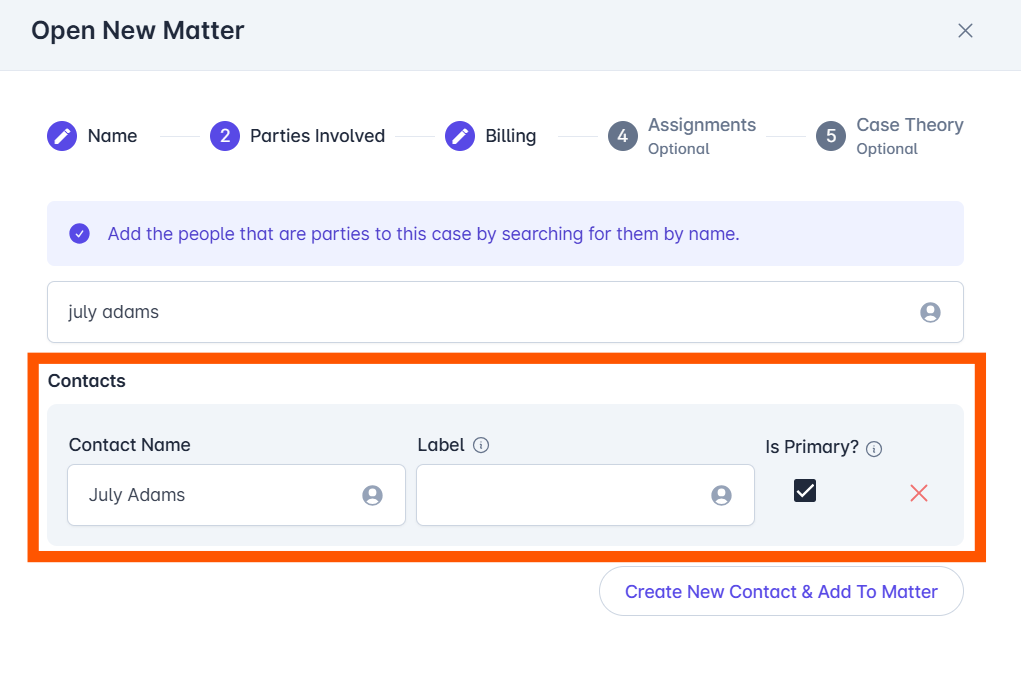
Select the related Contact Name, add a custom Label, and check/uncheck Is Primary if the Contact is the default for billing. If there are more parties involved, continue searching and selecting additional related Contacts and repeat the same steps.
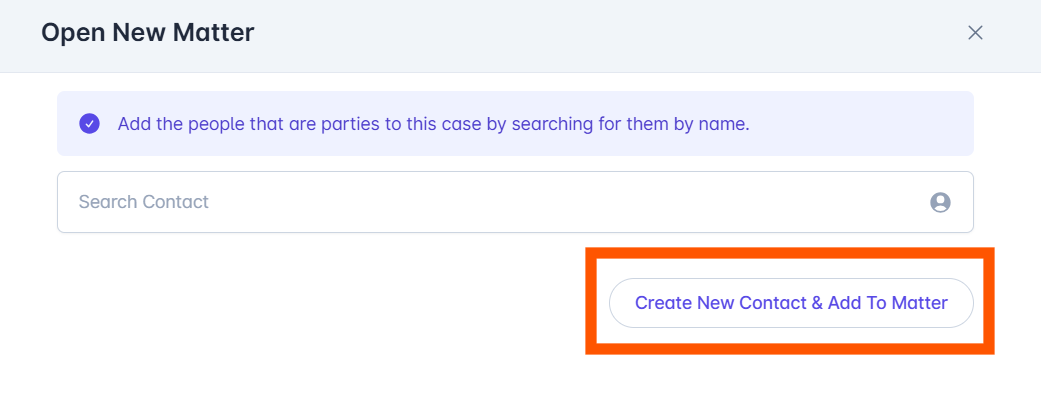
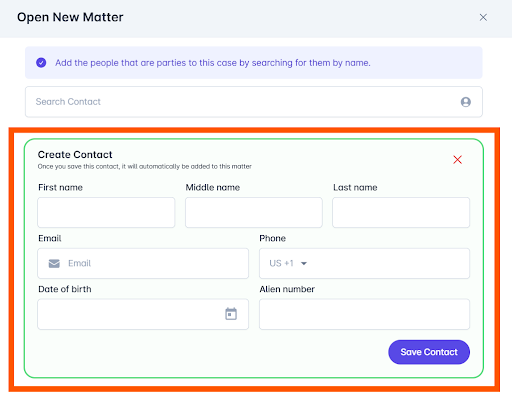
If there is no existing contact and you need to create a new contact, click Create New Contact & Add to Matter. A Create Contact window appears to fill in First Name, Middle Name, Last Name, Email, Phone, Date of Birth, and Alien Number. Click Save Contact.
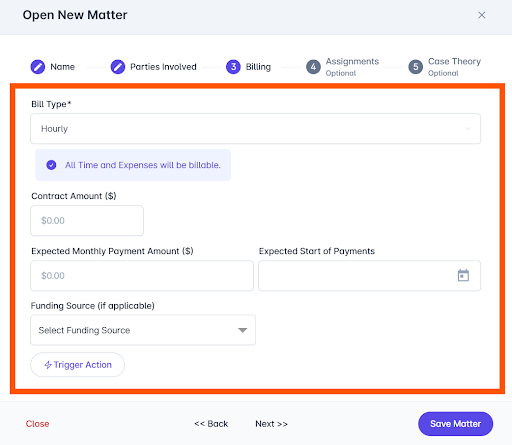
Click Next >> to fill out the Billing details for the Matter. This includes Bill Type, Contract Amount, Expected Monthly Payment Amount, Expected Start of Payments, Destination Bank Account, and Funding Source if applicable.
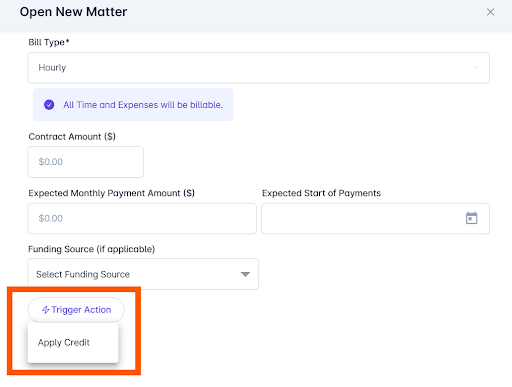
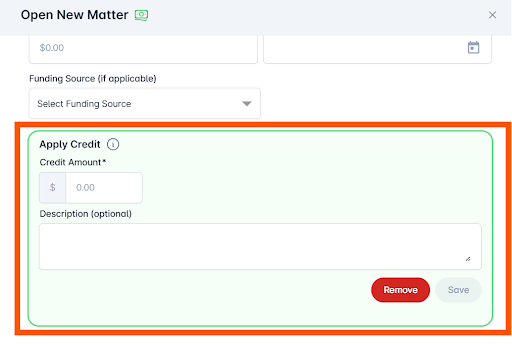
If there are billing credits to apply, click Trigger Action, then Apply Credits. An Apply Credit window appears to fill in Credit Amount and an optional Description.
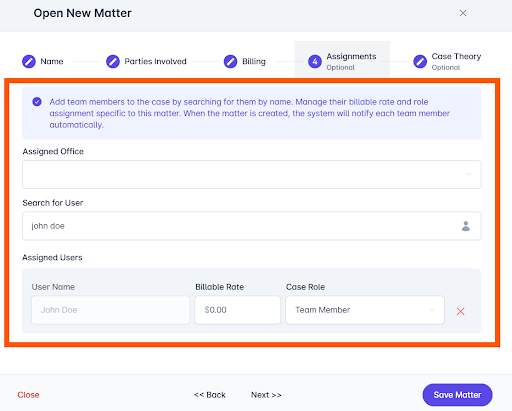
Click Next >> to fill out the Assignments for the matter. This includes Assigned Office, Search for User, User Name, Billable Rate, and Case Role. If there are more assignments involved, continue searching and selecting additional Assigned Users and repeat the same steps.
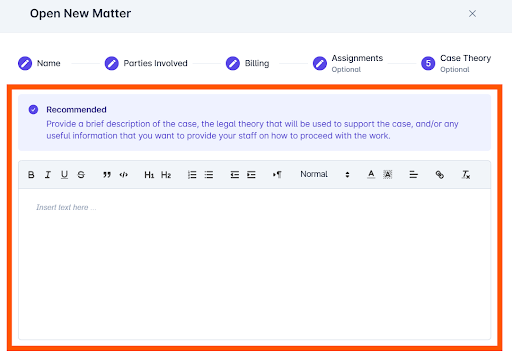
Click Next >> to fill out the Case Theory description of the matter.
Click the Save Matter button once finished.
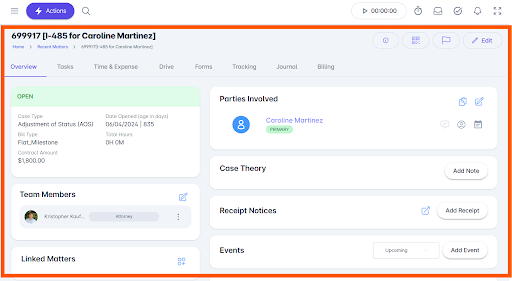
You will automatically be taken to the Matter snapshot page, where you can view and edit the Matter details. From here, you can continue building out the matter profile by adding tasks, time and expense, documents, forms, deadlines, notes, and billing.
Note: You can return to this Matter record at any time by using the Search bar in the Matters area.
If you need additional assistance, contact our support team at support@lollylaw.com.