

Each contact and matter in LollyLaw includes a dedicated document storage folder in LollyDrive. This folder is created automatically and can be accessed from the Drive tab within the contact or matter record. Any files related to that record can be stored here for easy access and organization.
How to Upload Documents
LollyDrive offers a few different ways to upload files or folders, depending on your workflow.
Method 1: Drag and Drop
This is the quickest way to upload files or folders.
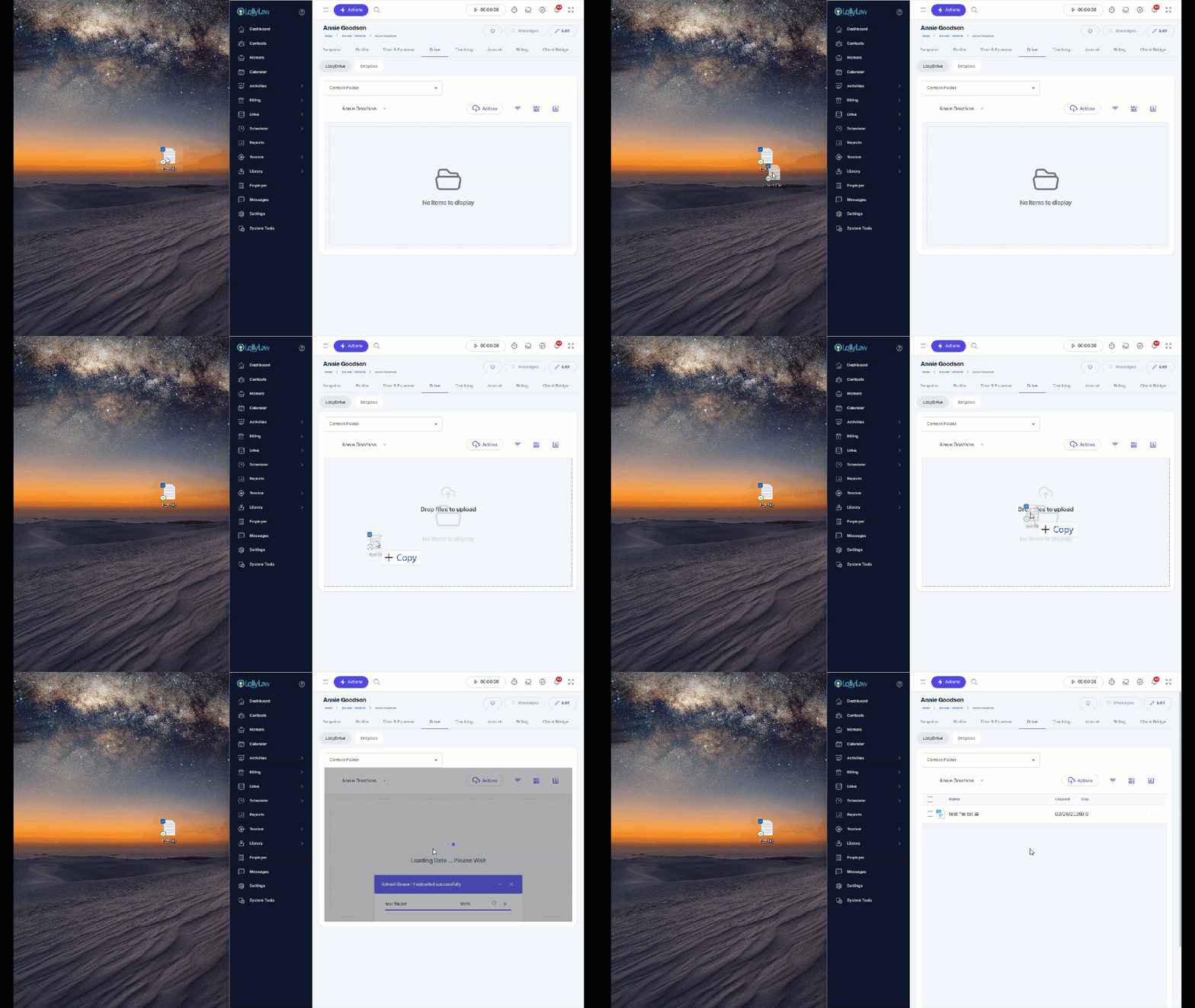
Navigate to the Drive tab within a contact or matter.
Locate the file or folder on your computer.
Drag and drop it into the main area of the Drive screen.
The upload will begin automatically. If you upload a folder, its structure will be preserved in LollyDrive.
Method 2: Upload from Actions Menu
Use this option if you prefer to browse for a file or folder.
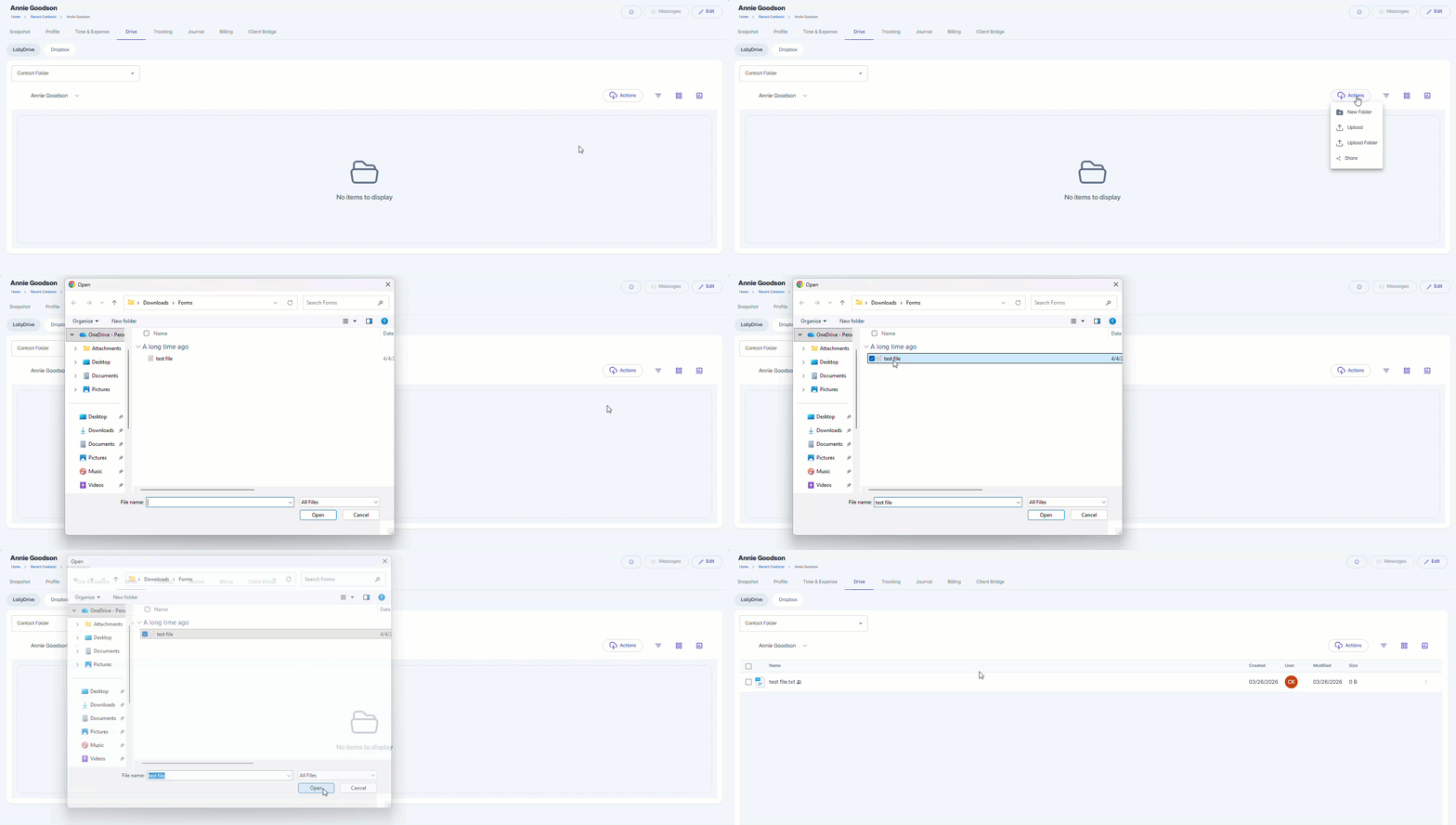
Navigate to the Drive tab within a contact or matter.
Click Actions > Upload (for files) or Actions > Upload Folder.
In the selection window, locate the file or folder on your computer.
Double-click the file or folder, or click Open to upload.
Method 3: Upload via Explorer
This method is helpful if you want to upload directly into a specific folder.
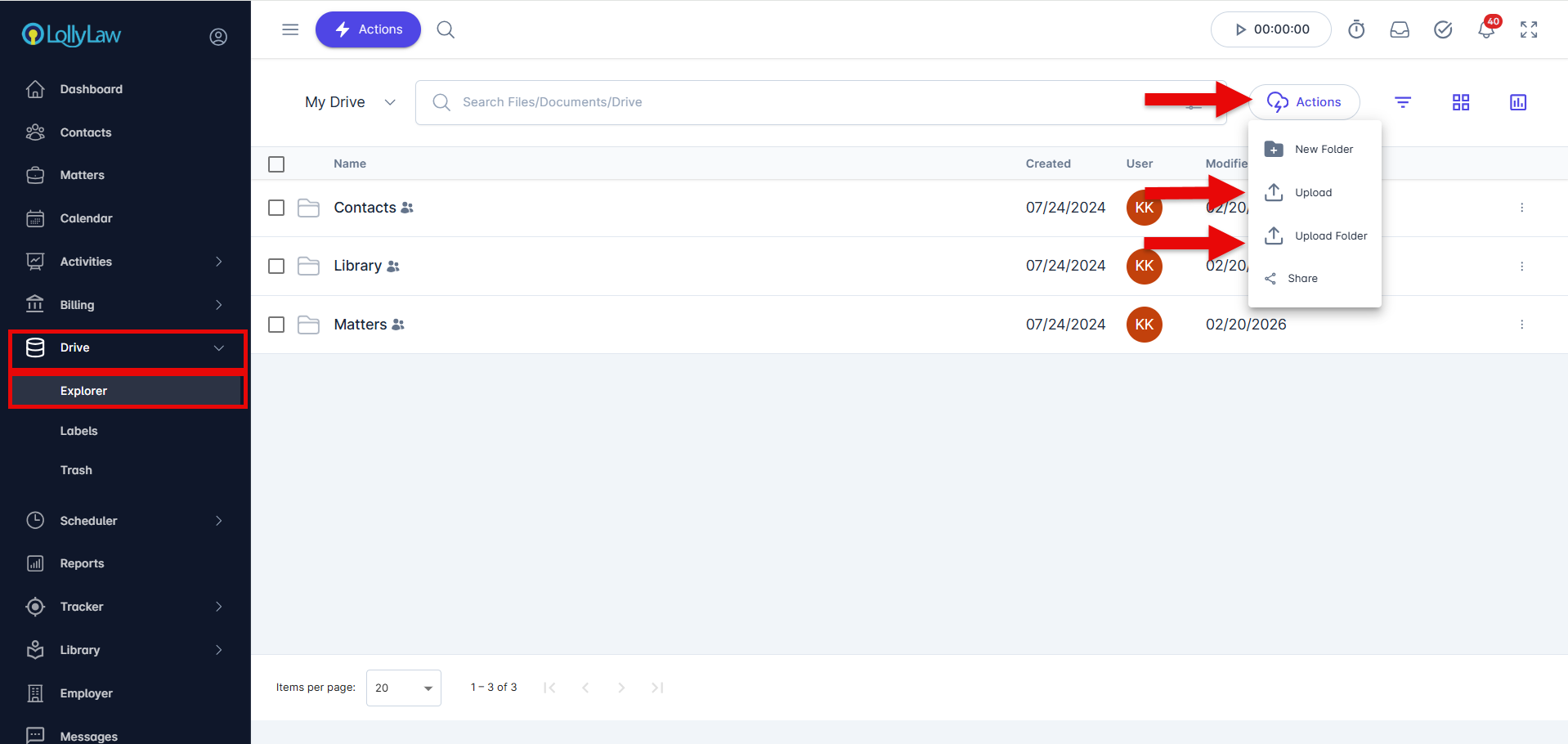
From the Drive tab on the lefthand menu, click Explorer.
Use the search bar to find the folder where you want to upload content.
Once you’ve opened the folder, either:
Click Actions > Upload or Upload Folder, or
Drag and drop your file or folder into the page