

LollyDrive automatically creates a dedicated folder for every new contact or matter record in LollyLaw. These folders make it easy to store, organize, and locate documents related to a specific client or case. You can access these folders from the Drive tab within the contact or matter record or by searching in Drive > Explorer.
Create Subfolders for Contacts or Matters
Subfolders help organize documents within a contact or matter folder, keeping related files grouped together.
To create a subfolder:
Locate the contact or matter folder where you want the subfolder.
Click Actions > New Folder.
Enter a name in the Folder Name field.
(Optional) Add a description to provide additional context.
Click Create.
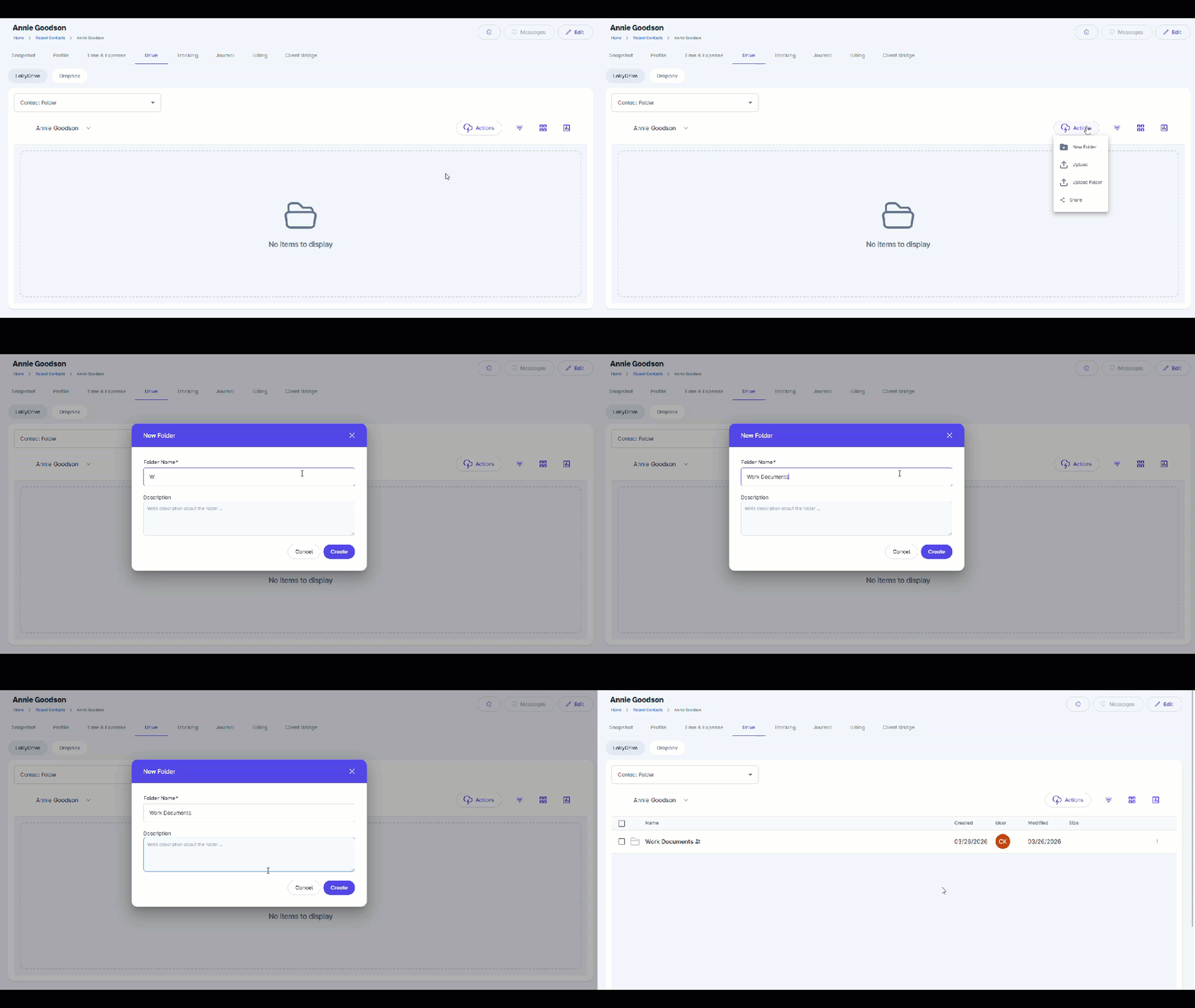
The new subfolder will appear inside the main contact or matter folder, making it easier to organize files for that client or case.
Create Standalone Folders
LollyDrive also allows you to create folders that aren’t tied to a specific contact or matter. These can be used for general documents your team needs to store and manage, such as:
Firm templates or forms
Reference materials
Policy or compliance documents
To create a standalone folder:
Navigate to Drive > Explorer.
Click Actions > New Folder.
Name the folder and optionally add a description.
Click Create.
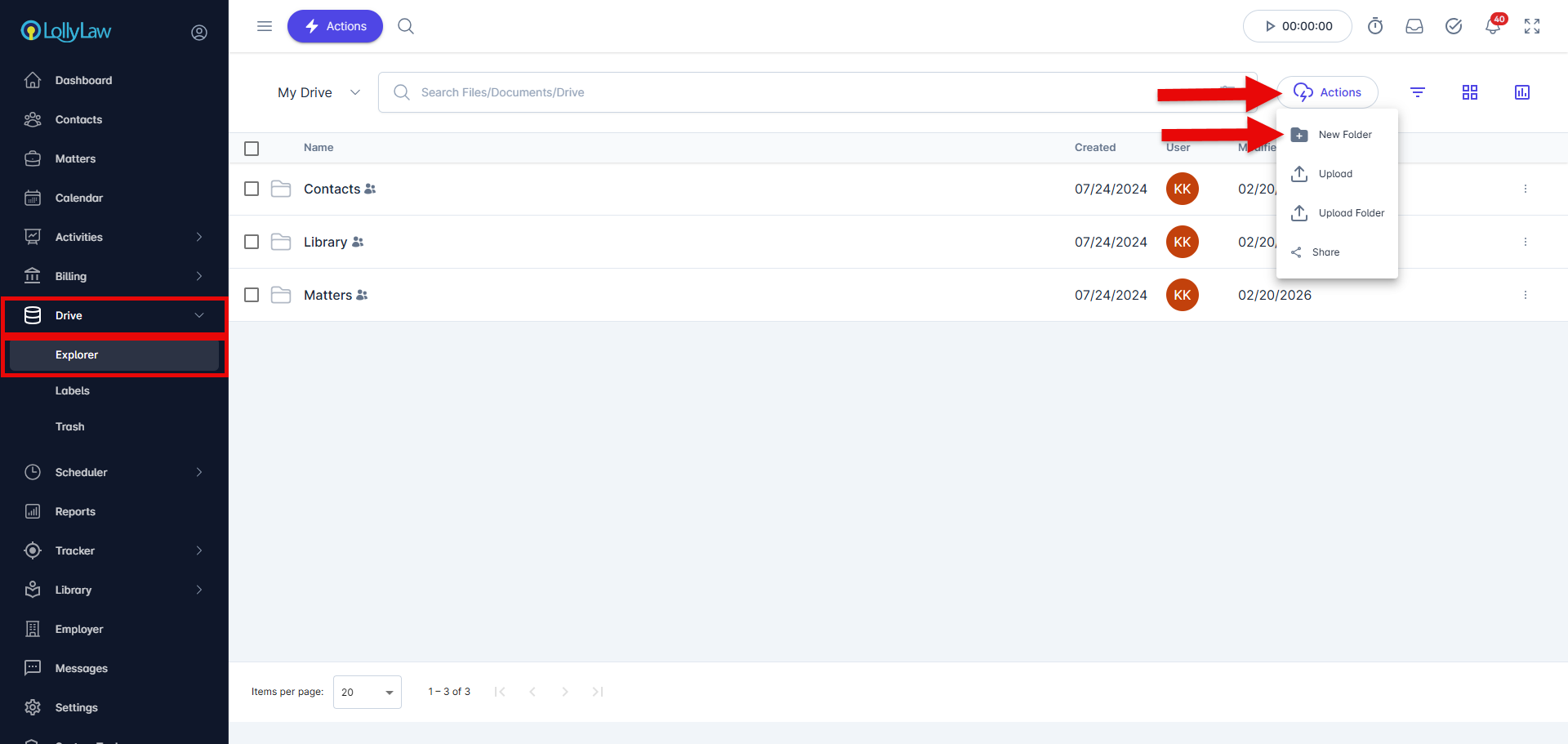
This folder functions independently, allowing you to upload, organize, and manage files without linking them to a specific client or case.