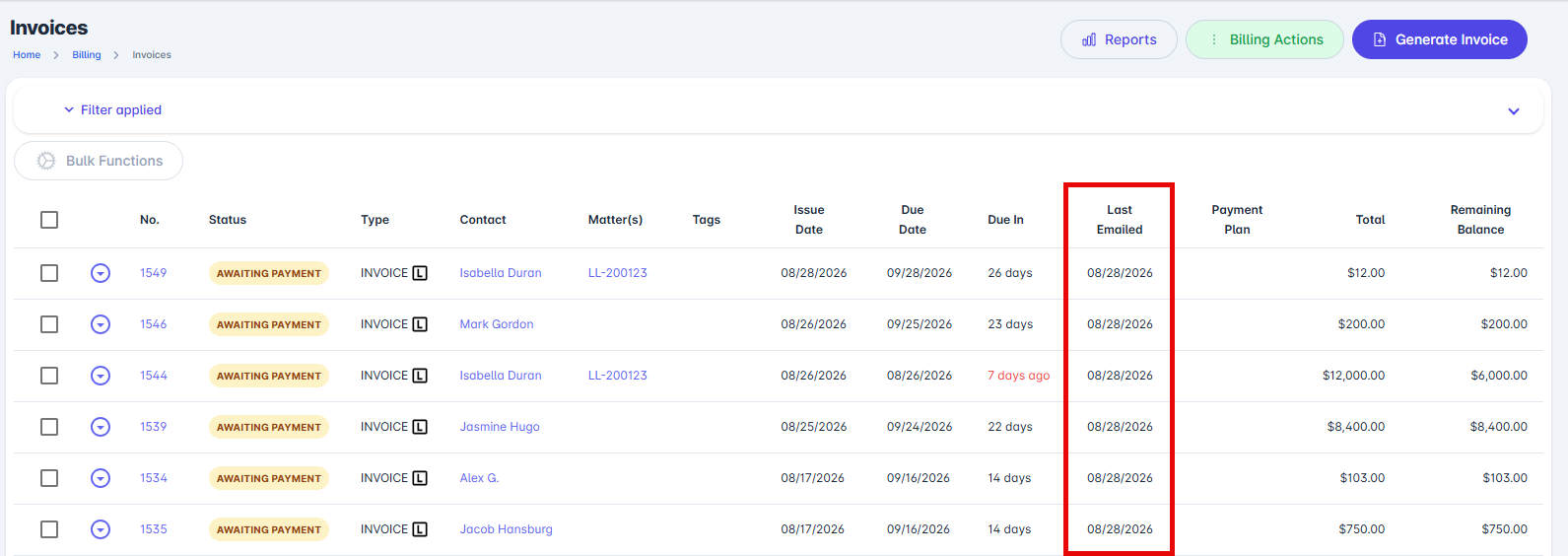

LollyLaw’s bulk invoice functions allow your team to send invoices to multiple clients at once using a single workflow. This makes it easy to share invoices with clients by email and track when each invoice was most recently sent.
How to Send Invoices in Bulk:
Navigate to Billing > Invoices.
Select Filter to narrow down the invoices you want to send. You can filter invoices by criteria such as due date, issue date, the date the invoice was last emailed to the client, and more
Use the checkboxes on the left side of the table to select the invoices you want to send. You can also use the checkbox at the top of the table to select all invoices on the current page.
Note: Up to 200 invoice emails can be sent at one time.
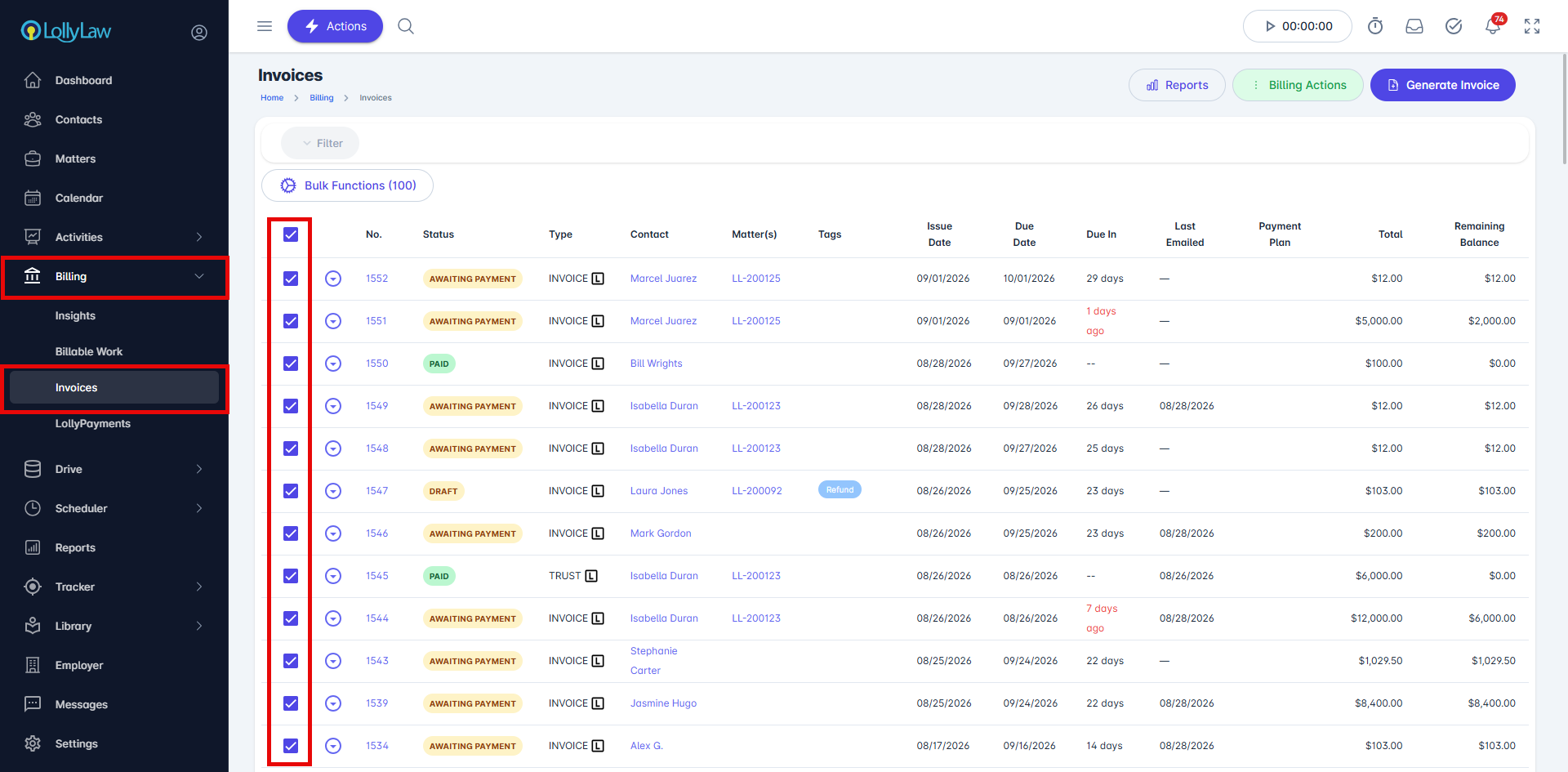
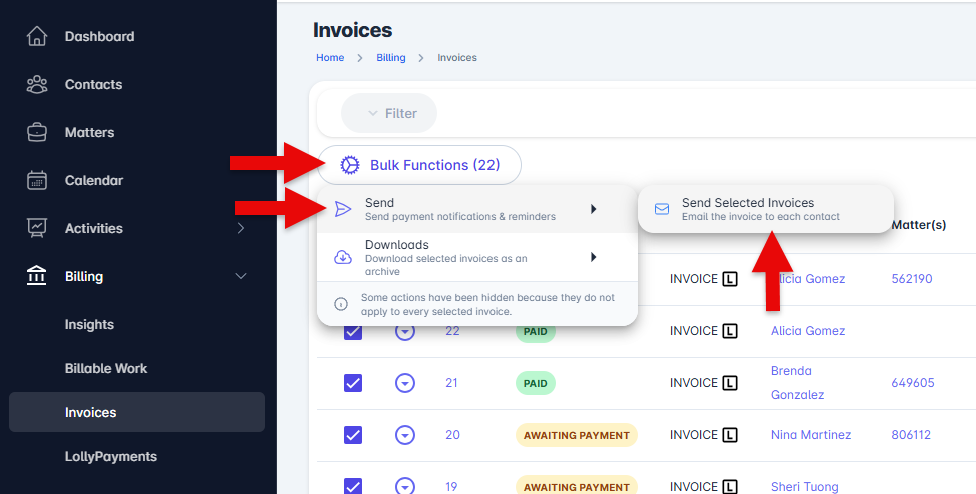
Once you have selected the desired invoices, select Bulk Functions > Send > Send Selected Invoices.
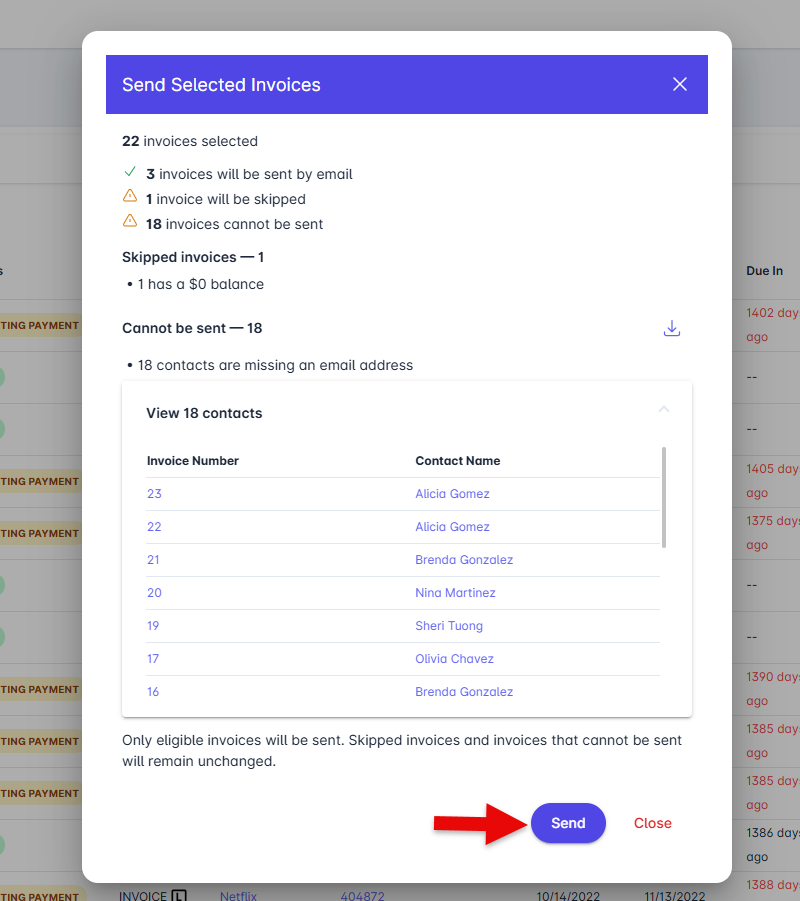
The Send Selected Invoices screen will display a summary of the invoices that are eligible to be sent.
Invoices will be skipped if:The invoice has a $0.00 outstanding balance.
The invoice has already been sent to the client that same day.
The client associated with the invoice does not have an email address on file.
If any clients are missing email addresses, they will be displayed on this screen. Select Download List to download a list of these contacts so your team can identify which clients need an email address added.
Review the invoices that will be sent, then select Send.
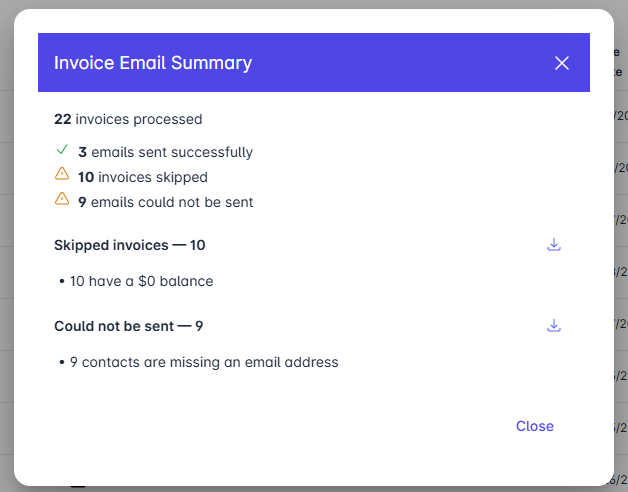
Once the invoices have been processed, the Invoice Email Summary screen will display details about which invoices were sent. If your account has LollyPayments enabled, clients will receive a link in the invoice email, allowing them to make a payment online.
The Last Emailed column in the Billing > Invoices report will also be updated for invoices that were successfully sent. This allows your team to quickly see when each invoice was most recently emailed to the client.