

The Invoice Fee (%) option gives your firm a flexible way to add a percentage-based fee to an invoice. You can enter the percentage you want to charge and customize the fee description to clearly identify the additional charge on the invoice.
This can be useful when your firm needs to apply a custom percentage-based fee that is not included in the standard invoice charges.
Add an Invoice Fee (%) When Generating an Invoice from a Matter
You can add a custom percentage fee during the standard invoice generation process from a matter.
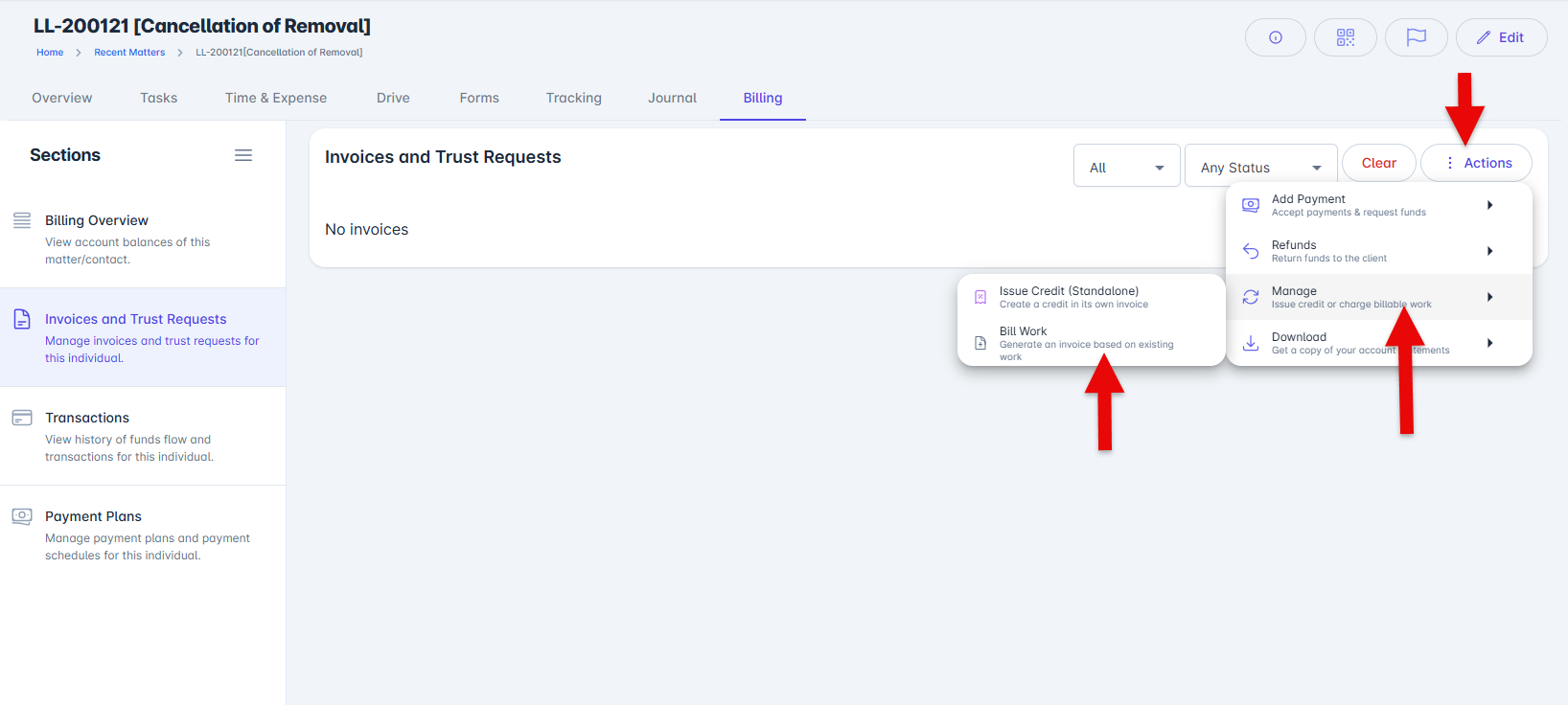
From a matter, navigate to Billing > Invoices and Trust Requests.
Select ⋮ Actions > Manage > Bill Work to begin generating an invoice.
Select the time entries and expenses you want to include on the invoice.
Select Confirm Selection.
To add a custom percentage fee, enter the percentage you want to charge in the Invoice Fee (%) field. Then, enter a description for the fee in the Fee Description field.
Select Generate Bill.
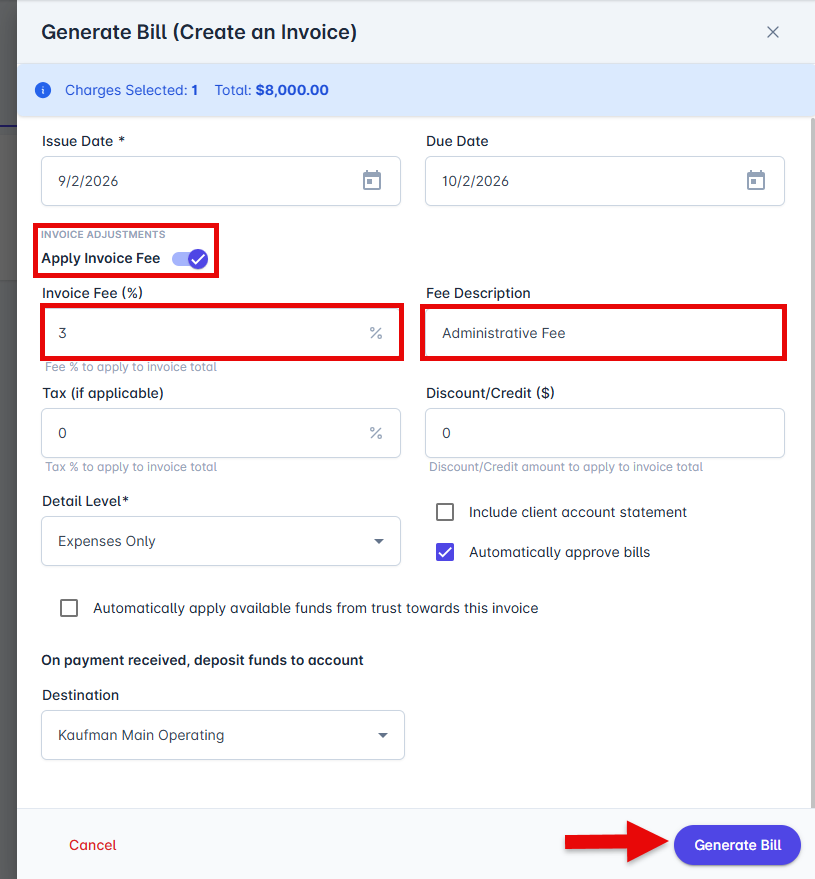
The generated invoice will include the selected time entries and expenses, along with the additional percentage-based fee.
Add an Invoice Fee (%) from the Billing Section
You can also add a custom percentage fee when generating invoices from Billing > Billable Work.
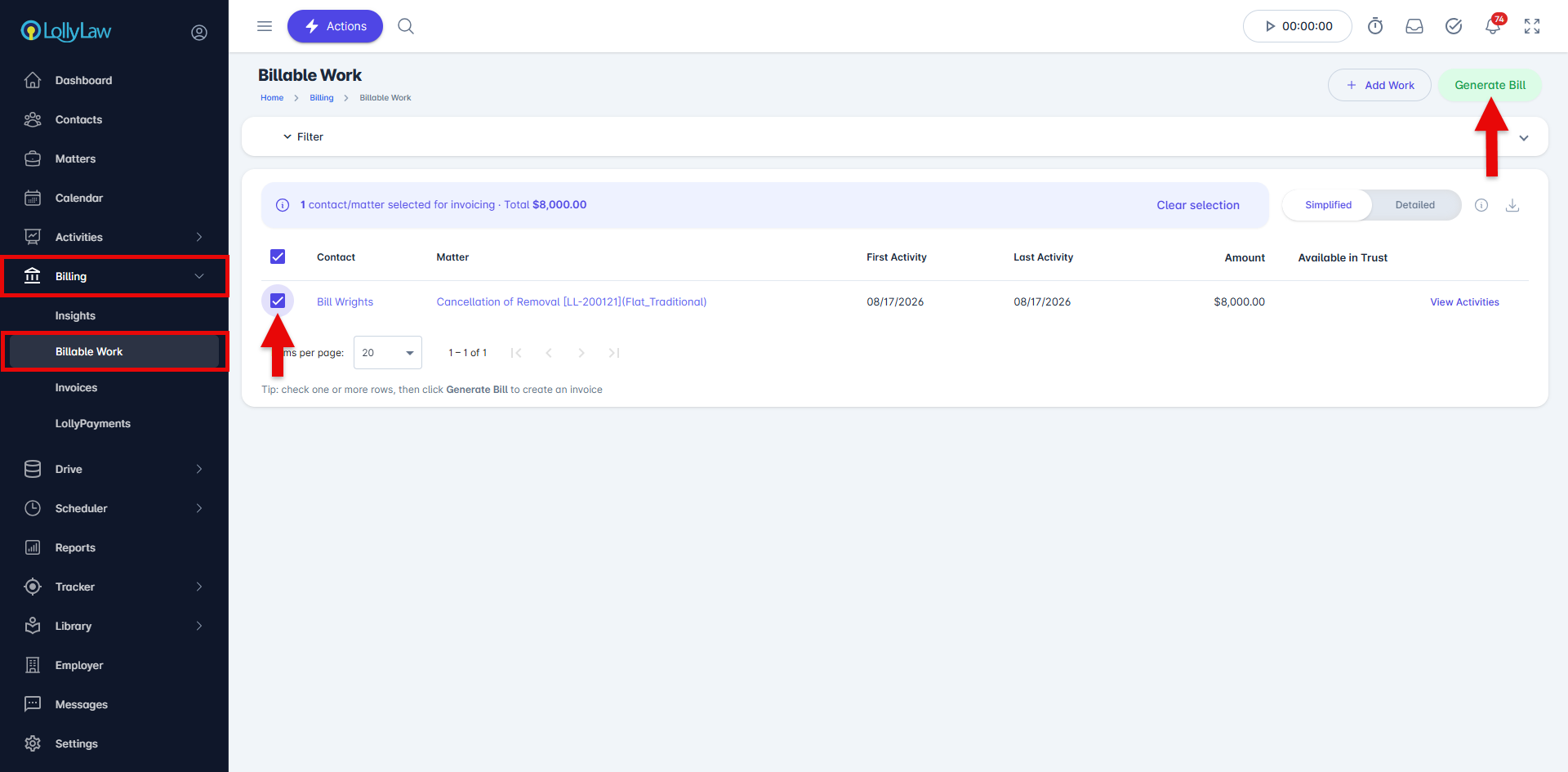
Navigate to Billing > Billable Work from the left-hand menu. This page displays clients and matters with charges that are ready for review and approval.
Select the charges you want to approve and process. You can select individual charges or multiple charges at once.
Select Generate Bill at the top of the screen.
Complete the required fields and specify the details you want to appear on the invoice.
To add a custom percentage fee, enter the percentage you want to charge in the Invoice Fee (%) field. Then, enter a description for the fee in the Fee Description field.
Select Generate Bill.
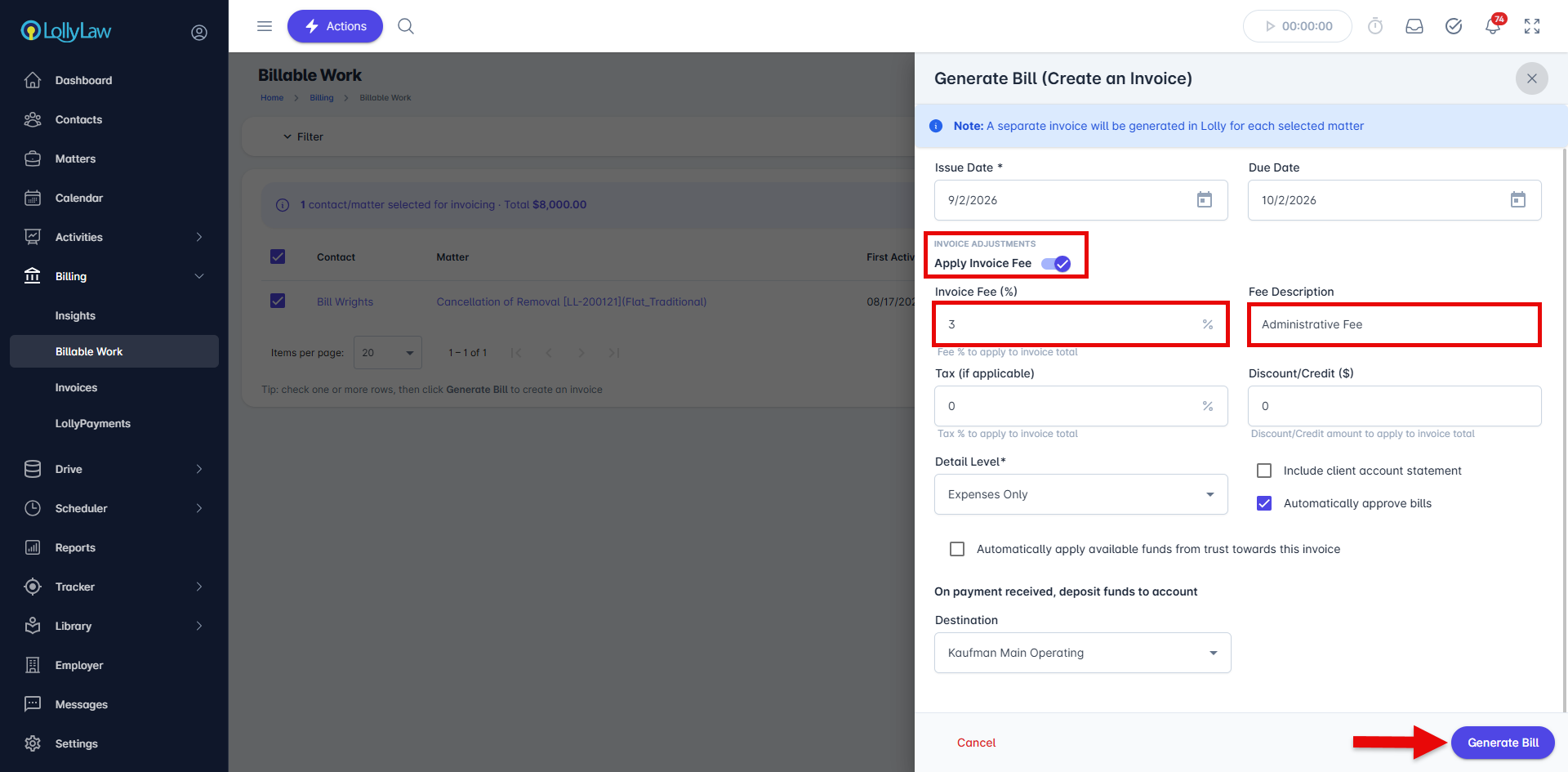
The generated invoice will include the selected charges, along with the additional percentage-based fee.
Add or Remove an Invoice Fee from an Existing Invoice
You can also add or remove a custom percentage fee from an invoice after it has been generated.
Open the invoice you want to adjust by selecting the Invoice Number from either Matter > Billing > Invoices and Trust Requests or Billing > Invoices from the left-hand menu.
On the invoice page, locate the Options section on the left side of the screen.
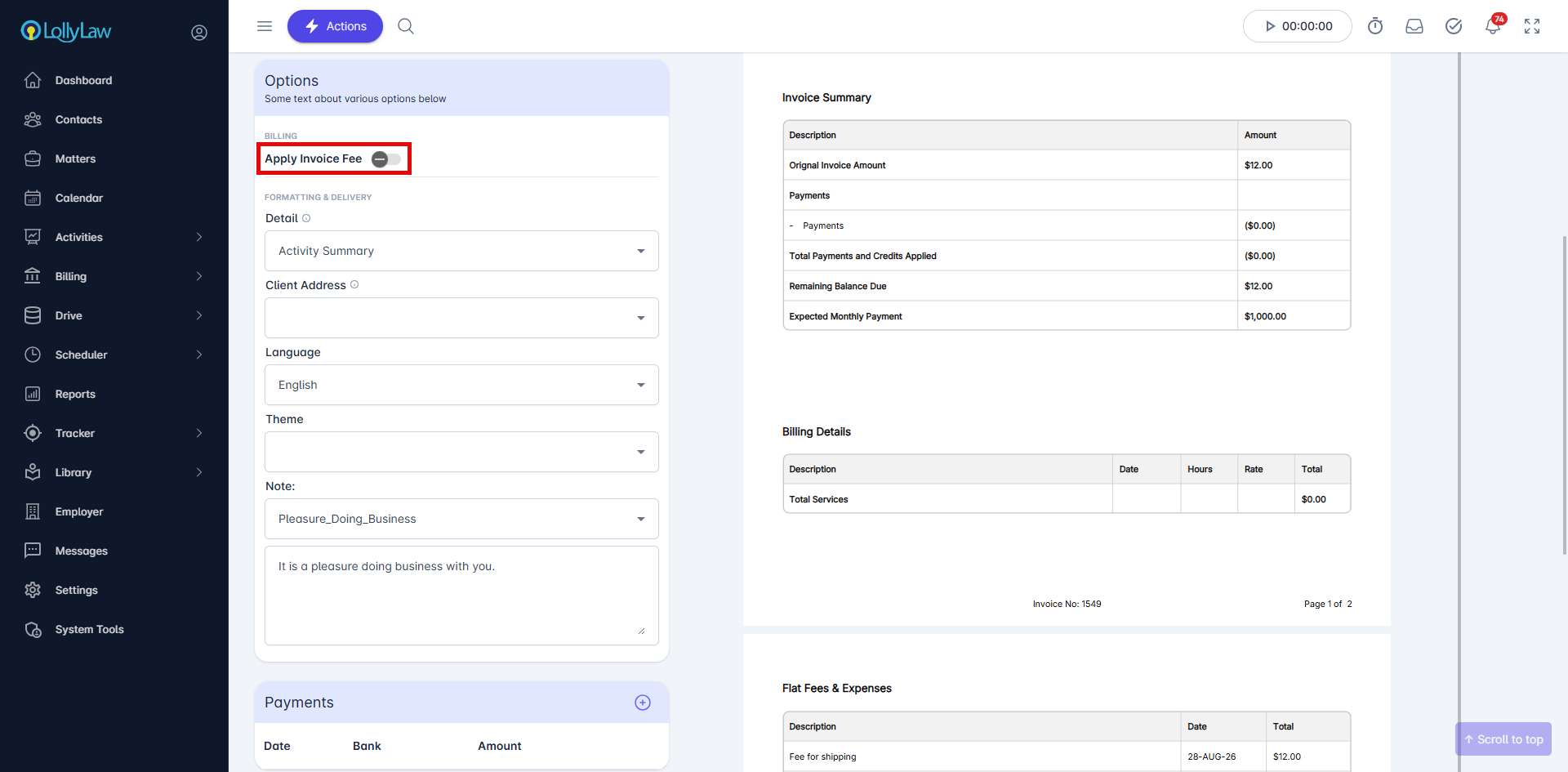
Add an Invoice Fee to an Existing Invoice
Under Options, select the Apply Invoice Fee toggle to enable the invoice fee.
Enter the percentage you want to charge in the Fee % field.
Enter a description for the fee in the Fee Description field.
The invoice amount will automatically update to include the additional percentage-based fee. No additional save action is required.
Remove an Invoice Fee from an Existing Invoice
Under Options, select the Apply Invoice Fee toggle to disable the invoice fee.
A confirmation message will appear asking you to confirm that you want to remove the fee. Select Remove Fee.
The invoice amount will automatically update to reflect the removal of the fee. No additional save action is required.