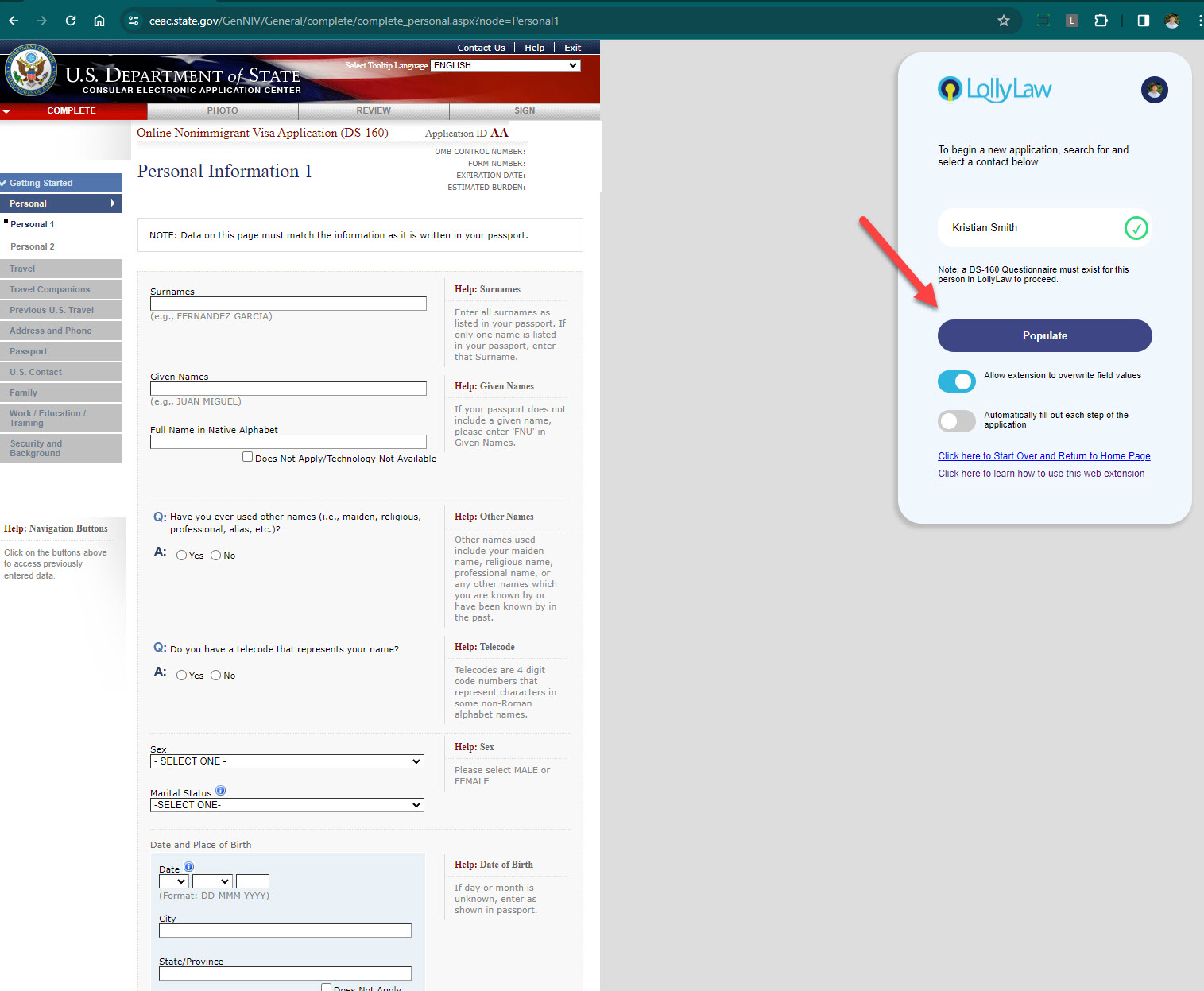

To download the LollyLaw Google Chrome web extension, follow these steps:
Go to the Google Chrome Web Store online.
In the search bar, type in LollyLaw.
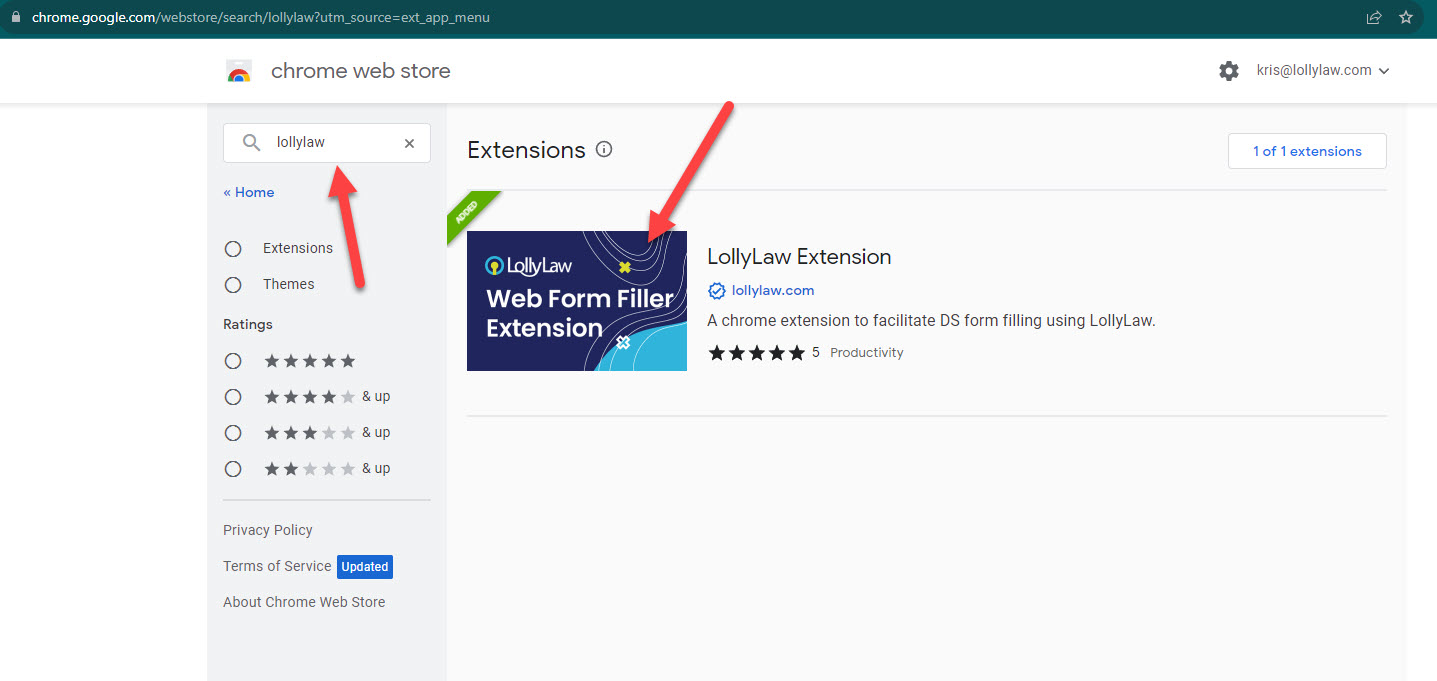
3. Click Add to Chrome to add the extension to your web browser profile.
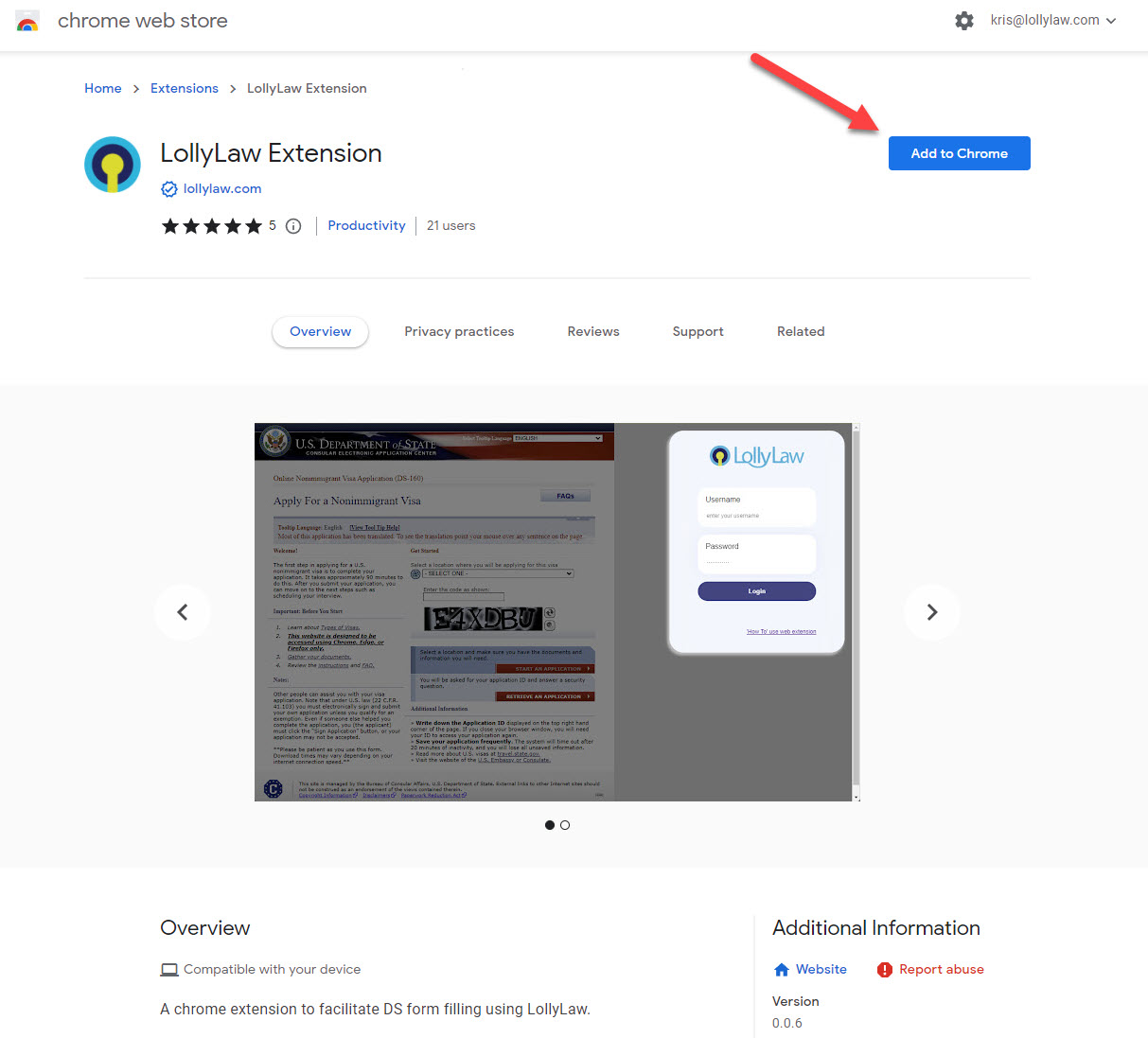
Populating the DS-160 or DS-260 using the LollyLaw Web Extension
After you've downloaded the LollyLaw Chrome web extension, you can populate the online DS-160 or DS-260 with your client's completed questionnaires.
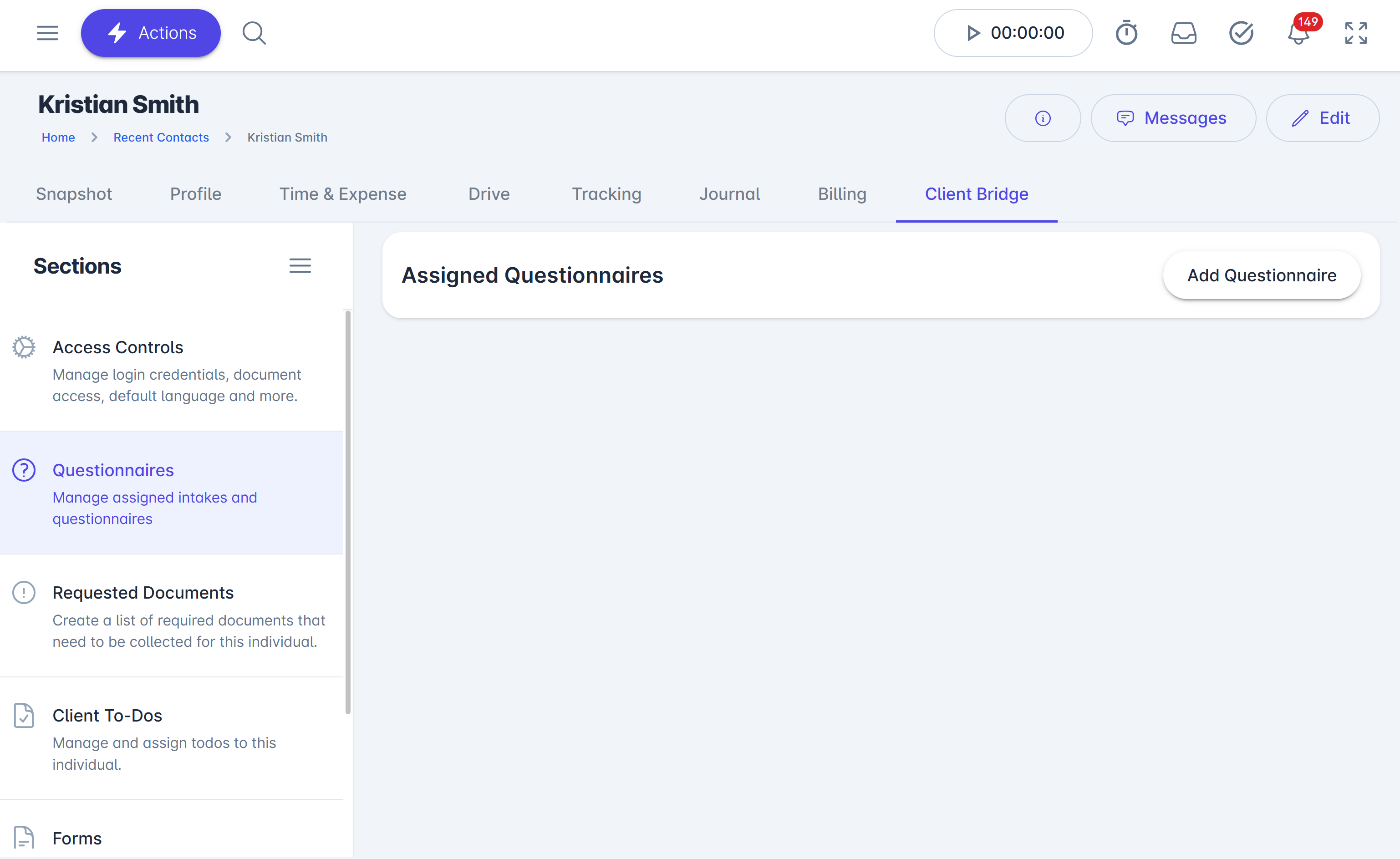
Have your client fill out the DS-160 or DS-260 questionnaire in LollyLaw. To assign them to the questionnaire, first enable the Client Bridge under their contact record.
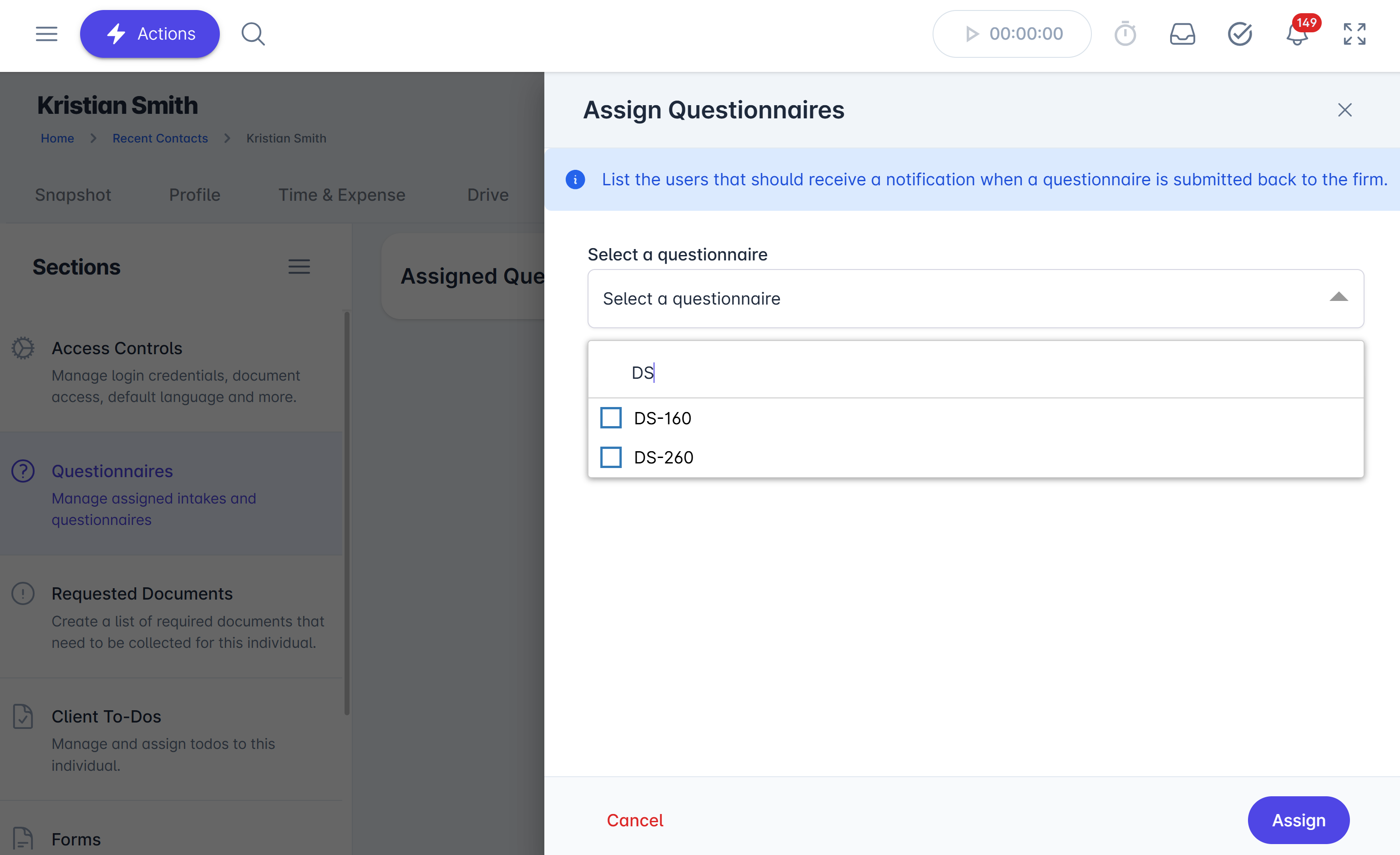
Next, go to the Questionnaires section and click Add Questionnaires or the plus (+) button to assign the DS-160 or DS-260 questionnaire.
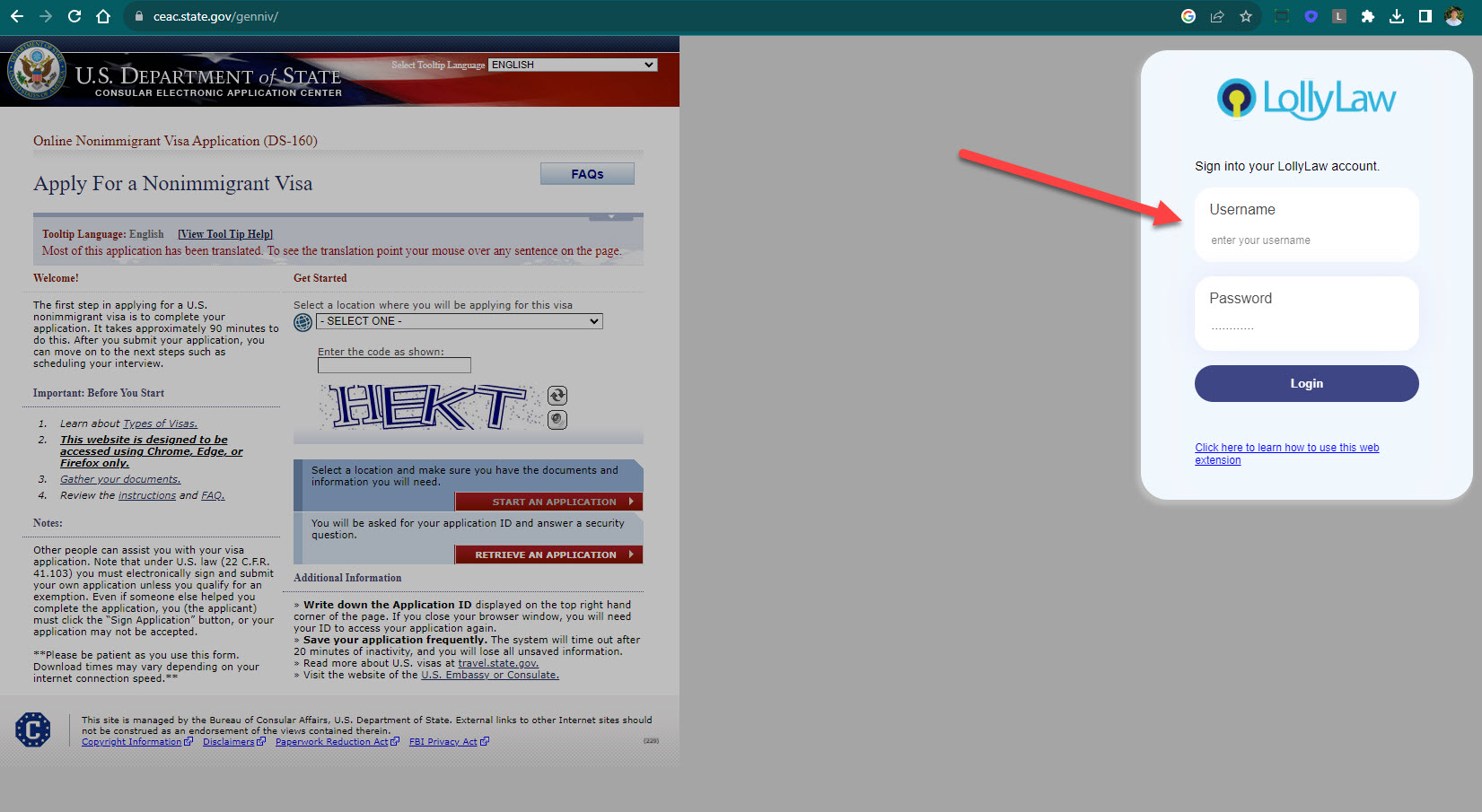
Once the LollyLaw DS-160 or DS-260 questionnaire has been completed, visit the Consular Electronic Application Center (CEAC) to begin the application. When you visit ceac.state.gov, the LollyLaw extension will automatically appear. Log in to the extension using your LollyLaw username and password.
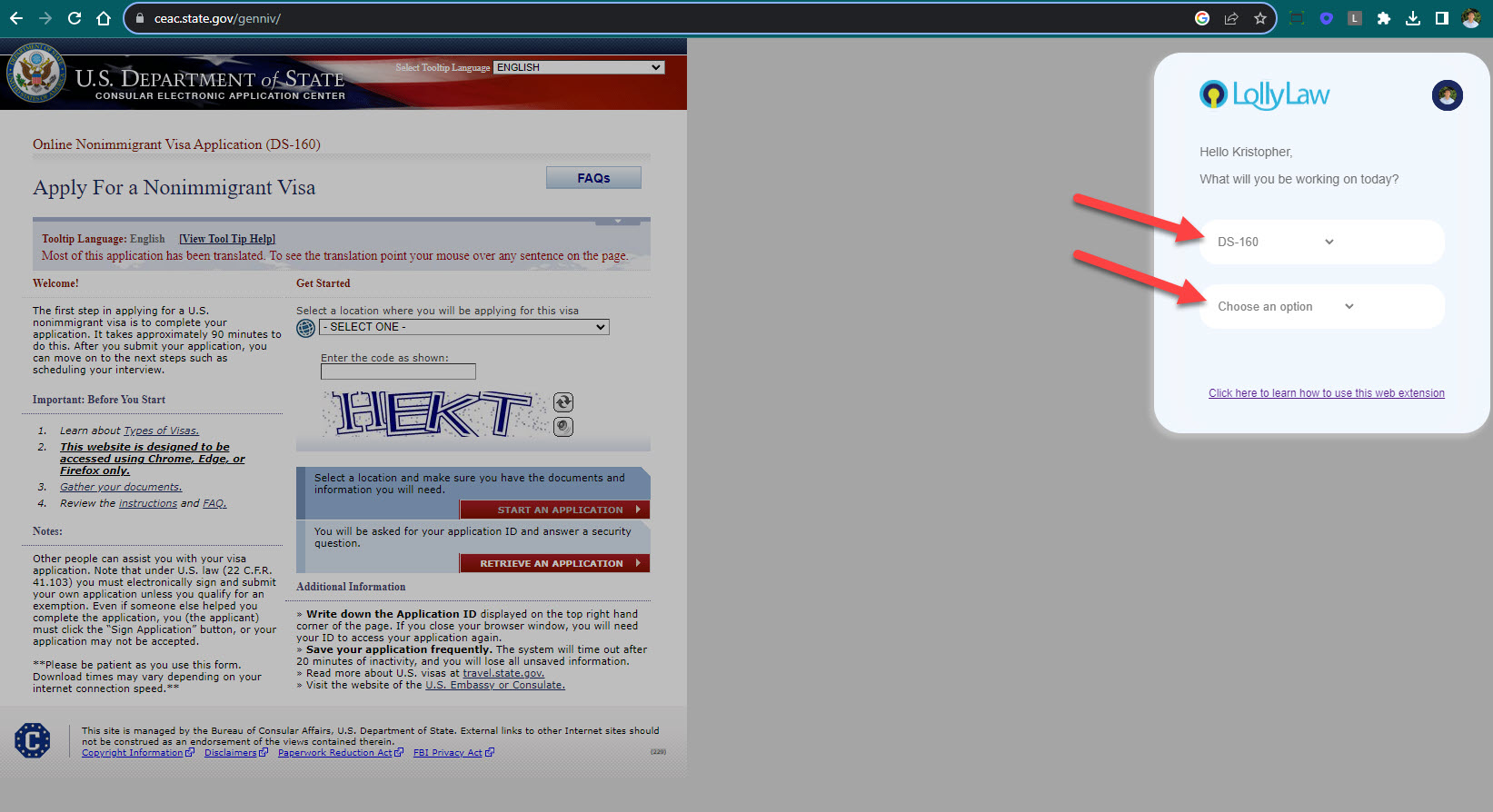
Select the DS-160 or DS-260 application type.
Select Start a new application or Retrieve an existing application.
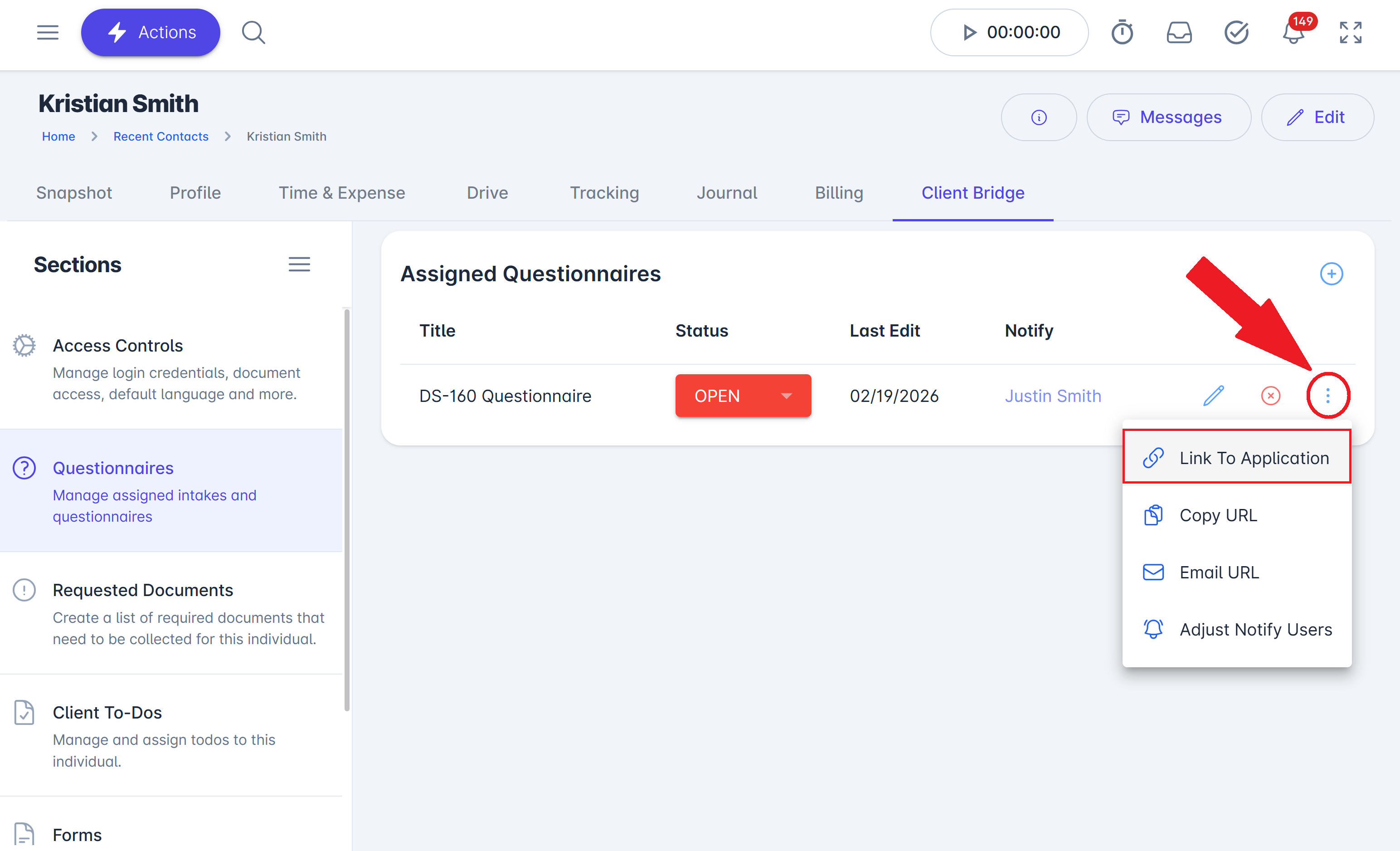
NOTE: If retrieving an existing application, the contact's DS-160 or DS-260 questionnaire in LollyLaw must be linked to the application, including the application ID, security question, and answer to the security question.
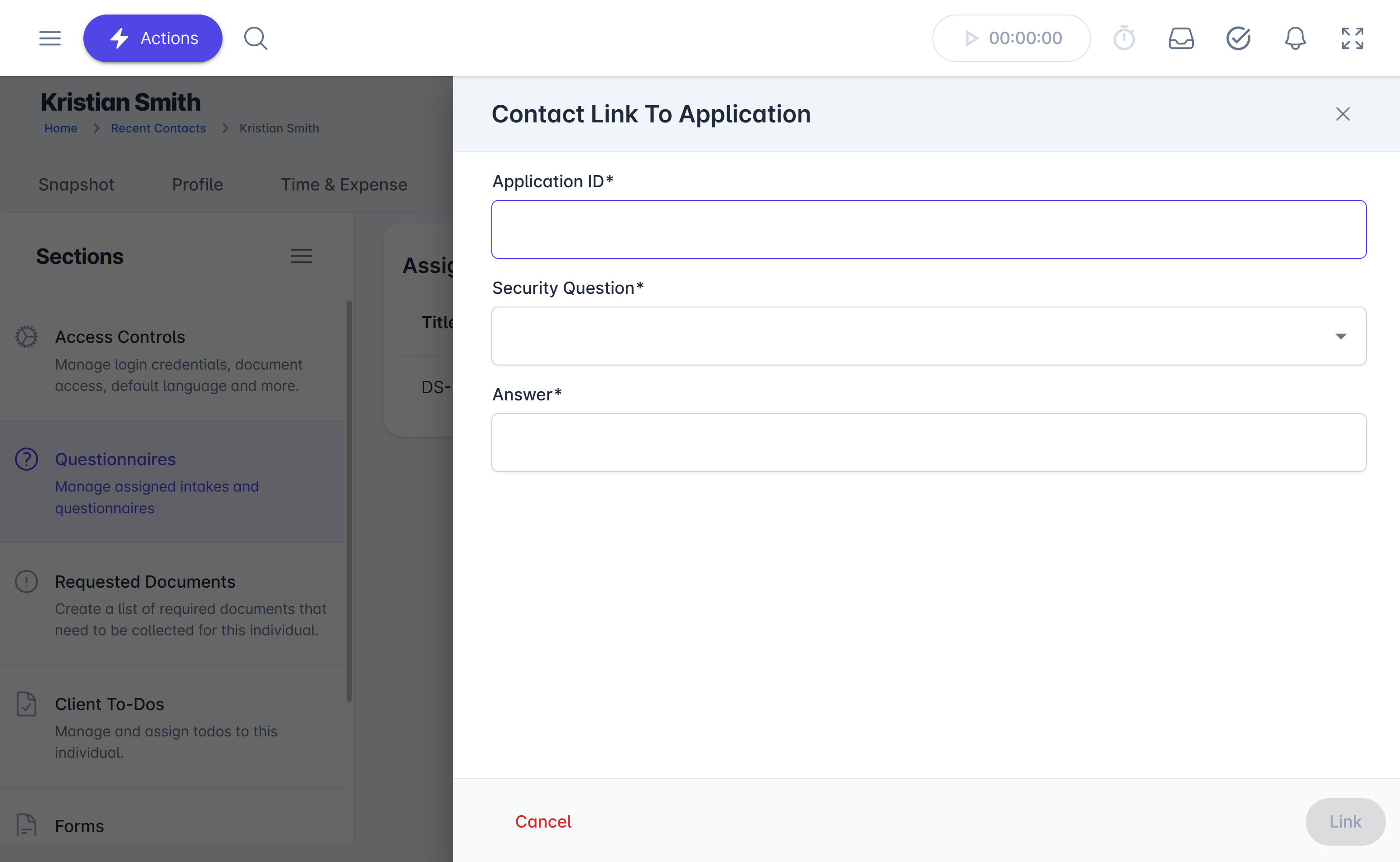
To link an existing application to a DS-160/260 questionnaire in LollyLaw, go to the client's contact record, assign the DS-160/260 questionnaire to them under the Client Bridge tab, and click the '⋮' button to select Link to Application.
From there, enter the application ID, select the security question from the dropdown, and enter the security answer.
On the DS-160 or DS-260 online form, search for the contact record in the LollyLaw extension. On the main application, select the location, enter the code shown, and click the red Start an Application button to begin.
On the next page, select a security question and answer, click Continue, and click Yes to sync the application ID and security question/answer to the contact's DS-160 or DS-260 questionnaire in LollyLaw.
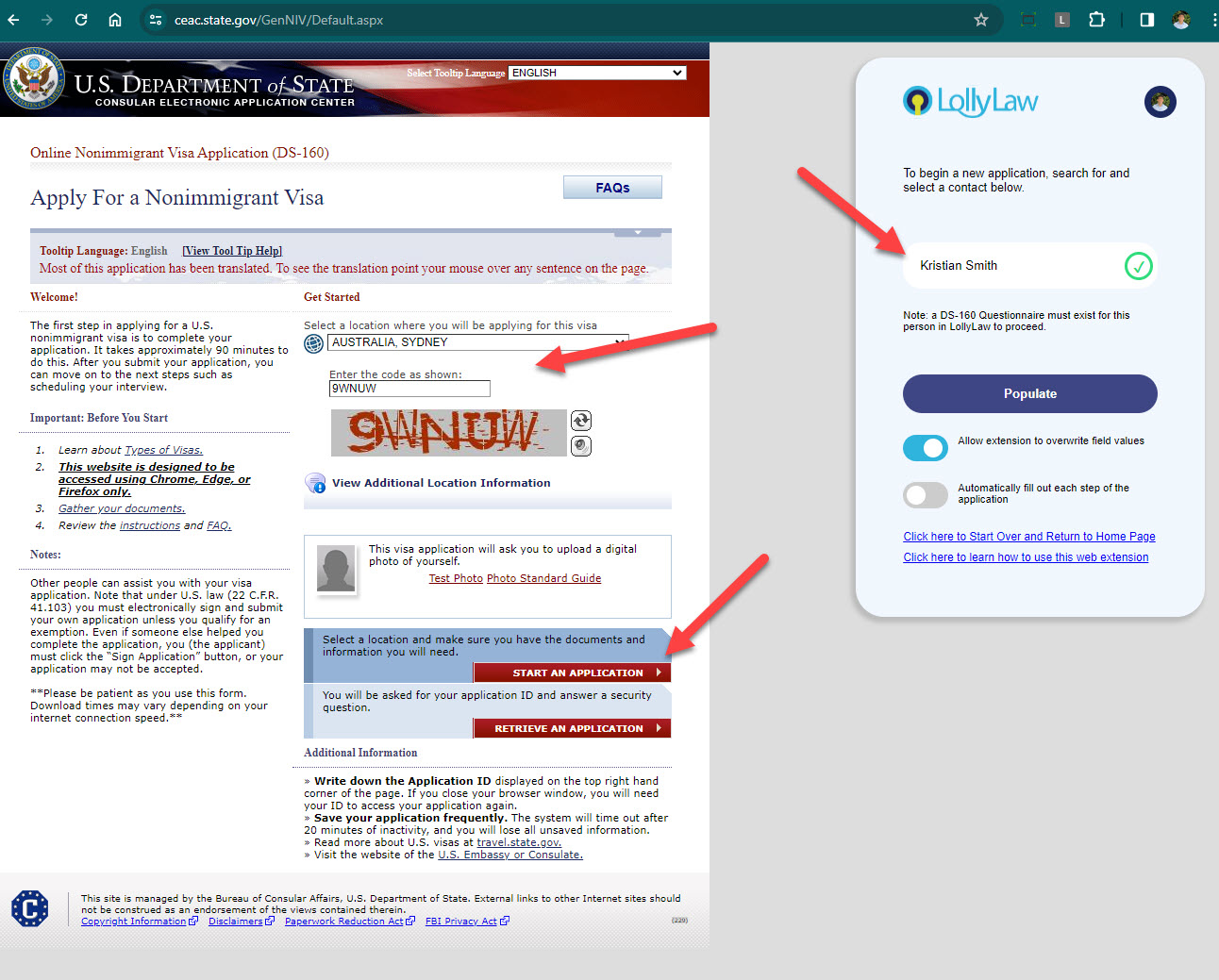
As you progress through each page of the DS-160 or DS-260 online, click the purple Populate button on each new page to stamp your client's information from their DS-160/260 questionnaire in LollyLaw.