
A contact record represents individuals or entities connected to your firm. They help organize and manage key information for seamless interactions between you and your clients. You can create a contact at any time, then link it to consultations, cases, and forms as needed. Information saved to a contact profile can also be automatically used to fill forms and generate documents.
This article will cover how to manage existing Contacts in your LollyLaw account.
Managing Contacts
There are two primary ways to edit the details and information related to contacts in LollyLaw, through the contact’s Snapshot and their Profile.
Snapshot
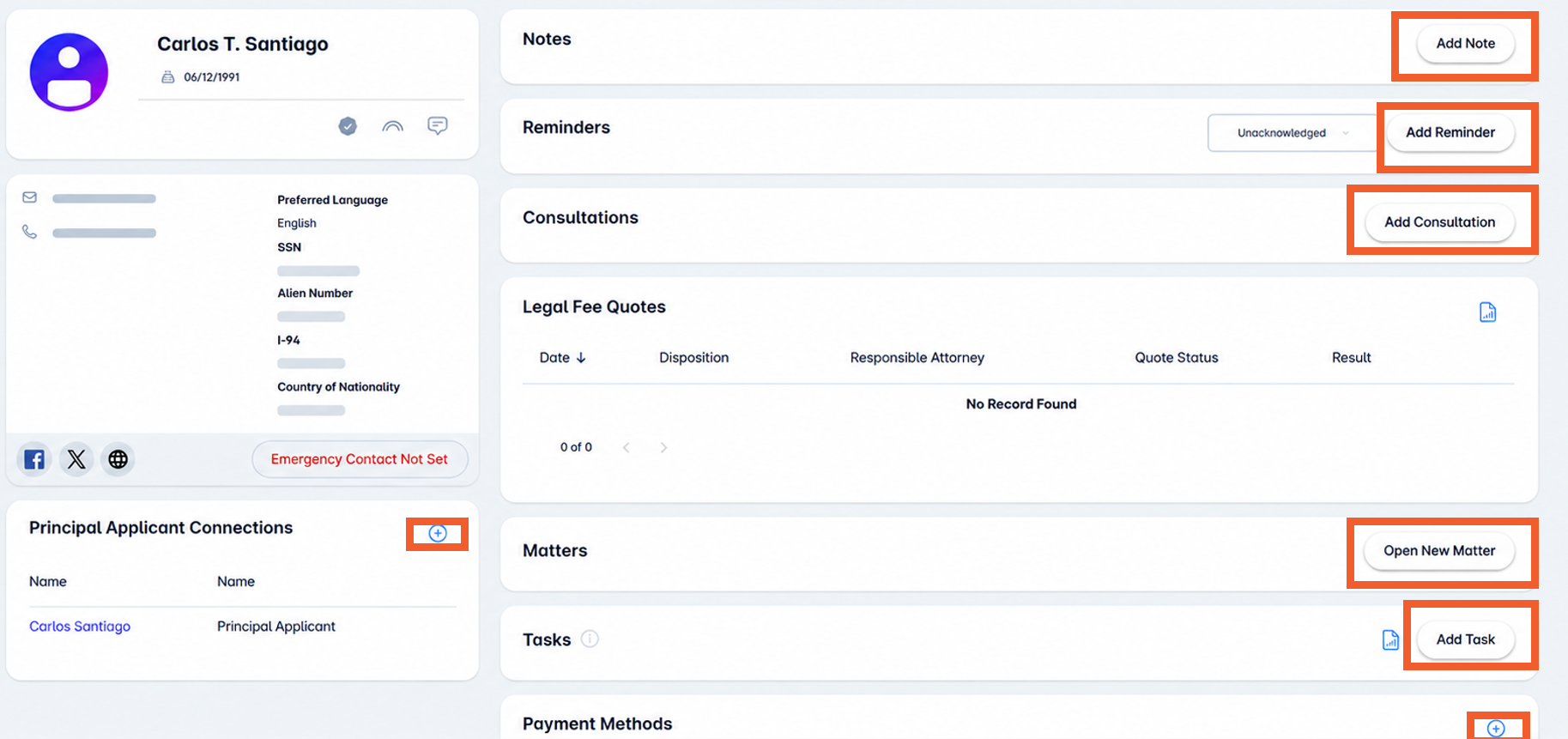
The contact Snapshot in LollyLaw, provides you with a quick view of the important details associated with a contact, including basic information, demographics, i, tasks assigned, and notes. The Snapshot is also where you will enable the Client Bridge portal and create records for the contact, such as consultations, payments, and matters.
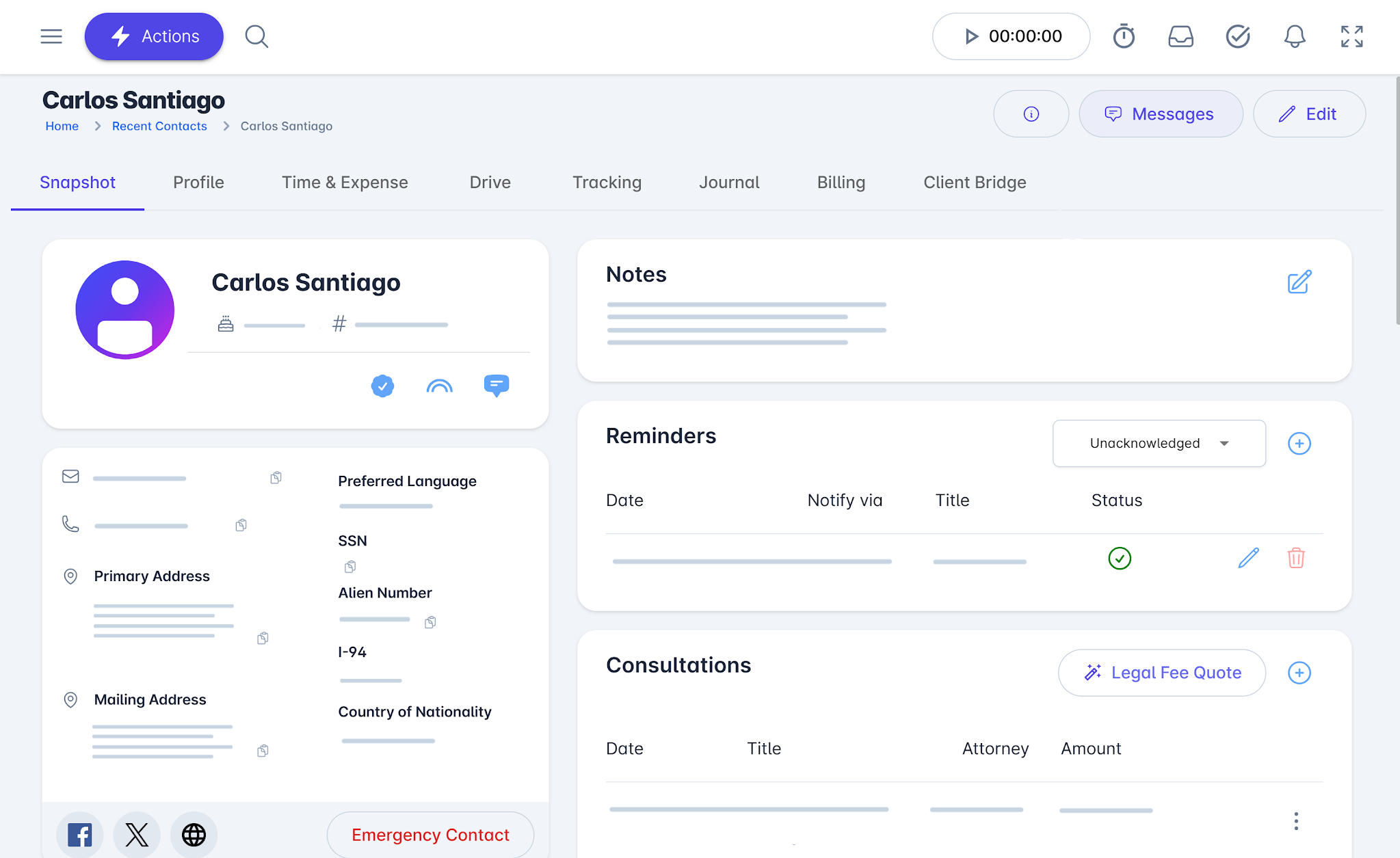
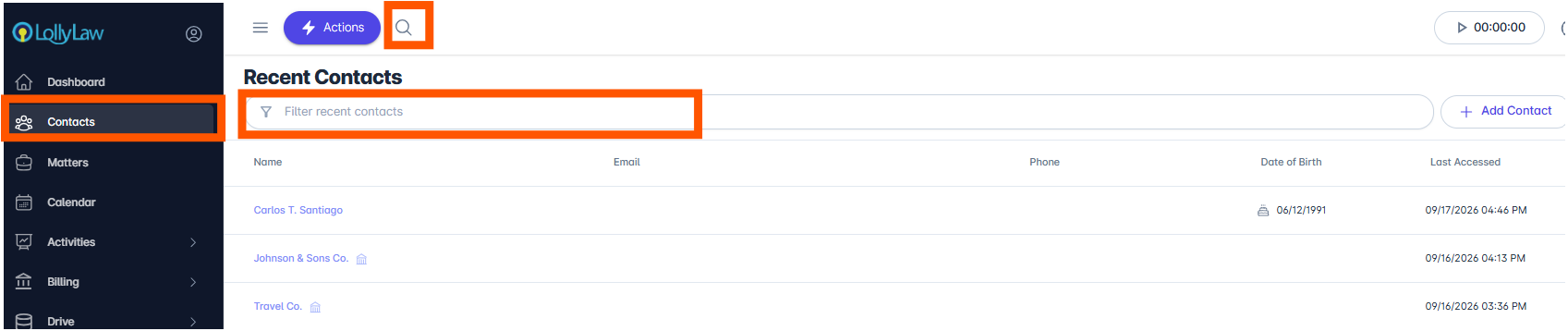
To access the contact's Snapshot:
Search the contact’s name in the top navigation bar or in the Contacts tab and click on the contact’s name
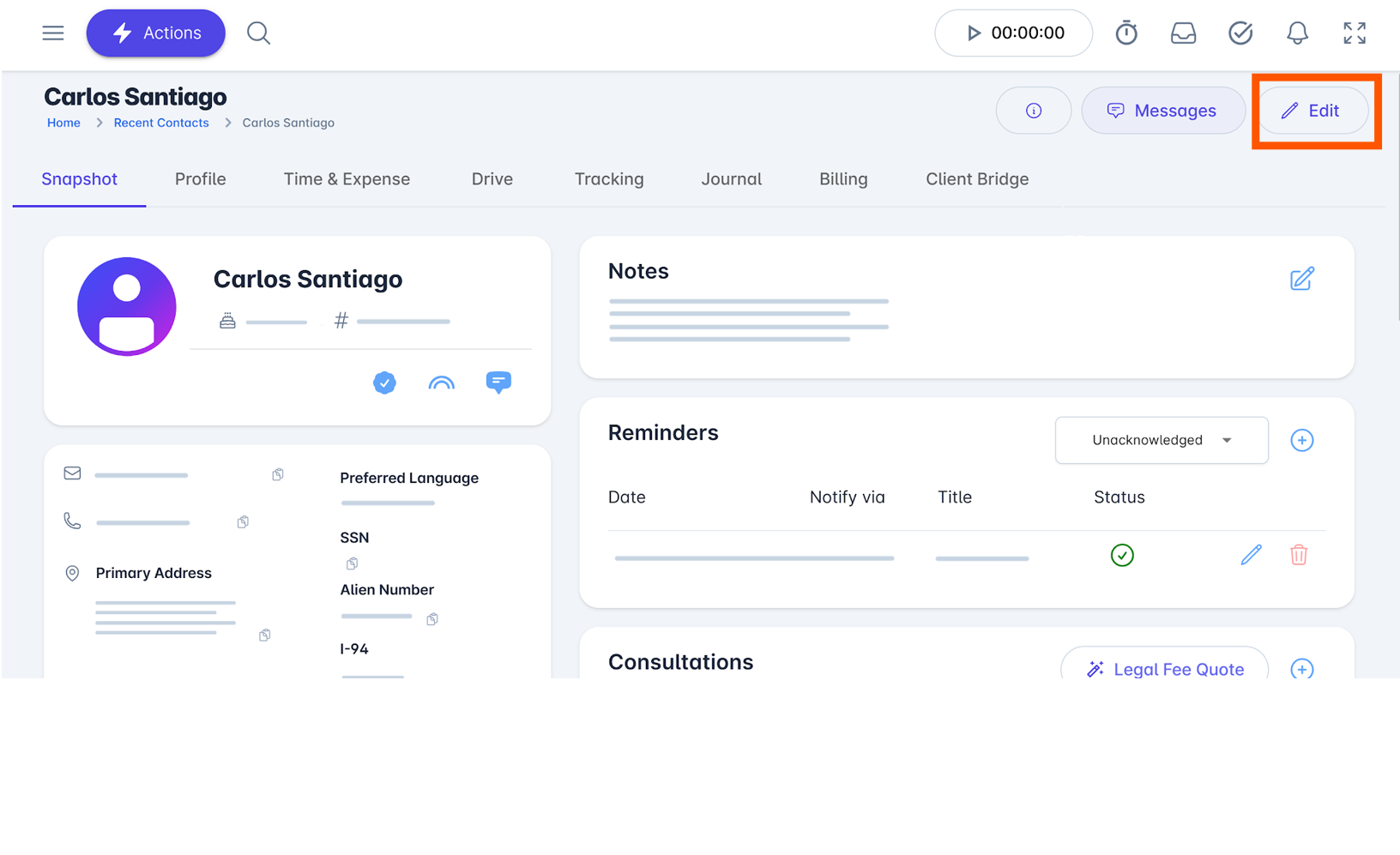
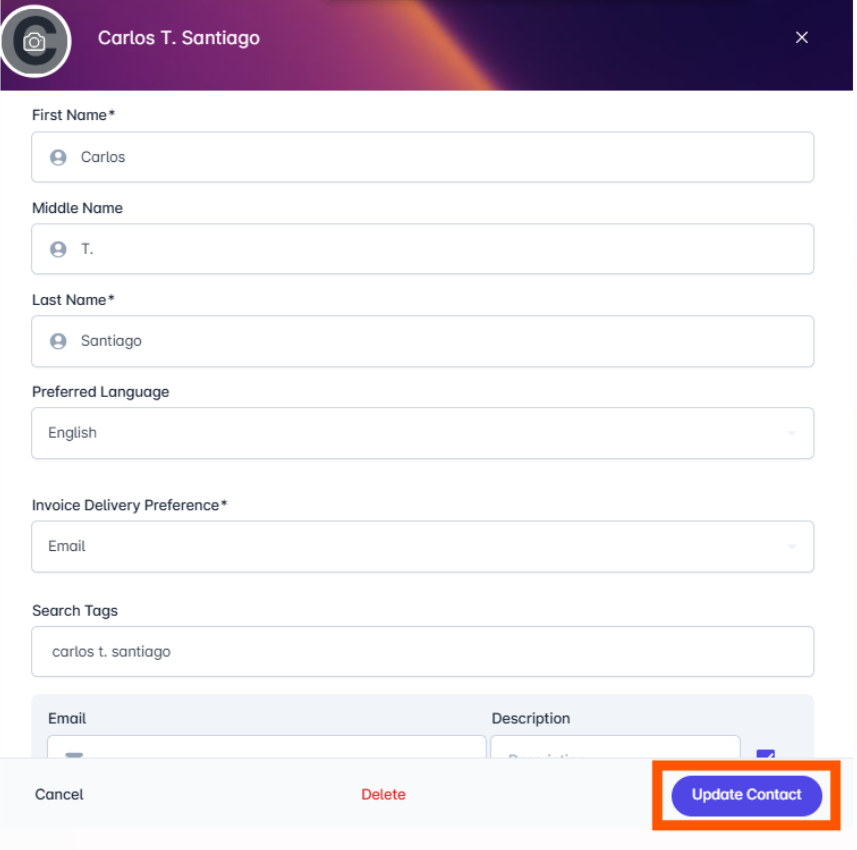
Click on the Edit button on the Snapshot page
Edit any of the desired fields, then click the Update Contact button
To create new Notes, Reminders, Consultations, Matters, Tasks, Payment Methods, or Applicant Connections, click on the button in the top right corner of their respective panes on the contact’s Snapshot page
Profile
LollyLaw specializes in collecting information about a contact. Within the Profile page of a Contact, you can access and manage key information about the contact as it pertains to their type of matter or need. The profile information for each contact is organized in sections, specific to the type of matter your firm may be supporting the contact in.
Each section within the contact profile information contains a structured and editable set of data points about a contact. Each field in these sections are meticulously mapped and bound to form sets, while many others are available to use in document automation.
To edit contact profile information:
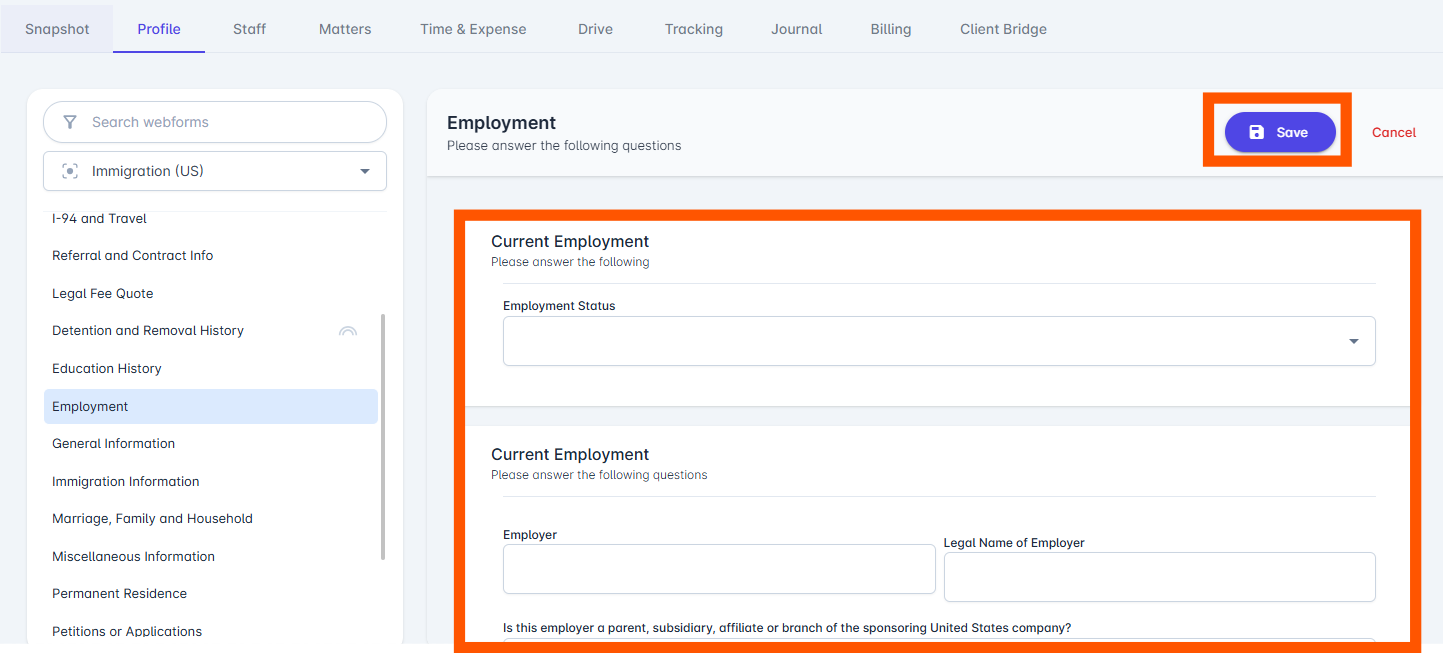
Navigate to the Profile tab
Filter or search for the relevant contact profile section. Make a selection from the list
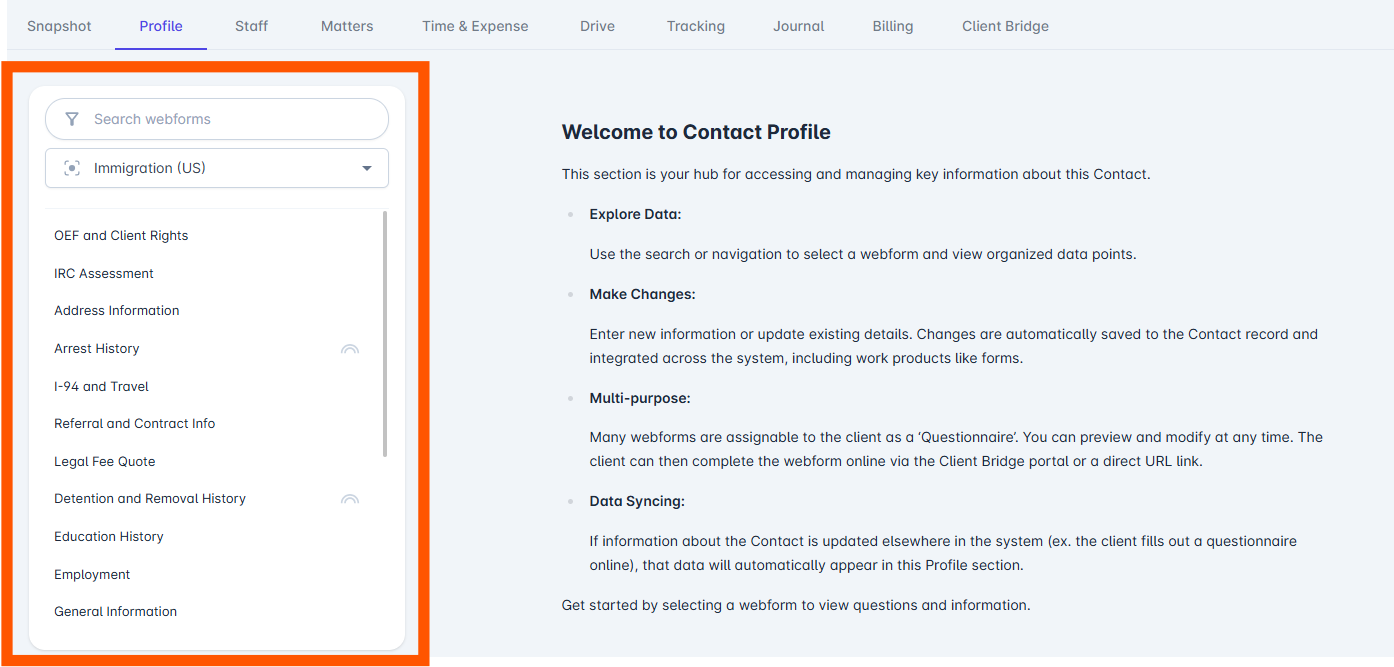
Fill out the relevant information and click the Save button. It will be available throughout the system