

When multiple team members are working on cases, it’s important to make sure the right people have access to the right documents. LollyDrive includes permission-based access controls so you can manage who can view or edit files.
Permissions can be set at both a broad level, such as folders, and at an individual file level, giving you flexibility in how access is managed.
Understanding Permission Roles
LollyDrive uses two permission roles:
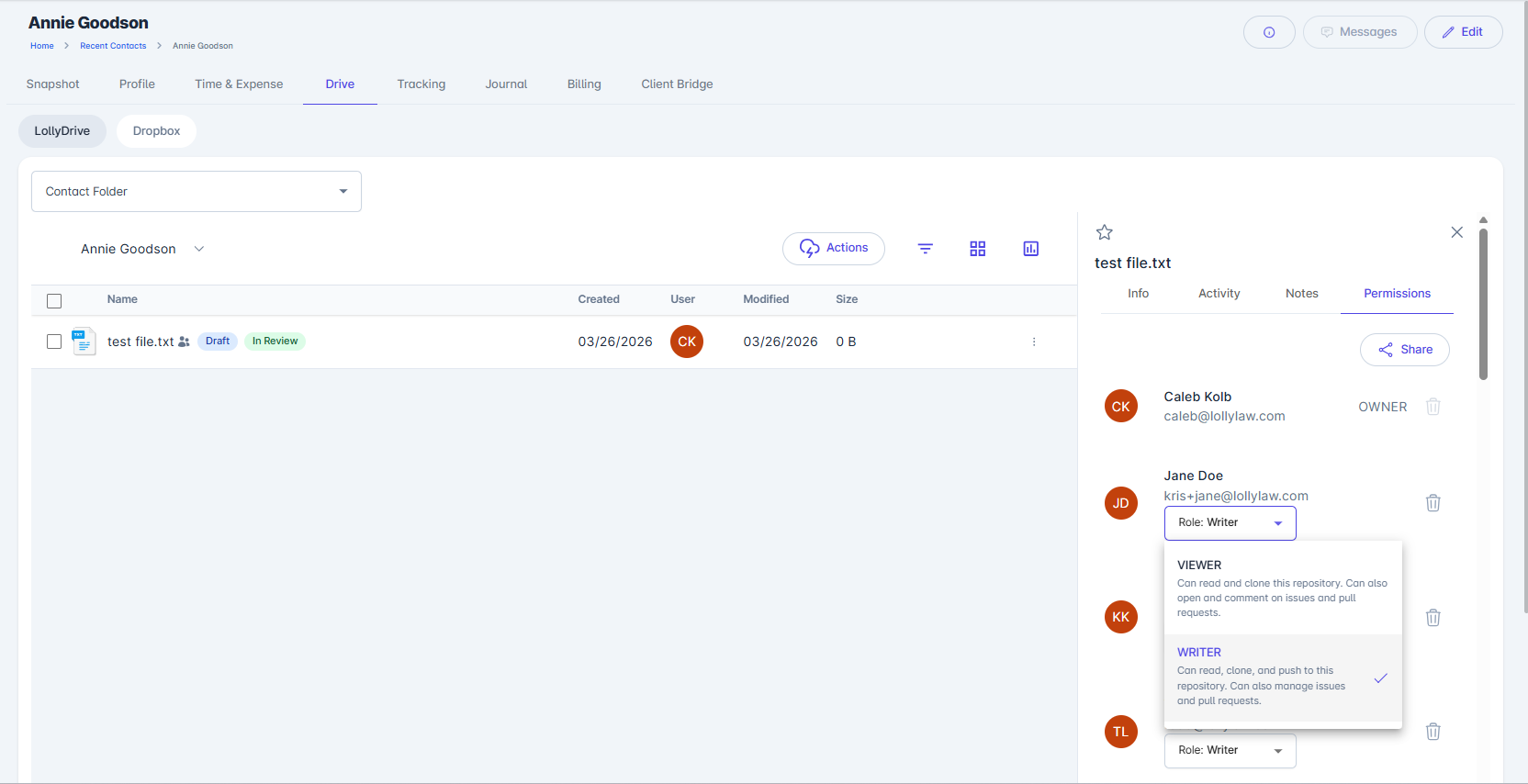
Writer – Can view, upload, edit, and manage documents.
Viewer – Has read-only access. Viewers can open, download, and comment on documents, but cannot make changes.
These roles can be assigned at the file or folder level, so a user’s access can vary depending on what they are viewing.
For example, a team member might be able to fully manage documents in one folder, only view a specific file in another folder, or not see another folder at all if their access has been removed.
View and Update File Permissions
To manage access for a specific document:
Locate the file in LollyDrive.
Click the three vertical dots next to the file.
Select Details > Permissions.
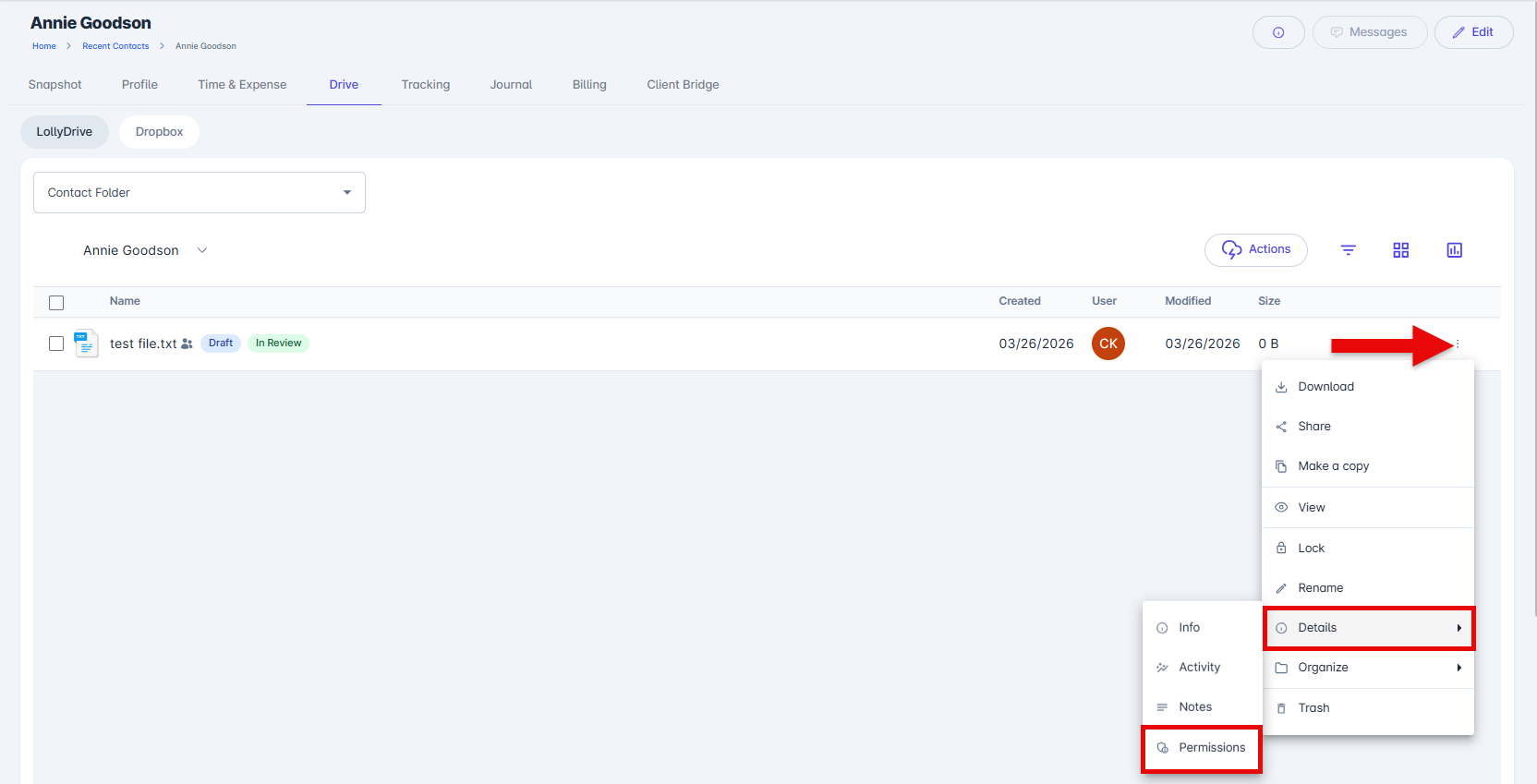
From here, you can view all users who currently have access to the file.
Team members may have Writer access by default when a file is uploaded.
To update access, click the Role dropdown next to a user’s name and select Writer or Viewer.
To remove access entirely, click the trash can icon next to the user’s name. This will remove their ability to view or interact with the file.
Share a File with Another User
If you need to grant access to someone who does not currently have permission:
Locate the file in LollyDrive.
Click the three vertical dots next to the file.
Select Share.
Use the search bar to find the user in your LollyLaw account.
Choose a role (Writer or Viewer) from the dropdown.
Click Share.
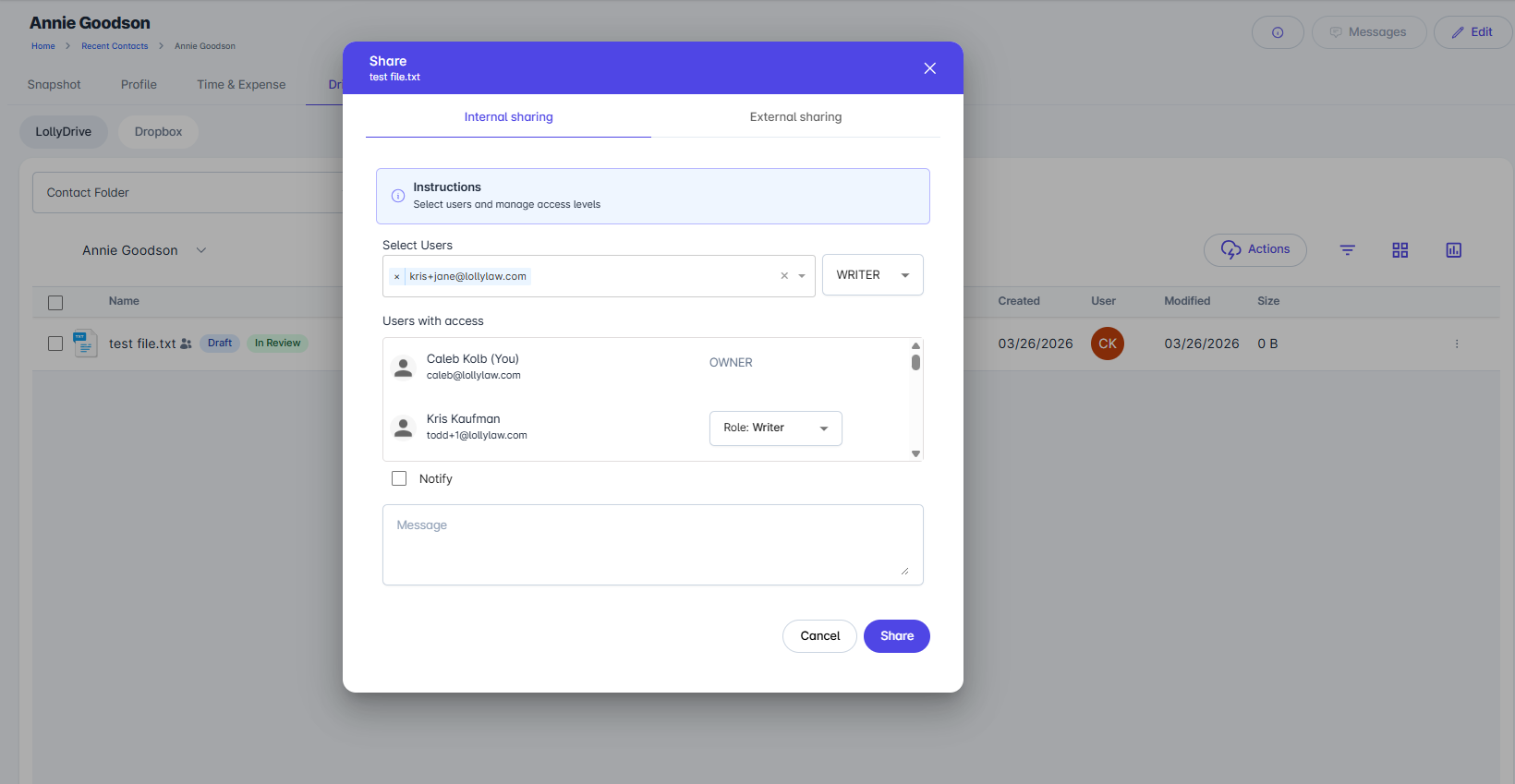
The file will then be available to the selected user with the permissions you assigned