

What are the Available Case Statuses in LollyLaw?
Every matter record in LollyLaw requires one of three case status options to be assigned: Open, Pending, and Closed. When creating a new matter, the case status will default to ‘Open’. Then, when the case is wrapped up, users can set the case status to ‘Closed’, select the date and disposition, and archive it. However, a third option is needed when a case status is ‘Open’ but no work is actively being performed. Marking a matter as ‘Pending’ indicates that the law firm has completed all essential work and is awaiting an external action, decision, or milestone.
For example, the firm has submitted a client’s application and is waiting for a response from the government. In this case, a user can set the matter case status to ‘Pending’ and additionally provide an optional Secondary Status of ‘Awaiting Government Response’ with an expected response date in six months.
The additional case status designation makes it easier for firm administrators to evaluate user caseloads by clearly distinguishing between open cases where work is actively being performed and pending cases that are on hold until an external requirement is met.
This article will cover how to set a Case Status for a matter record in LollyLaw:
Setting a Case Status in a Matter Record
To set a case status in a matter record:
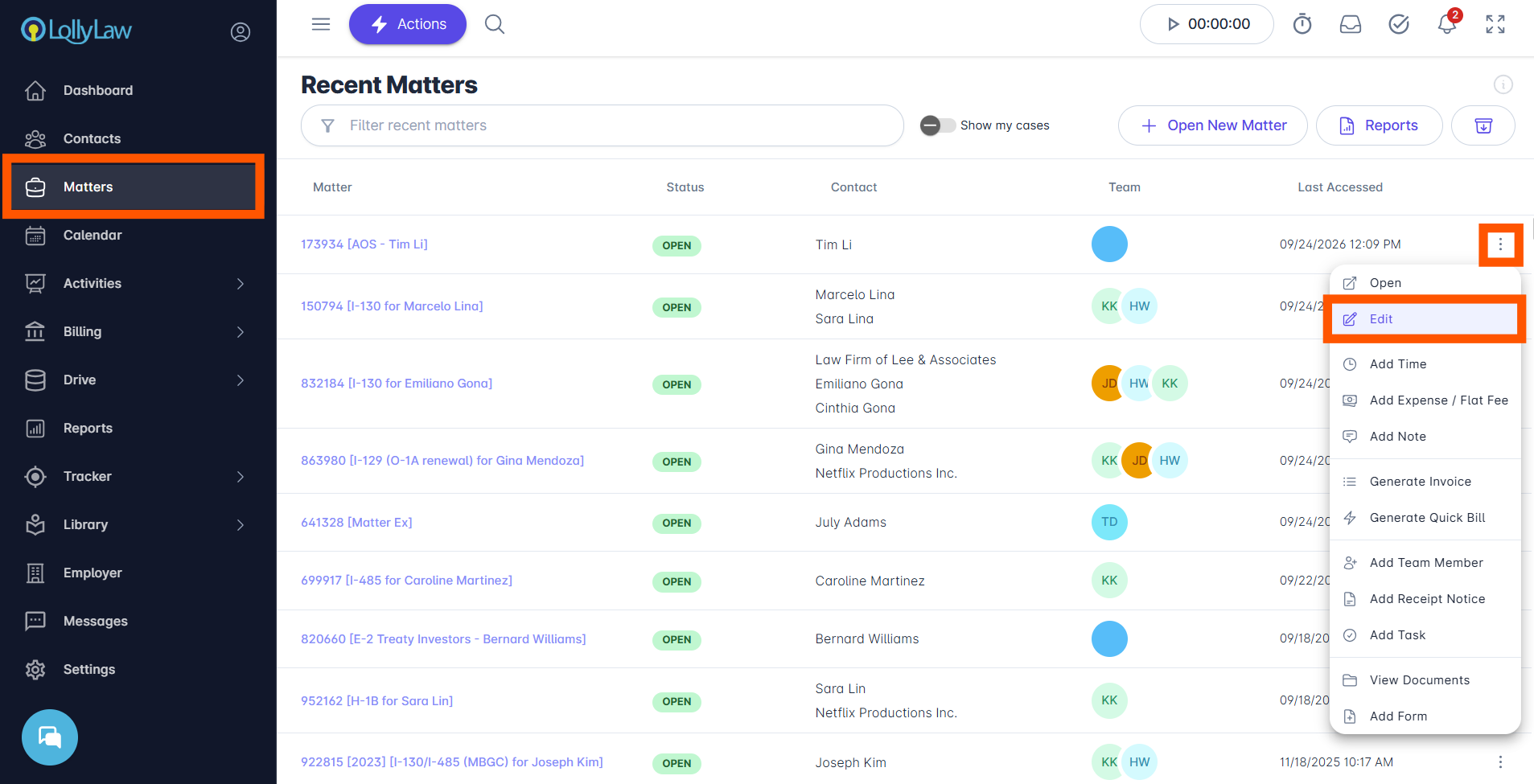
Select the Matters tab on the left side of your screen.
Click the matter menu on the right side of the Matter record you would like to update. Then click Edit.
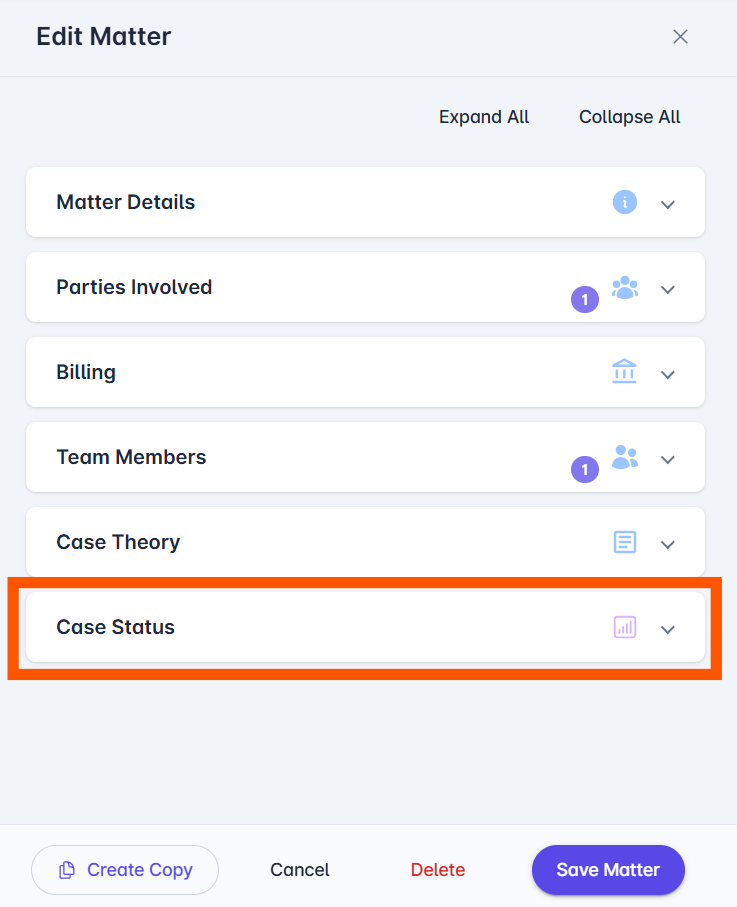
The Edit Matter drawer will open. Click on the Case Status section.
Once clicked, the Case Status drawer will drop down. From here, you will see the current case status set (Open, Pending, or Closed), Secondary Status, and Expected Date of Action/Response.
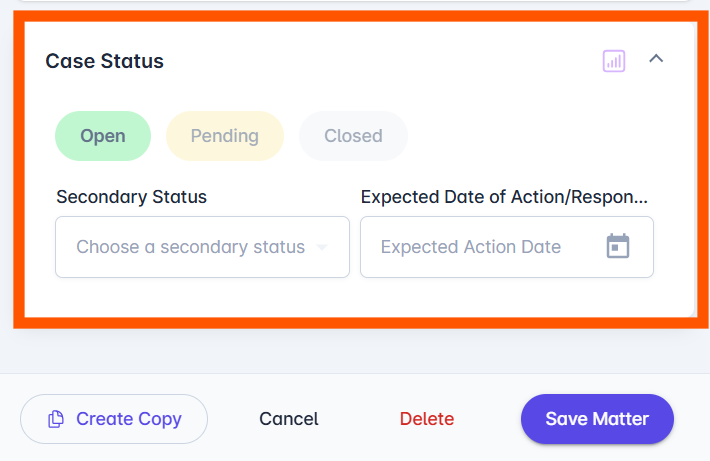
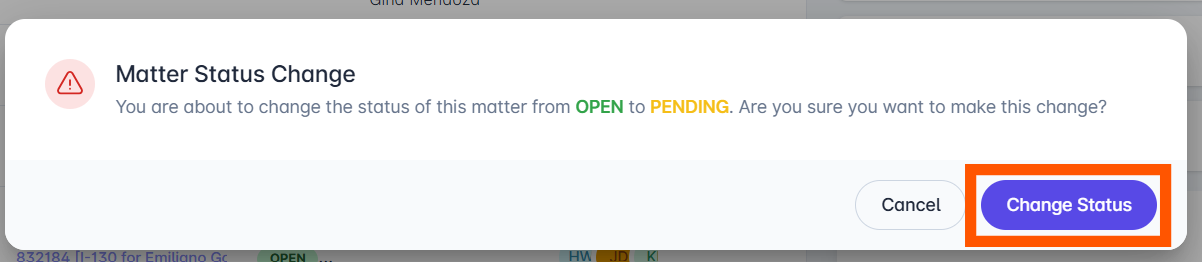
All case statuses default to the green Open status. However, if a user would like to change the status from Open to Pending or Closed, they would click the status button they wish to change to. A Matter Status Change window will pop up; click Change Status to complete the change. The Case Status can be reverted from Closed or Pending to Open following the same process.
If changing from Open to Pending status, the Secondary Status and Expected Date of Action/Response fields will remain. But if changing from Open or Pending to Closed status, the fields change to Closure Date and Case Disposition. Fill in these fields.
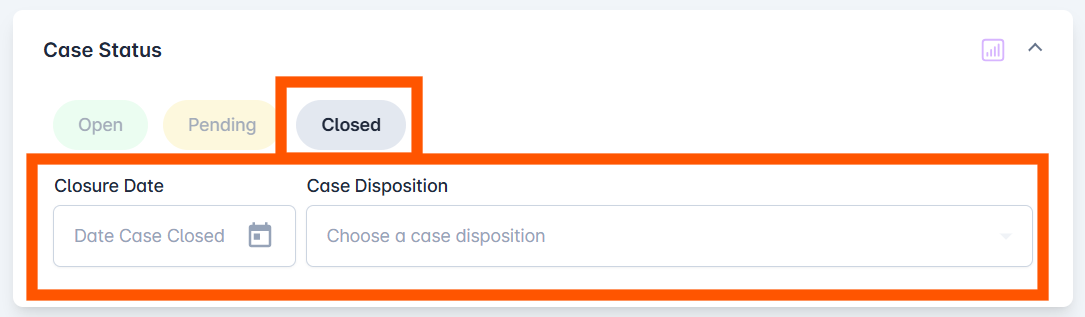
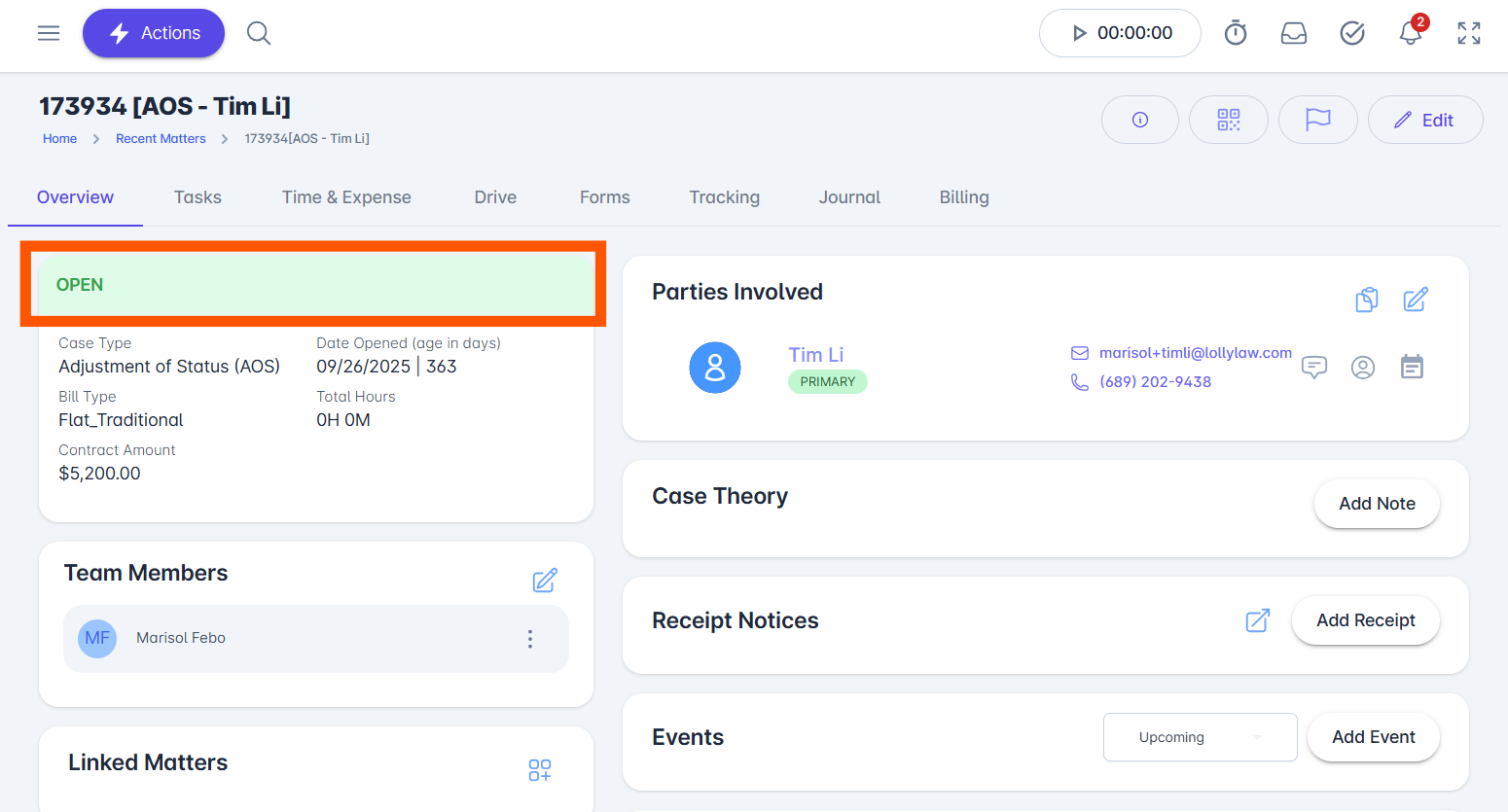
Once the new status is set, click the Save Matter button in the bottom right corner to reflect the new case status. The matter will display an Open, Pending, or Closed status tag in the Matter record.
Creating & Editing Secondary Statuses
To view, edit, or create a secondary status:
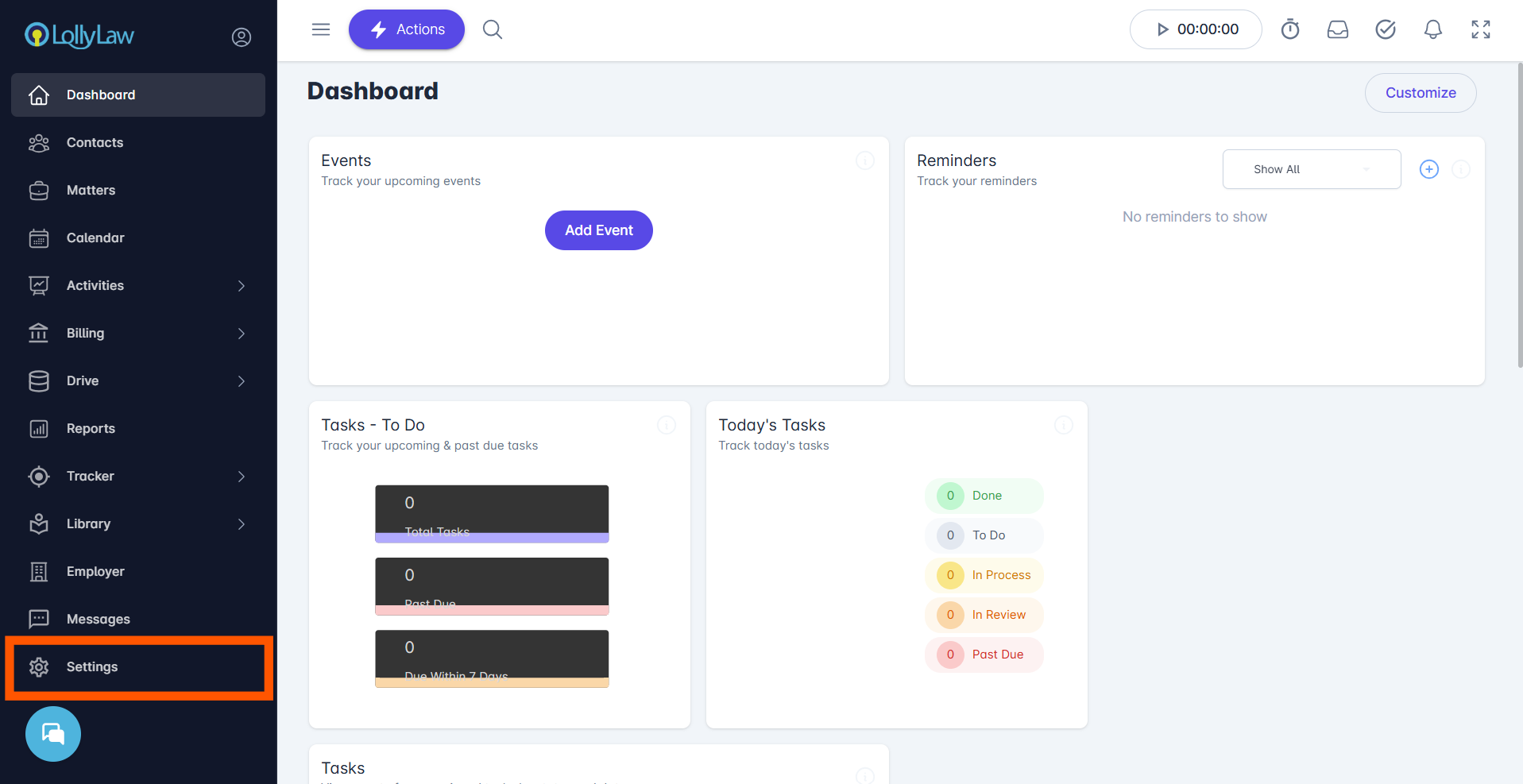
Select the Settings tab at the bottom of the main navigation menu on the left side of your screen.
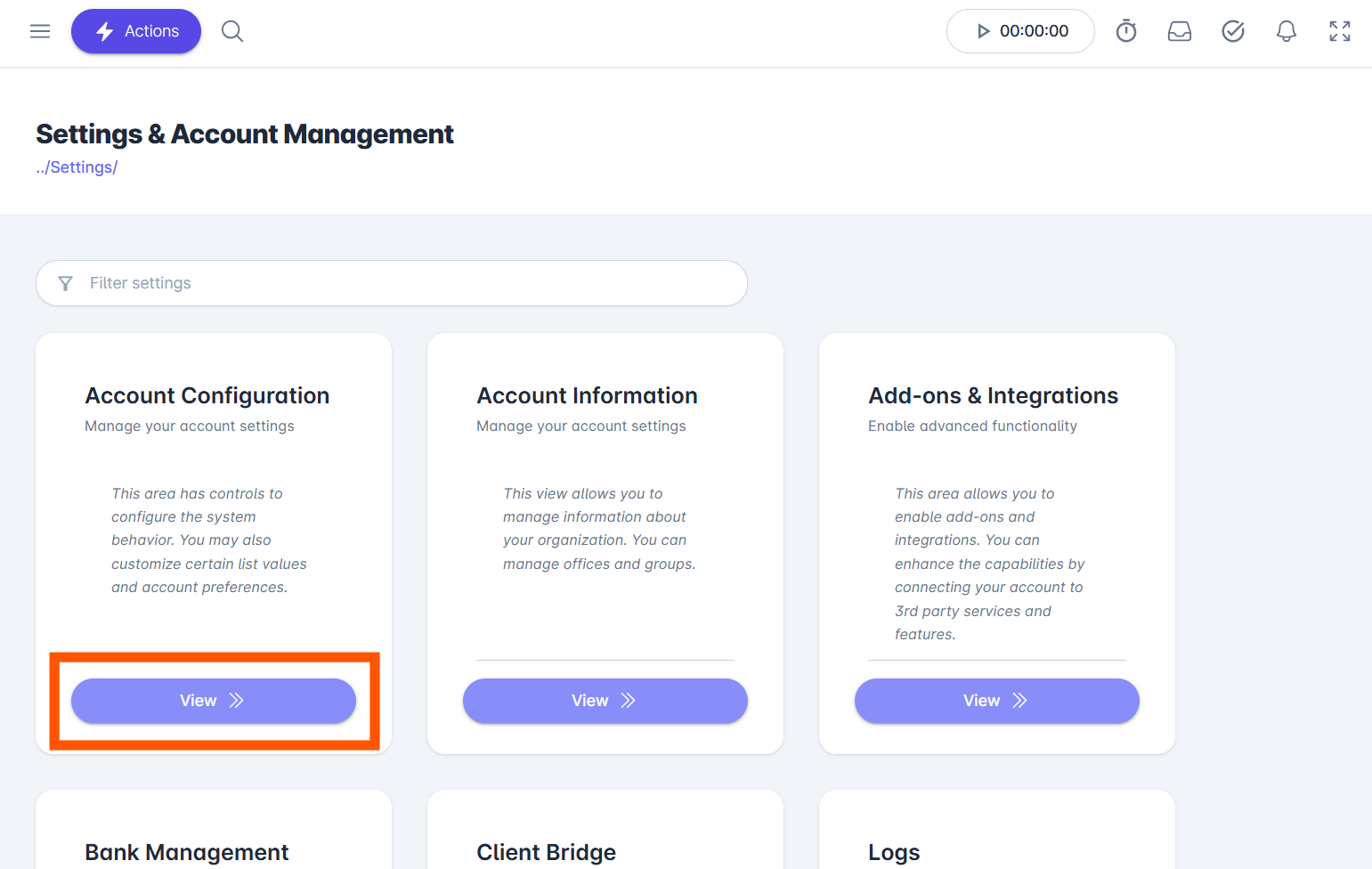
Click the View button on the Account Configuration menu card
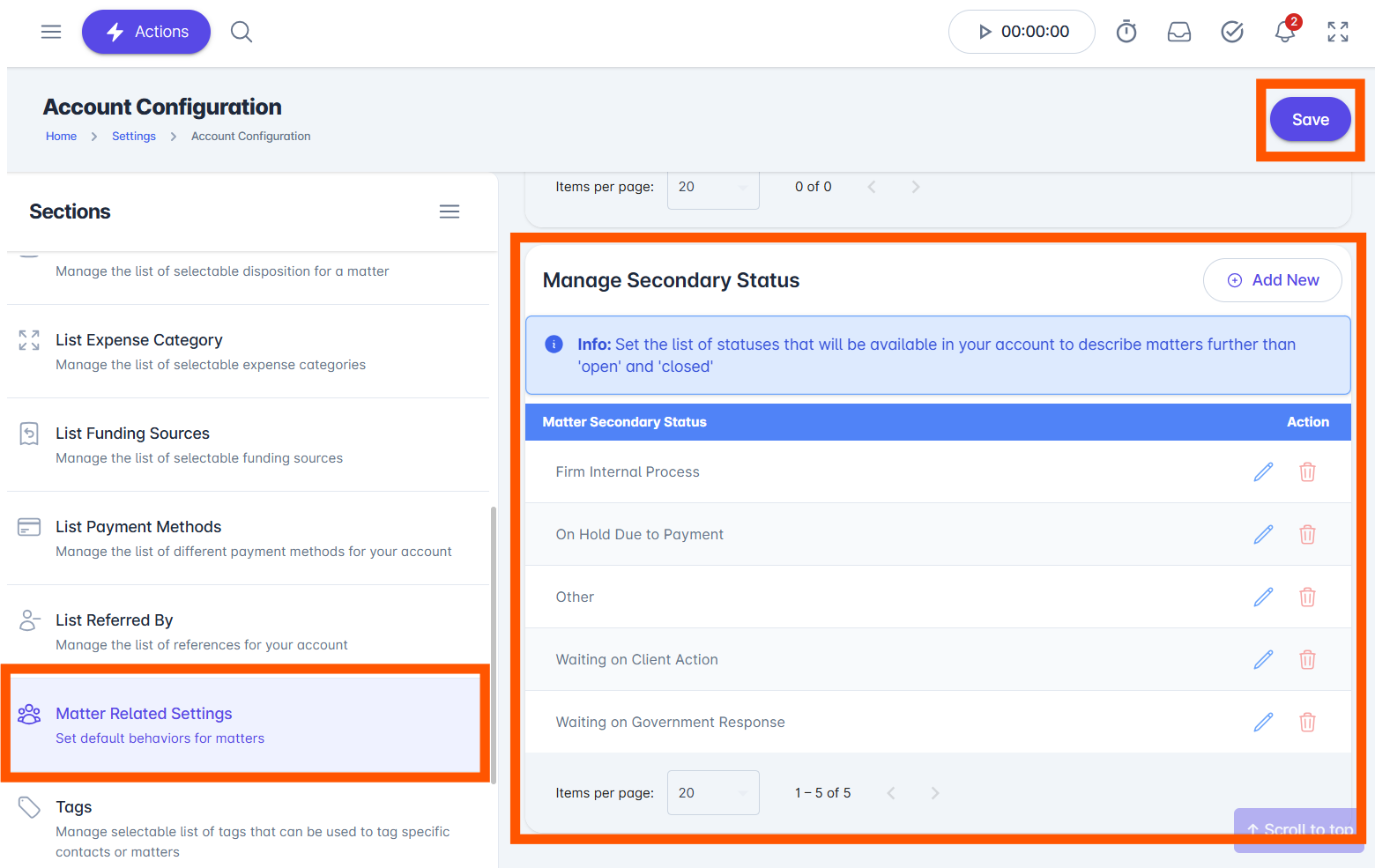
In the Section column on the left side of the screen, click the Matter Related Settings option. A few different settings windows will appear on the right. Scroll down to Manage Secondary Status. This window displays the list of all available default and custom secondary statuses to select from in the Case Status dropdown. See the full list of default Secondary Statuses at the bottom of this article. Users can edit any secondary status by clicking the blue ‘Pencil’ icon or delete any activity types by clicking the red ‘Trash Can’ icon. Click the Save button in the top right after any desired change is made to the Secondary Status list.
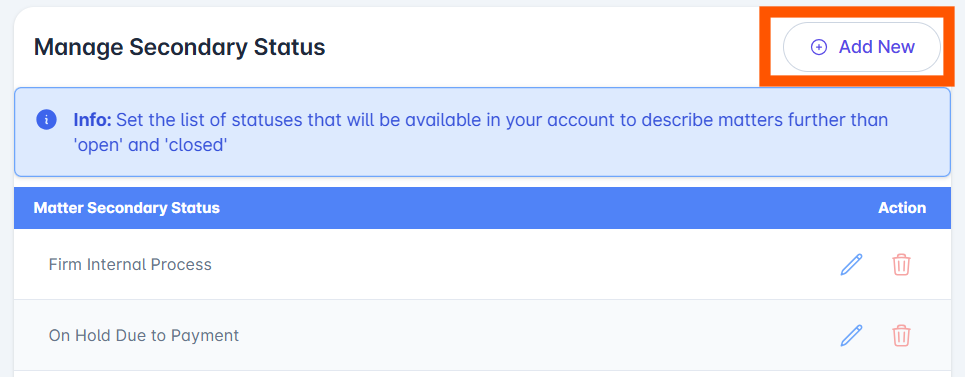
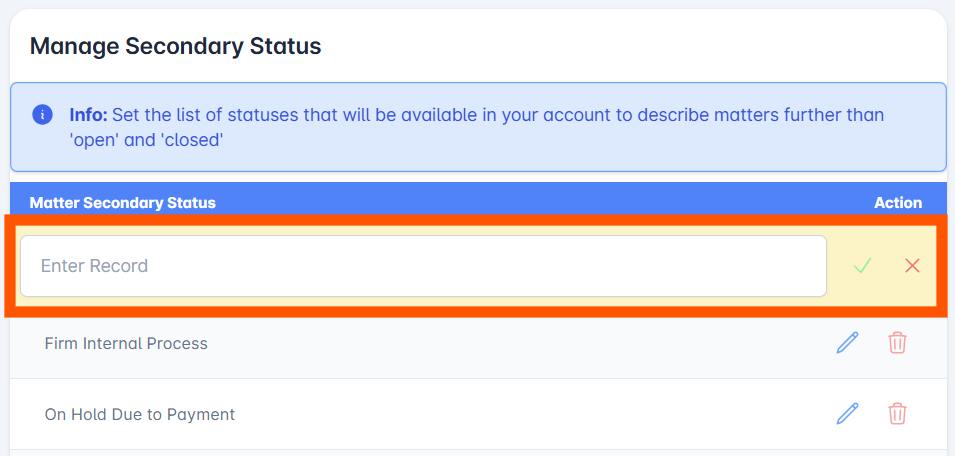
To create a new secondary status, click the Add New button in the top right. An empty field will appear where users can type in a custom secondary status title. To save your created secondary status, click the green checkmark icon and click the Save button in the top right.
Default Secondary Statuses:
Firm Internal Process
On Hold Due to Payment
Other
Waiting on Client Action
Waiting on Government Response
If you need additional assistance, contact our support team at support@lollylaw.com.