

Step 1: Open the Email From attorney or case manager
When your law firm sets up the Client Bridge access, you will receive an email with instructions for accessing the portal.
The email will include a link to the Client Bridge Portal, along with the username and password you need to sign in.
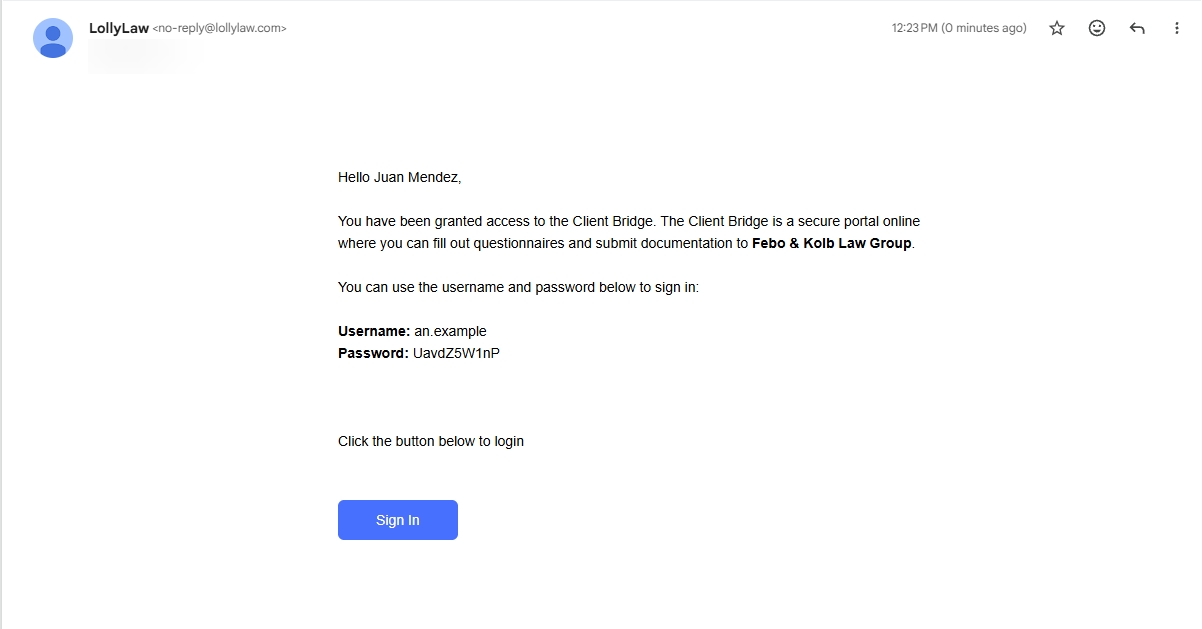
Step 2: Select the Client Bridge Link
Select the Client Bridge link in the email to open the Client Bridge login page.
Step 3: Enter Your Username and Password
Enter the username and password provided in the email. Then, select Sign In.
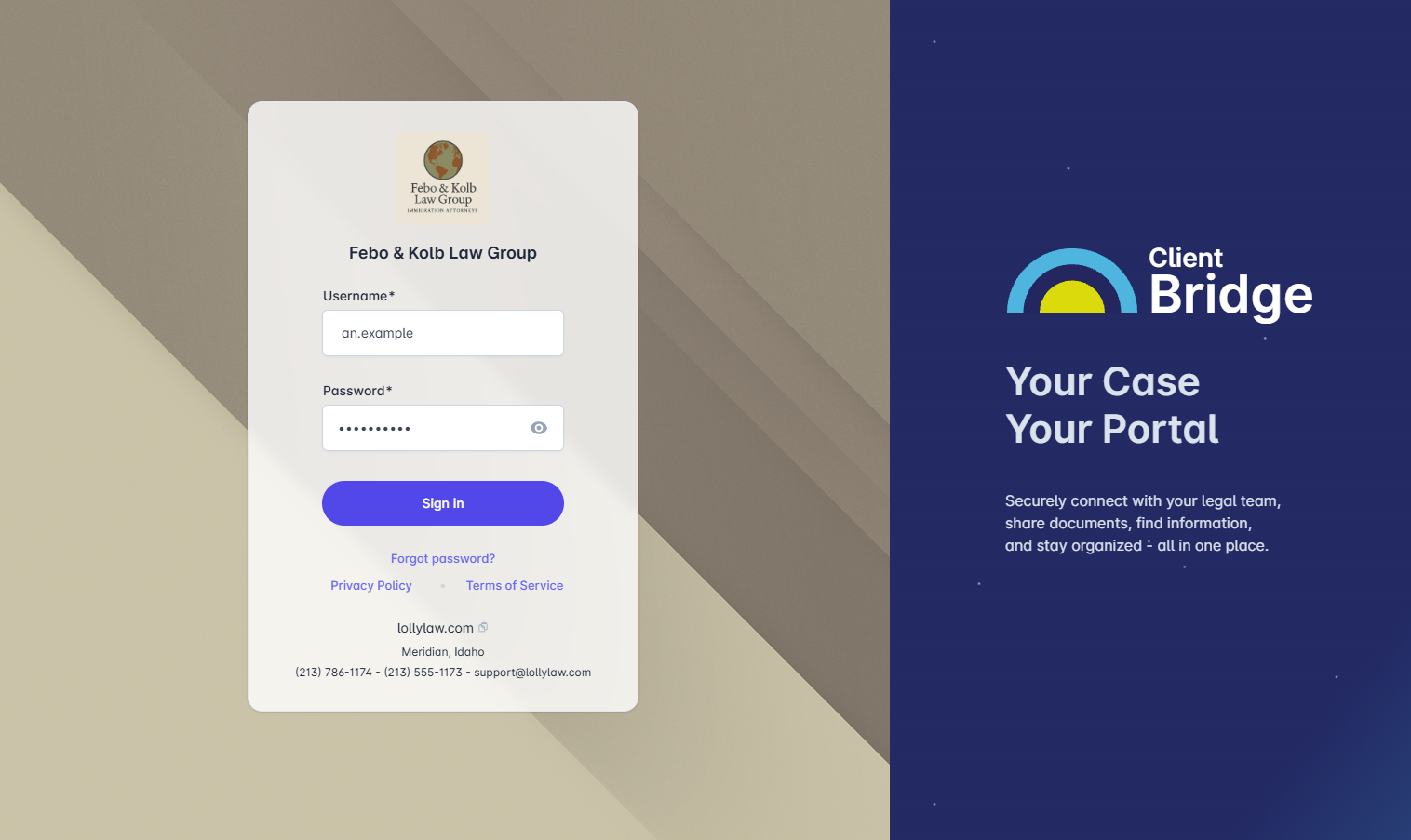
Forgot Your Password?
If you forgot your Client Bridge password, select Forgot Password on the Client Bridge login page and follow the instructions to reset your password.
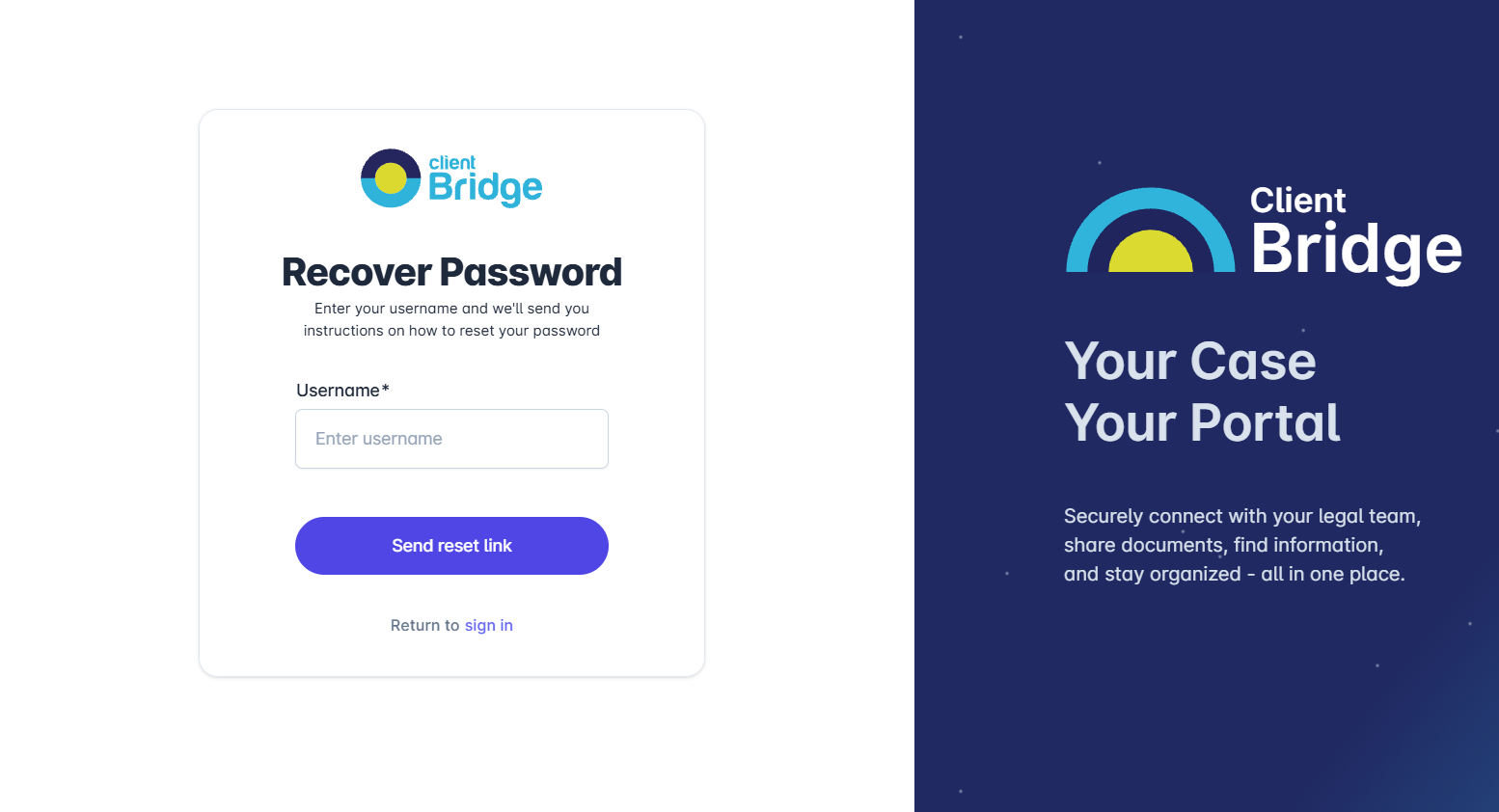
If you are unable to reset your password or do not receive the password reset email, please contact your attorney or case manager for assistance.
Step 4: Access the Client Bridge Portal
Once you sign in, you will be taken to the Client Bridge Portal.
The options available in your portal may vary depending on what your attorney or case manager has provided access to. Depending on what your law firm has shared with you, you may be able to:
Complete questionnaires
View or complete forms
Upload requested documents
View documents shared by your law firm
Complete assigned tasks
If you have any questions about using the Client Bridge Portal or what you need to complete, please contact your attorney or case manager for assistance.