

LollyDrive allows you to safely remove files and folders while keeping a clear path for recovery when needed. Files moved to the Trash are easy to restore, and administrators can permanently delete content when appropriate.
Move Files to Trash
To move a file or folder to the Trash:
Locate the file or folder in LollyDrive.
Click the three vertical dots next to it.
Select the Trash icon.
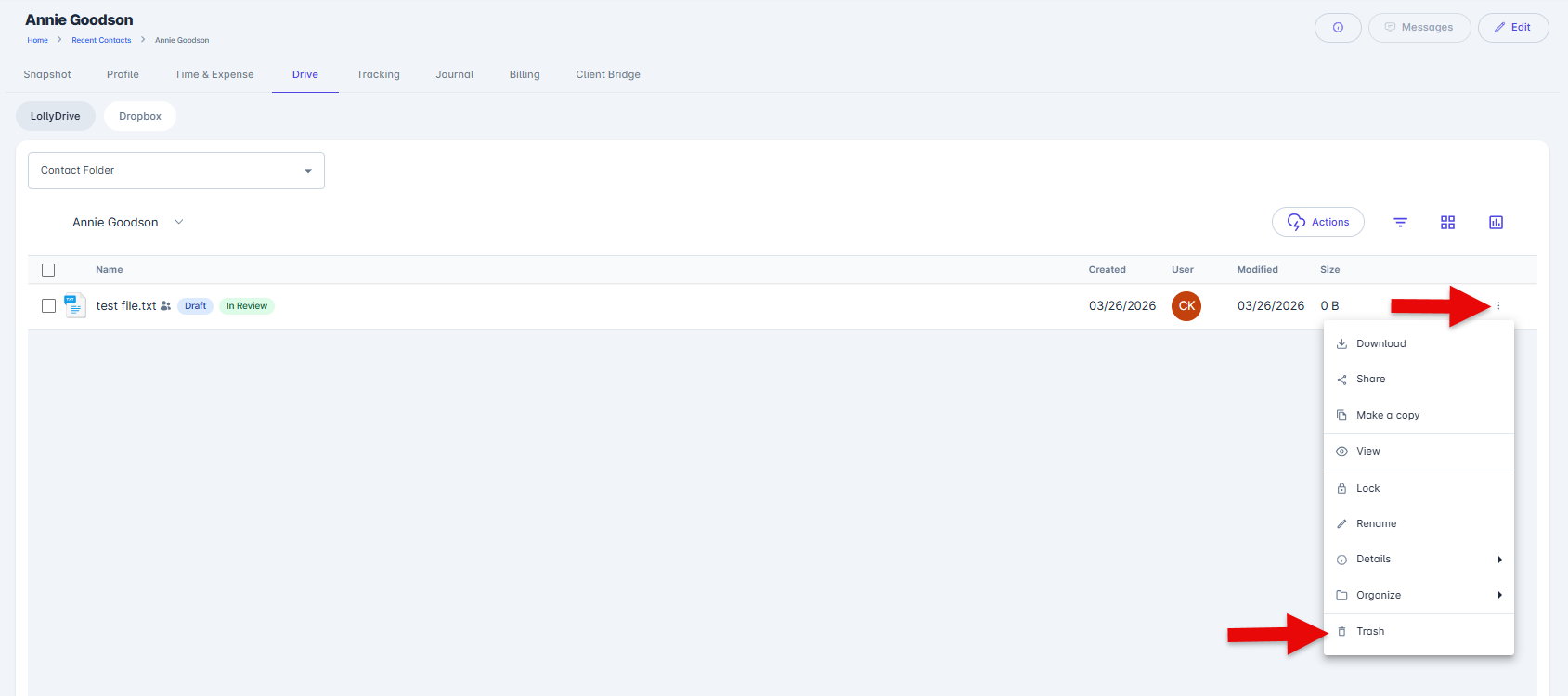
The item will be moved to the Drive > Trash section of LollyDrive, where it can be restored or permanently deleted by users with the appropriate permissions.
Note: Users with the Can Manage Drive Labels and Trash permission in Settings > Security Groups can access the Trash and permanently delete files. This permission is typically reserved for Administrators or account owners.
Restore Files from Trash
Files in the Trash folder can be restored individually or in bulk. Restored files automatically return to the folder they were originally removed from.
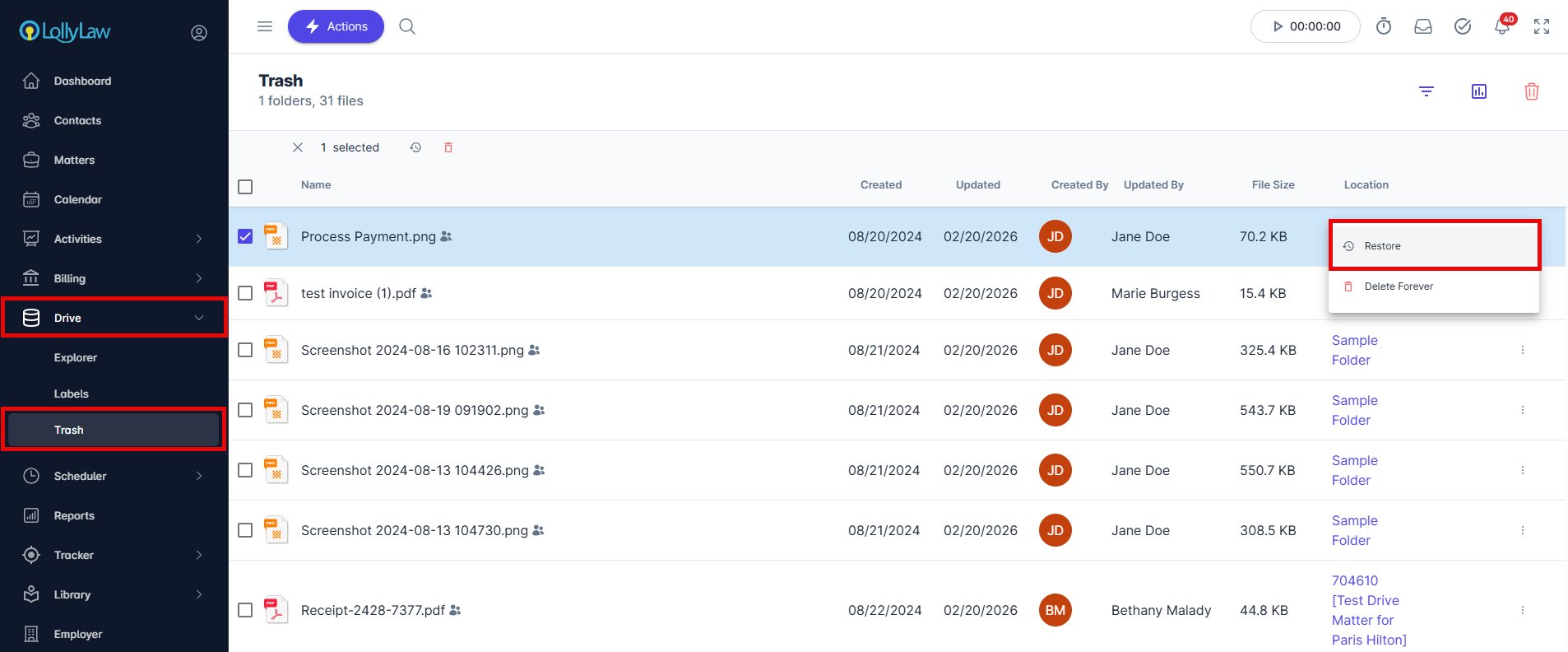
Individually:
Go to Drive > Trash.
Click the three vertical dots next to the file.
Select Restore.
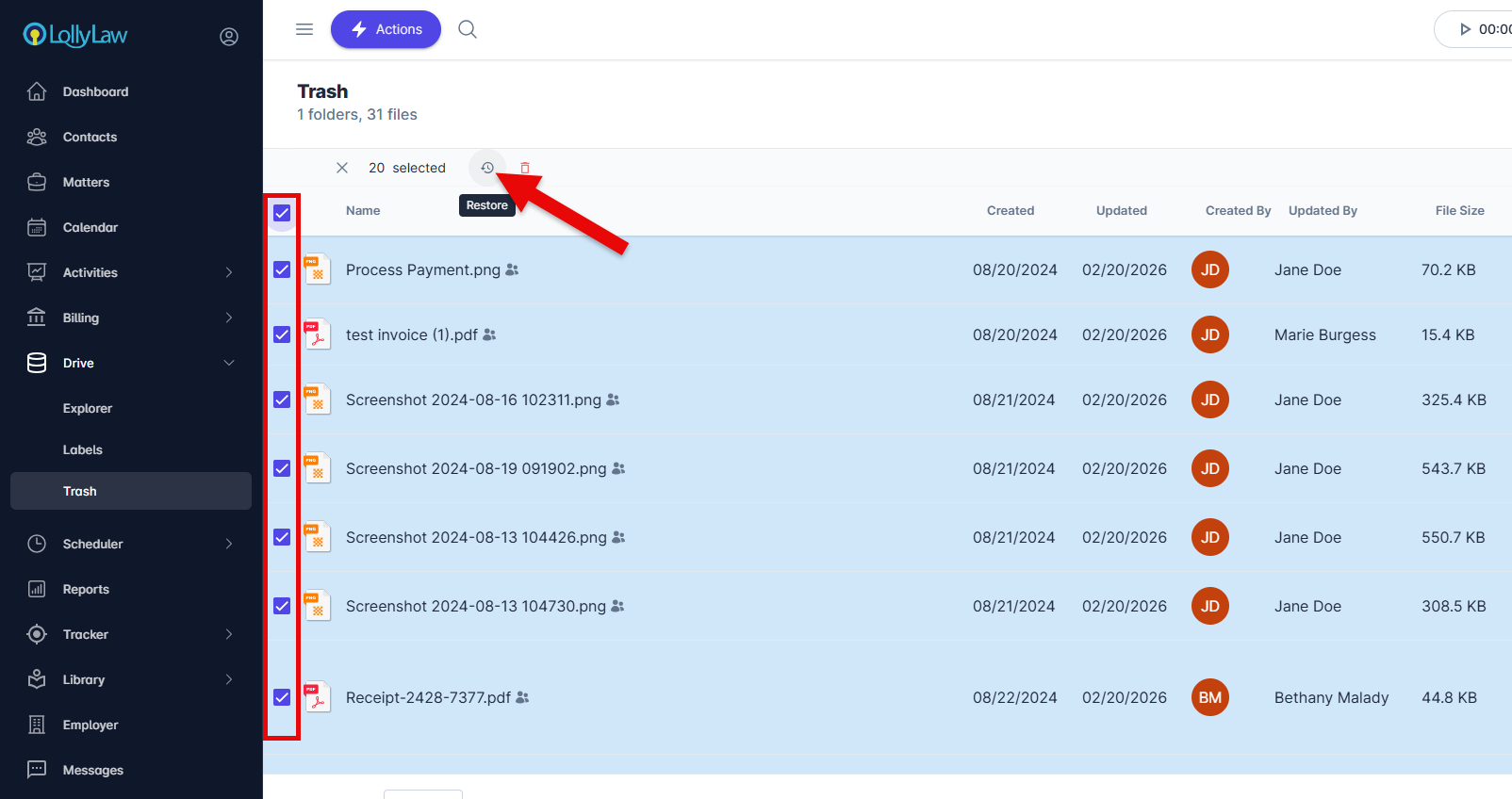
In bulk:
Check the boxes next to the files you want to restore.
Click the Restore button that appears.
Permanently Delete Files
Files in the Trash folder can be permanently deleted by users with the appropriate permissions.
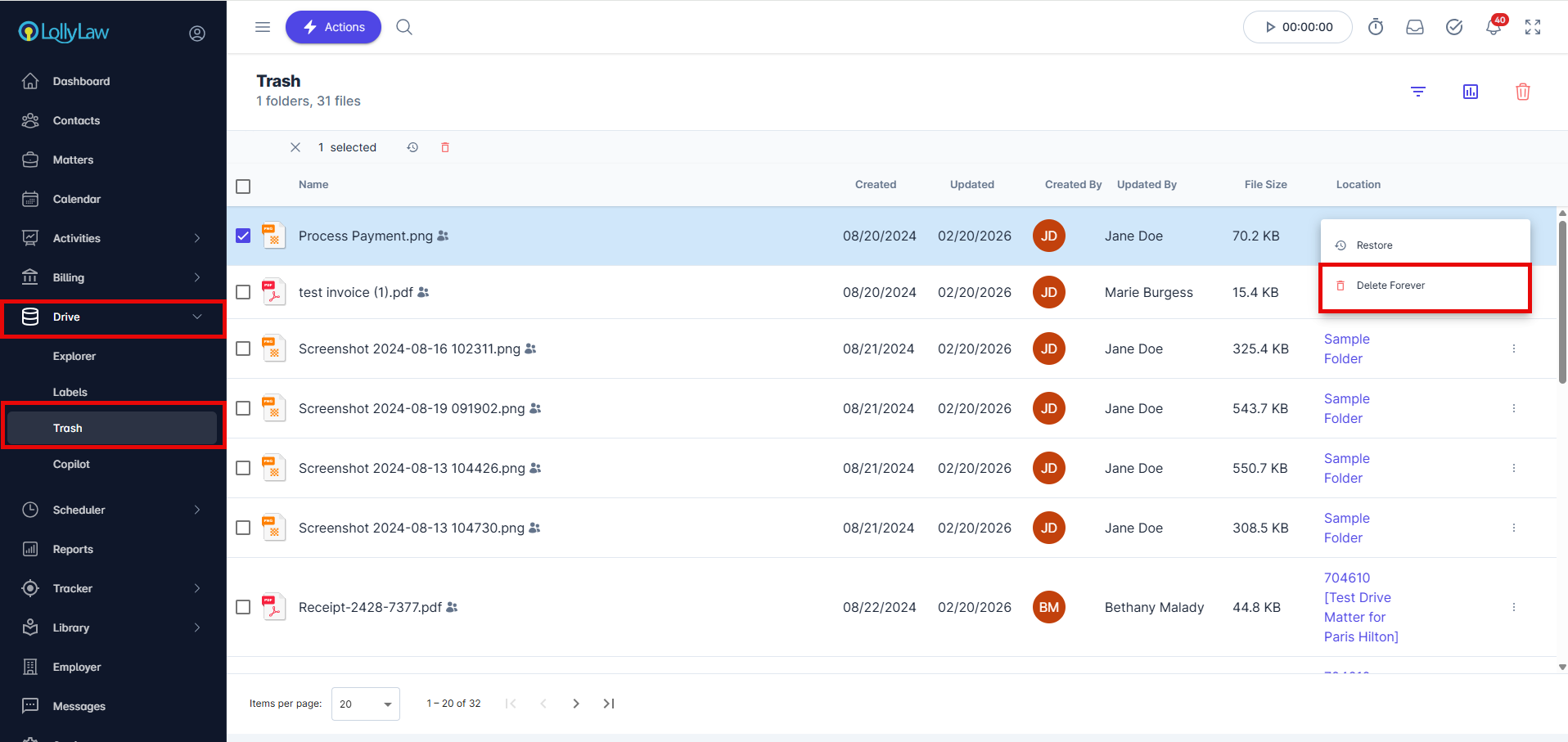
Individually:
Go to Drive > Trash.
Click the three vertical dots next to the file.
Select Delete Forever.
In bulk:
Check the boxes next to the files you want to delete permanently.
Click the Delete Forever button that appears.
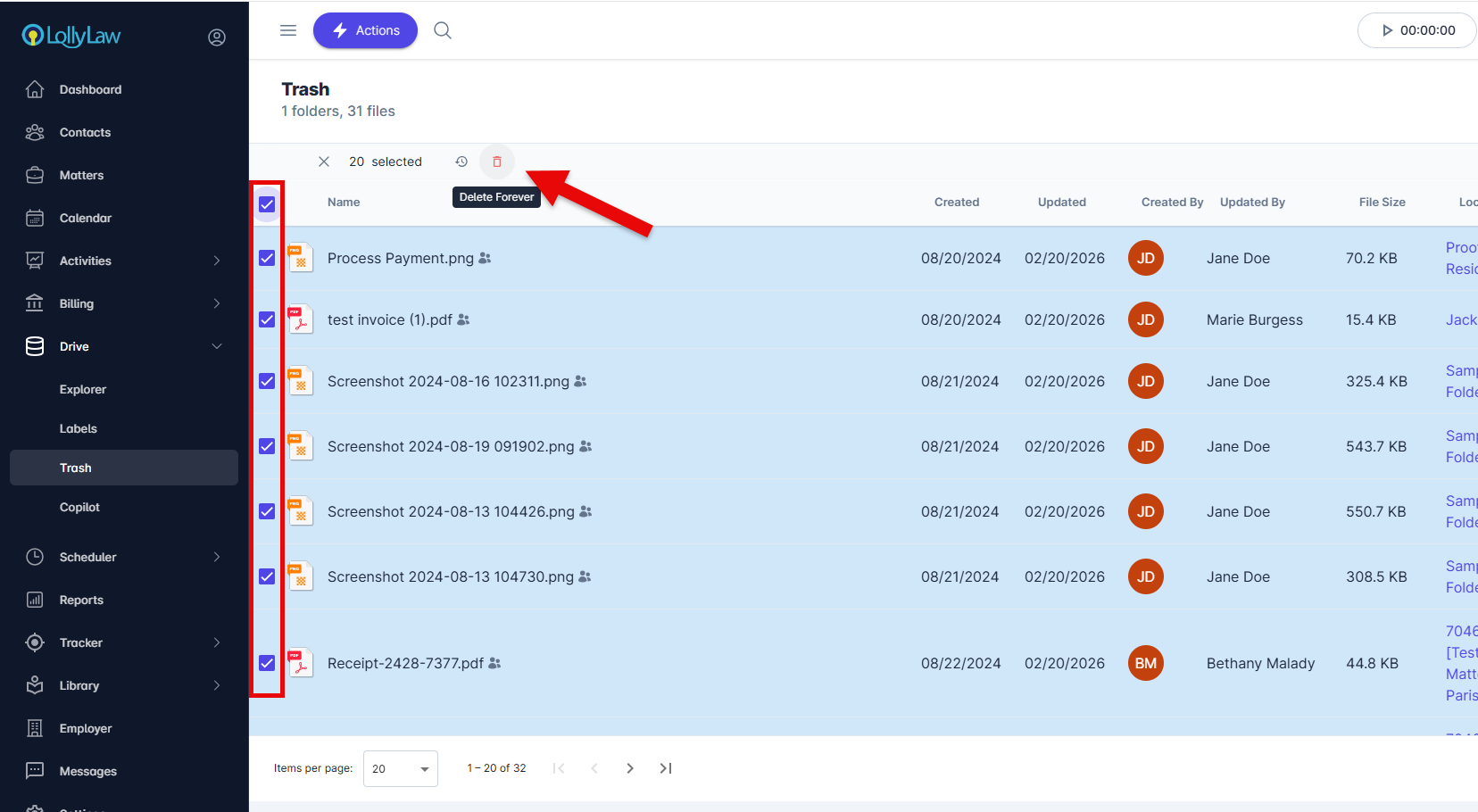
Please note that once a file is permanently deleted, it cannot be recovered.