

Trust Requests in Lollipayments let your firm collect funds directly into a client trust account, providing clients with a simple online payment experience. Let's look at the steps:
Step 1: Open Matter and Go to Trust Requests
Open a matter record. Navigate to Billing, then select Invoices and Trust Requests.
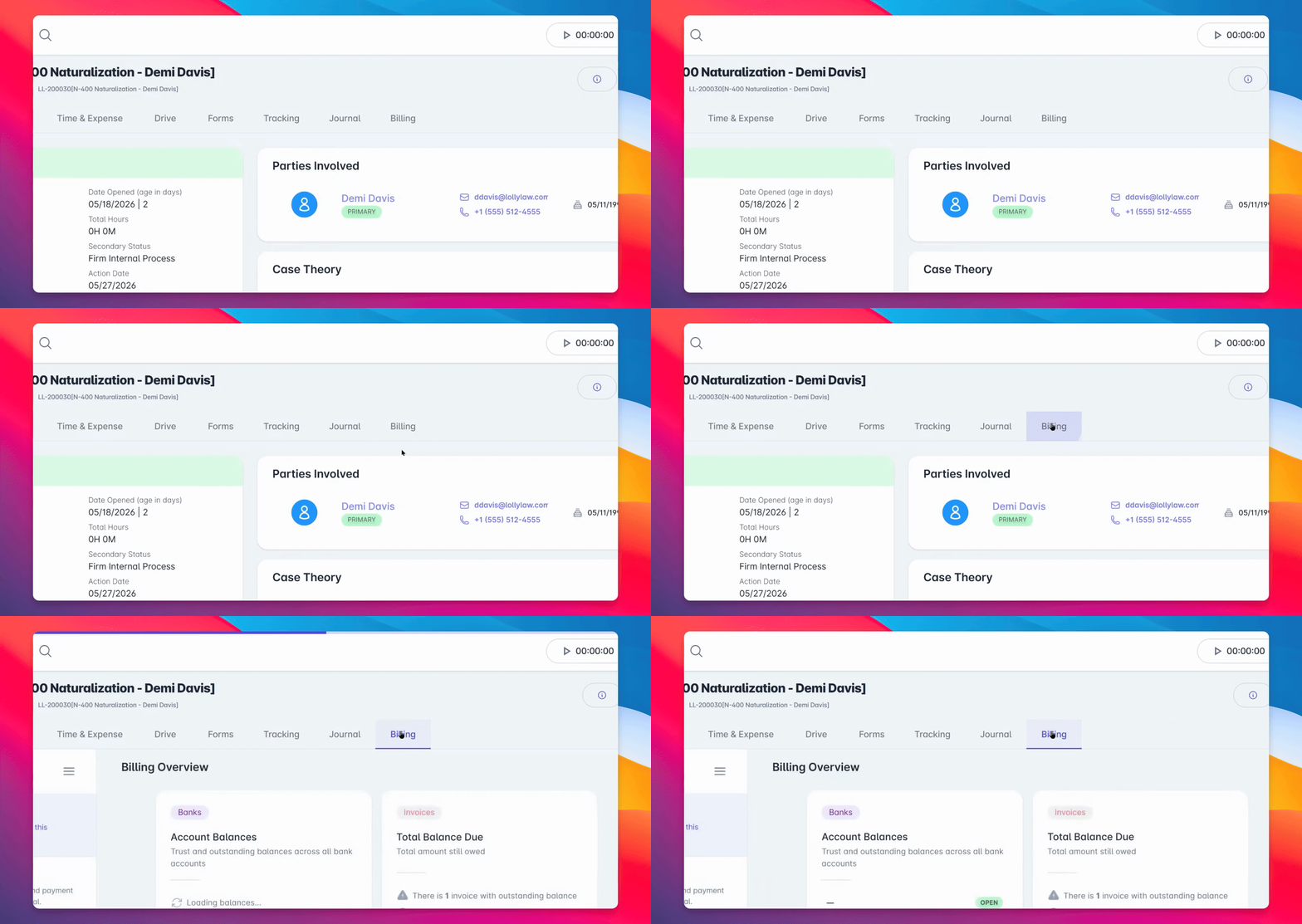
Step 2: Start a New Trust Request
From the Actions menu, select Create Trust Request.
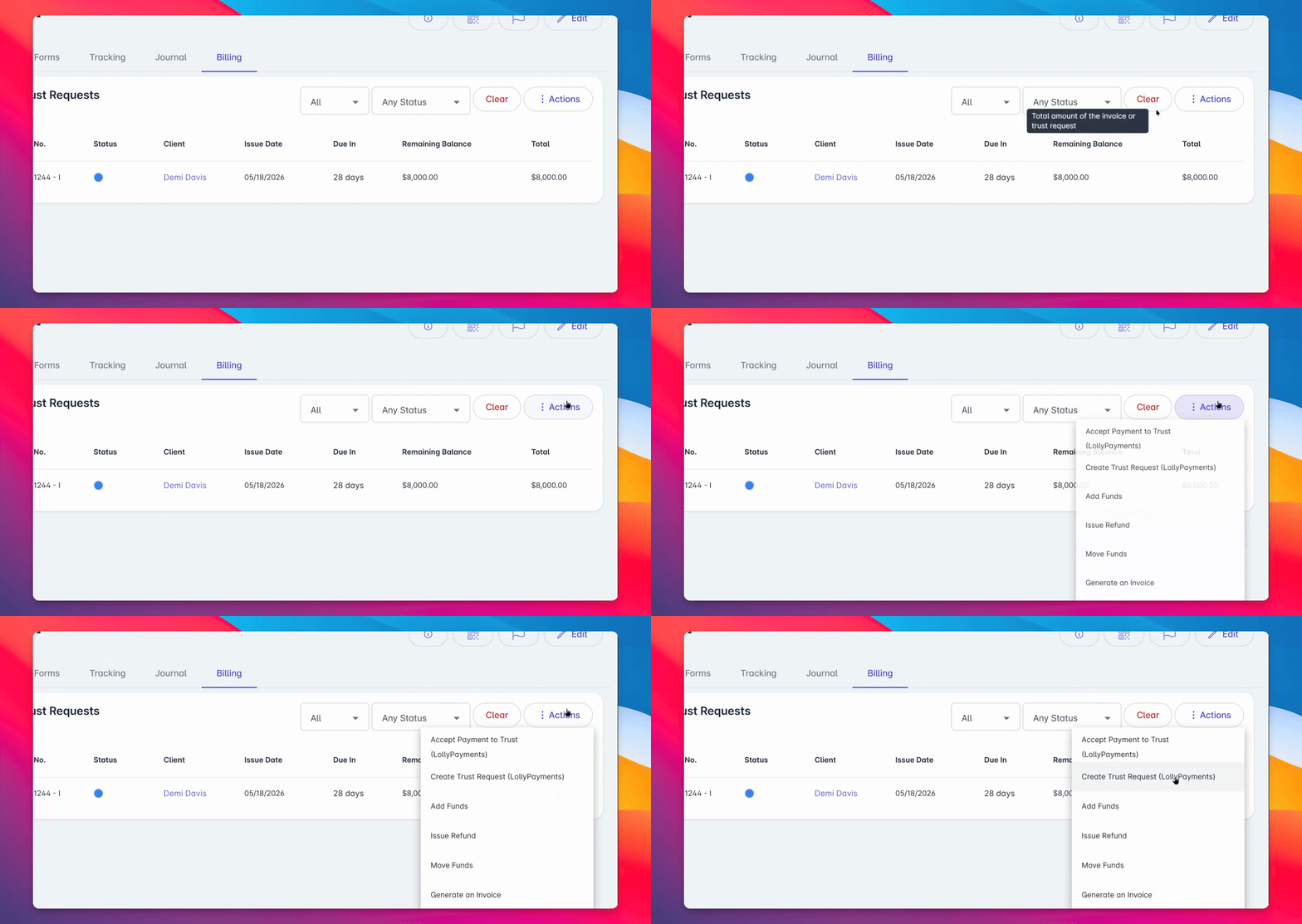
This workflow is similar to sending a bill, but payments go into the client's trust account instead of paying an invoice balance.
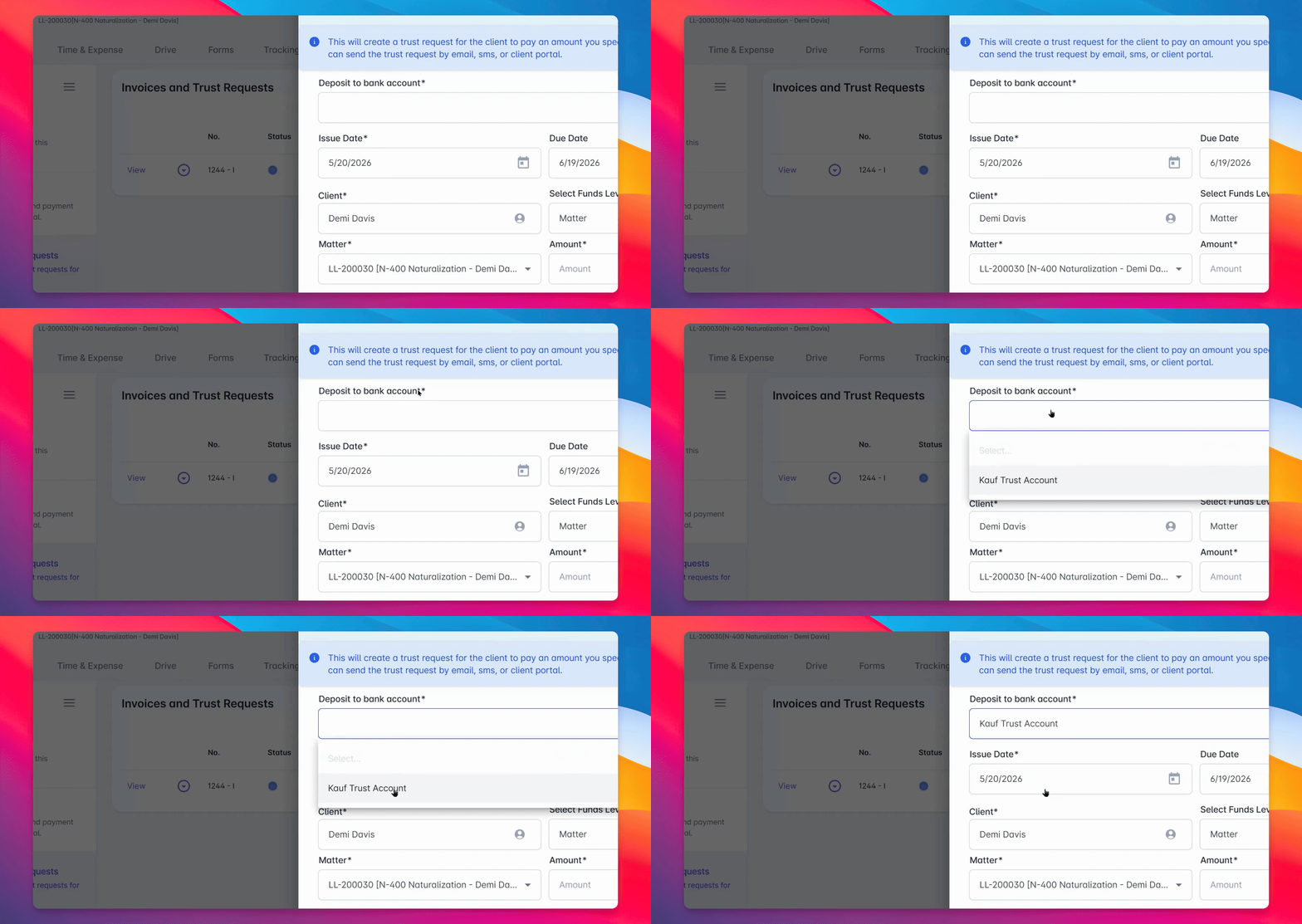
Step 3: Select Trust Account and Amount
Choose the trust account where funds should be received. Enter the amount you want to request.
Step 4: Choose Delivery Method
Select how you'd like to send the trust request to your client.
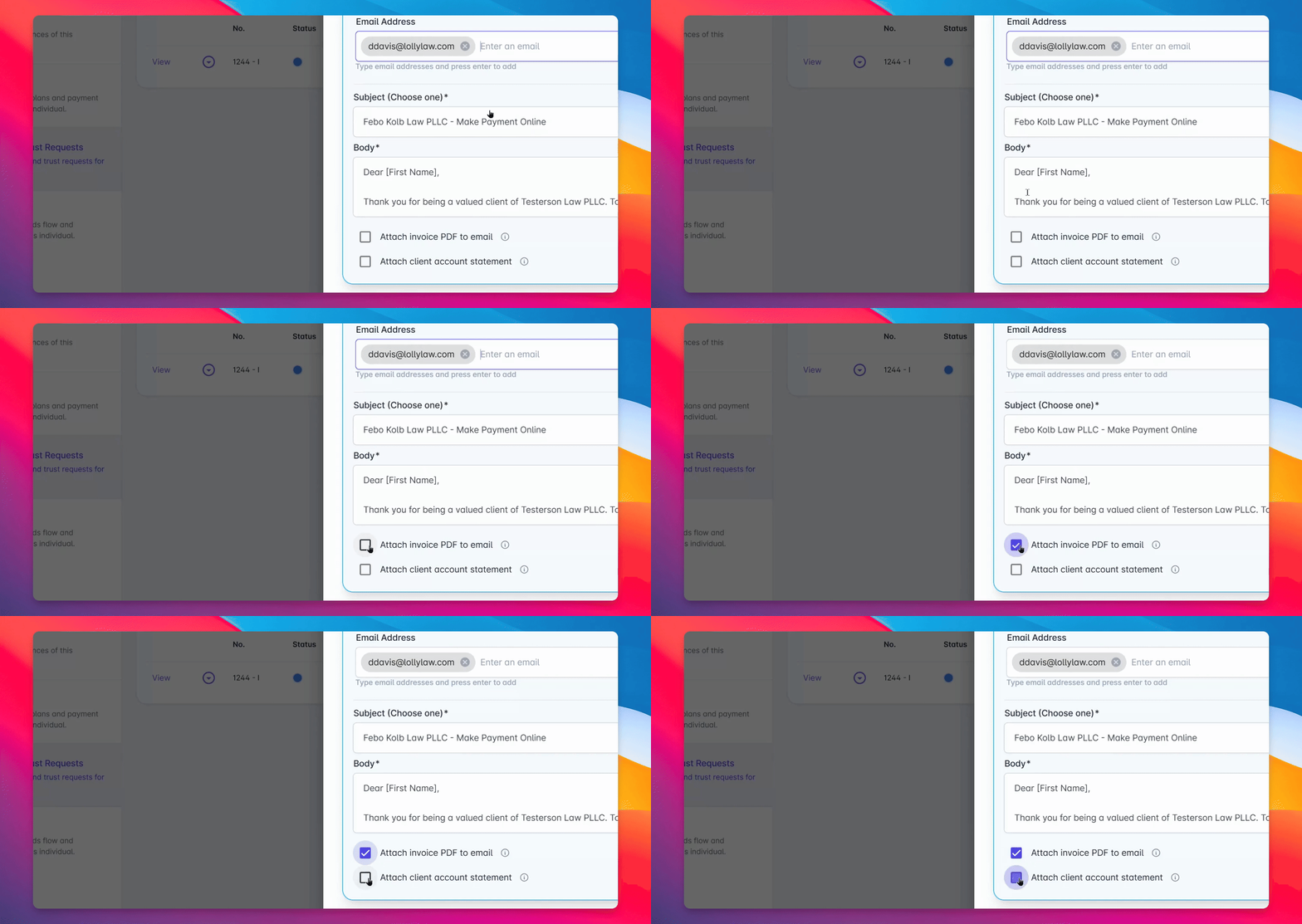
You can share the bill with your client via email or SMS.
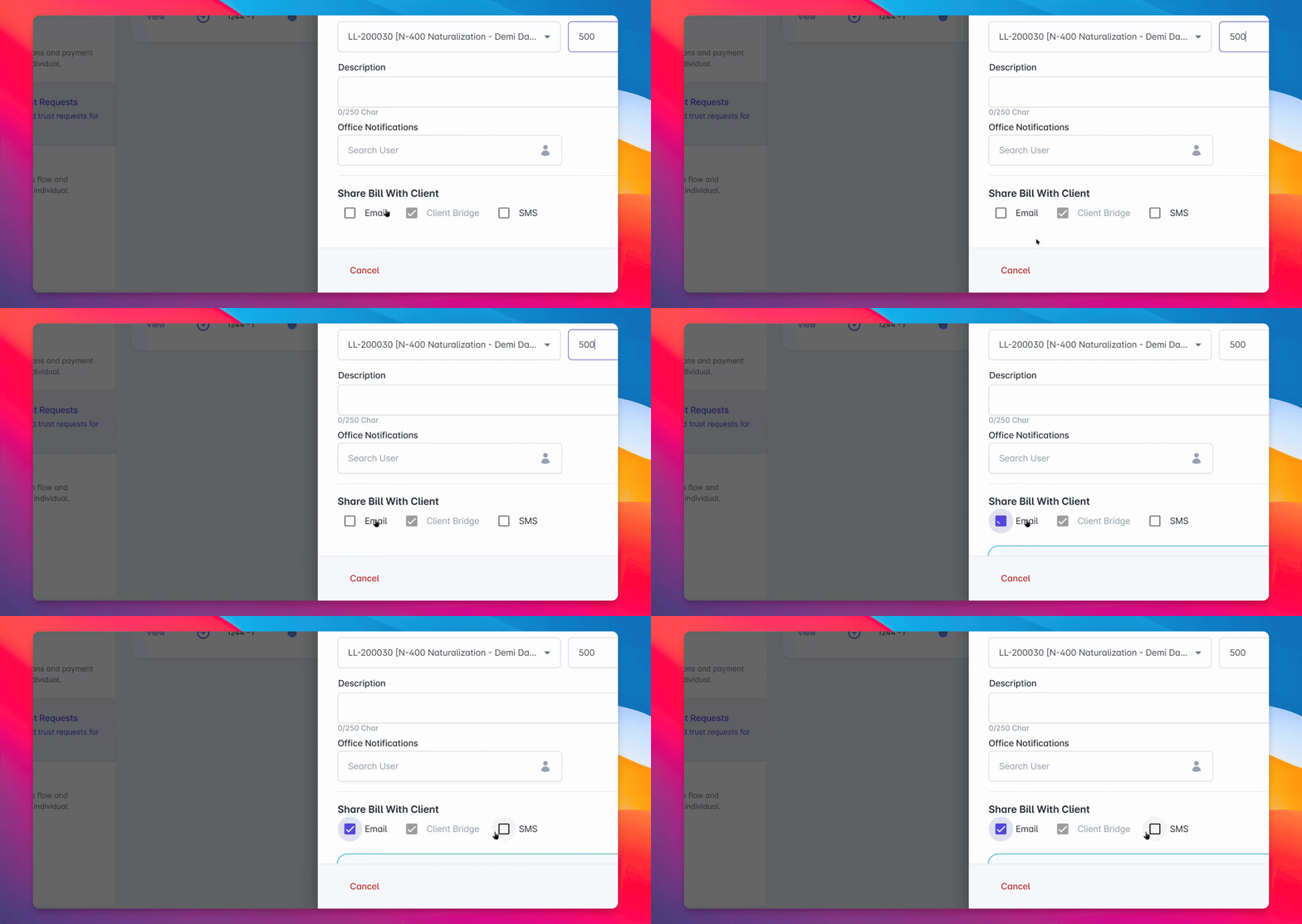
Optionally, attach an invoice or account statement to provide additional context for your client.
Step 5: Create the Trust Request
Once all details are correct, click Create Trust Request to send it to your client.
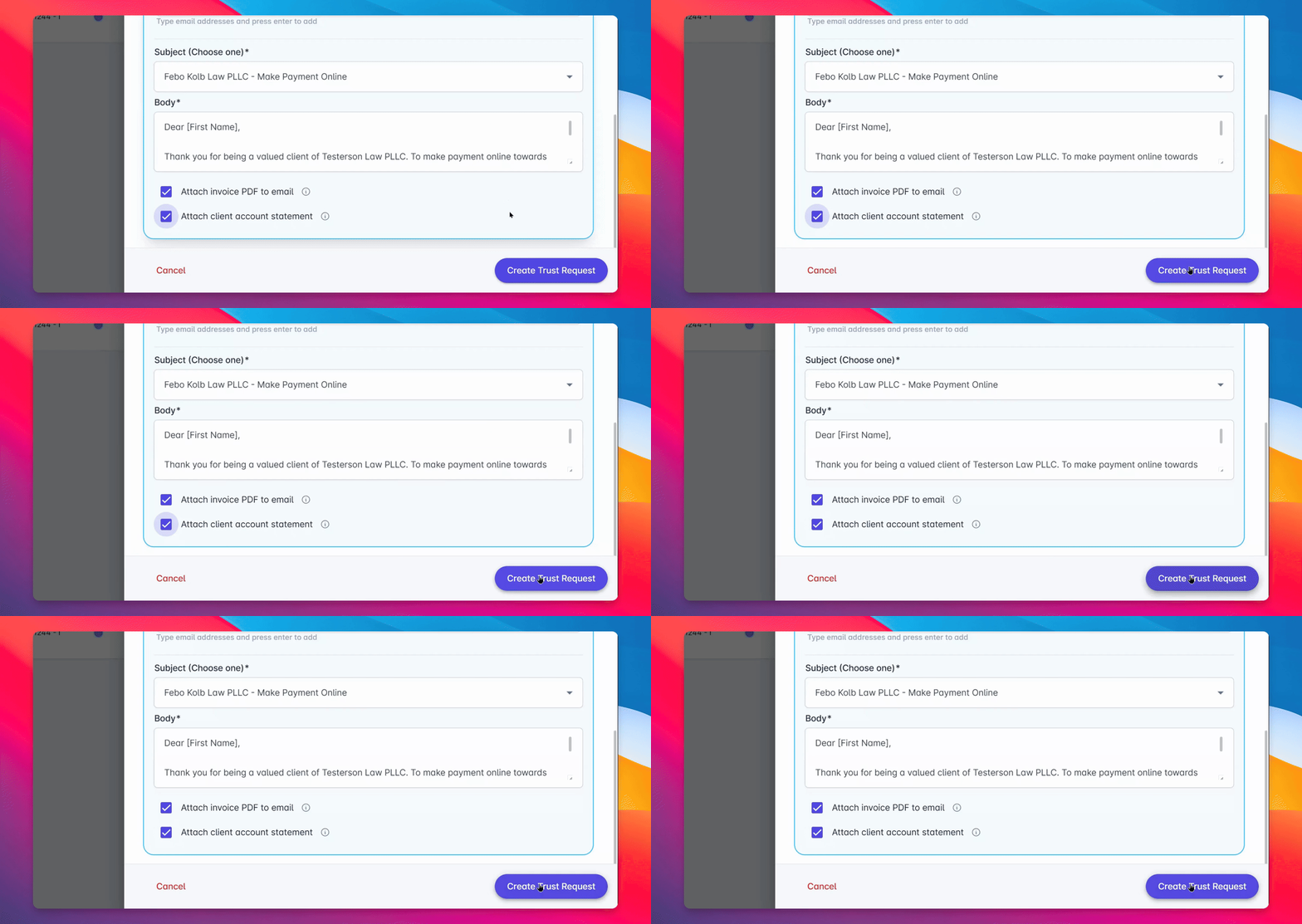
Your client will receive a secure payment link, allowing them to submit funds online at their convenience.
With Lollipayments, trust funding requests are quick to create and send, helping your firm reduce administrative work and keep trust accounting organized.
For more information, visit help.lollylaw.com or contact support.