

One Links allow your firm to collect online payments easily by sharing a secure payment URL with clients. This can be used in email signatures, on your website, or via a Pay now button. OneLinks enable fast payments without requiring an invoice first. Let's look at the steps:
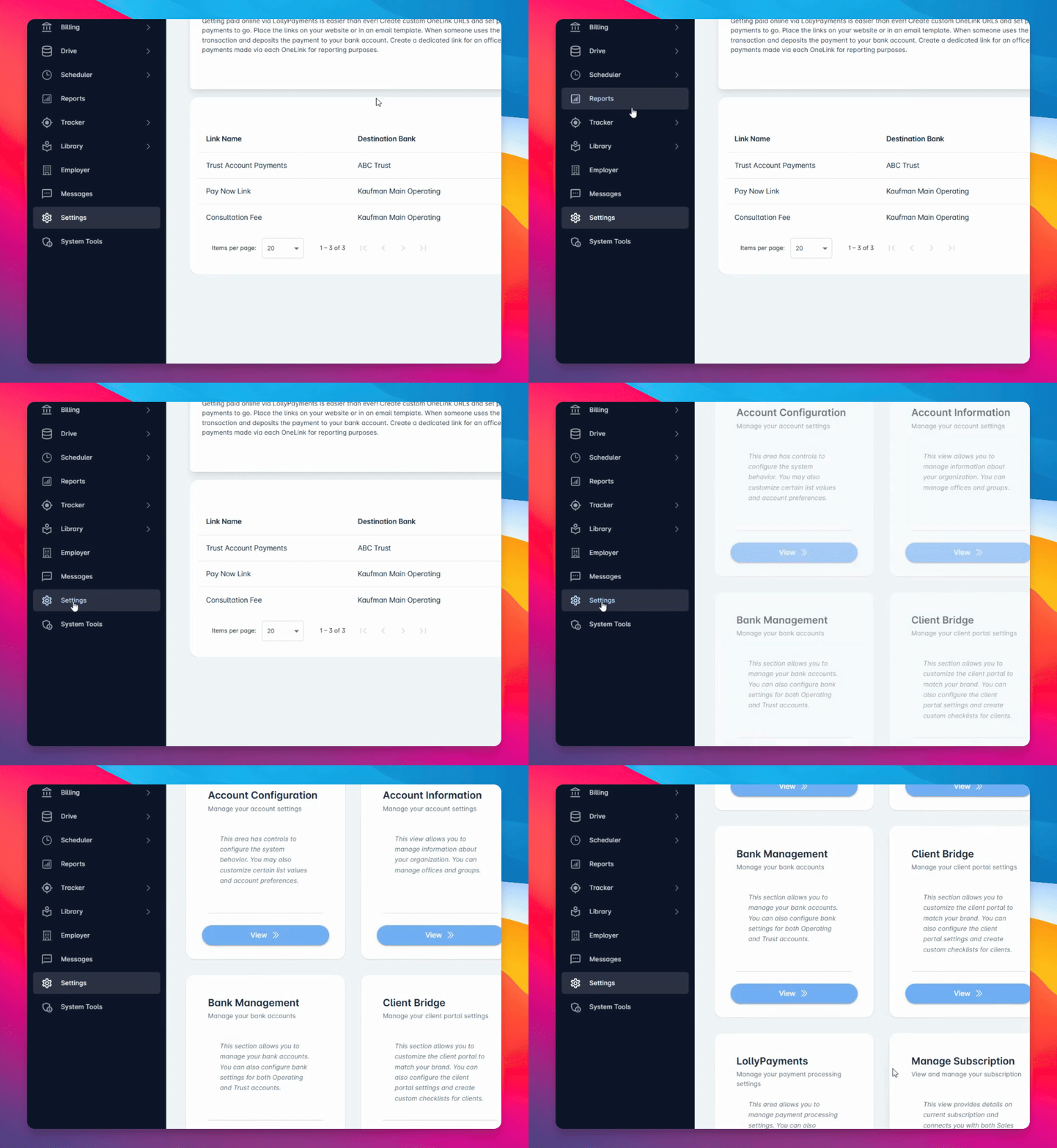
Step 1: Go to Settings
Navigate to the Settings section in your Lolly Payments dashboard.
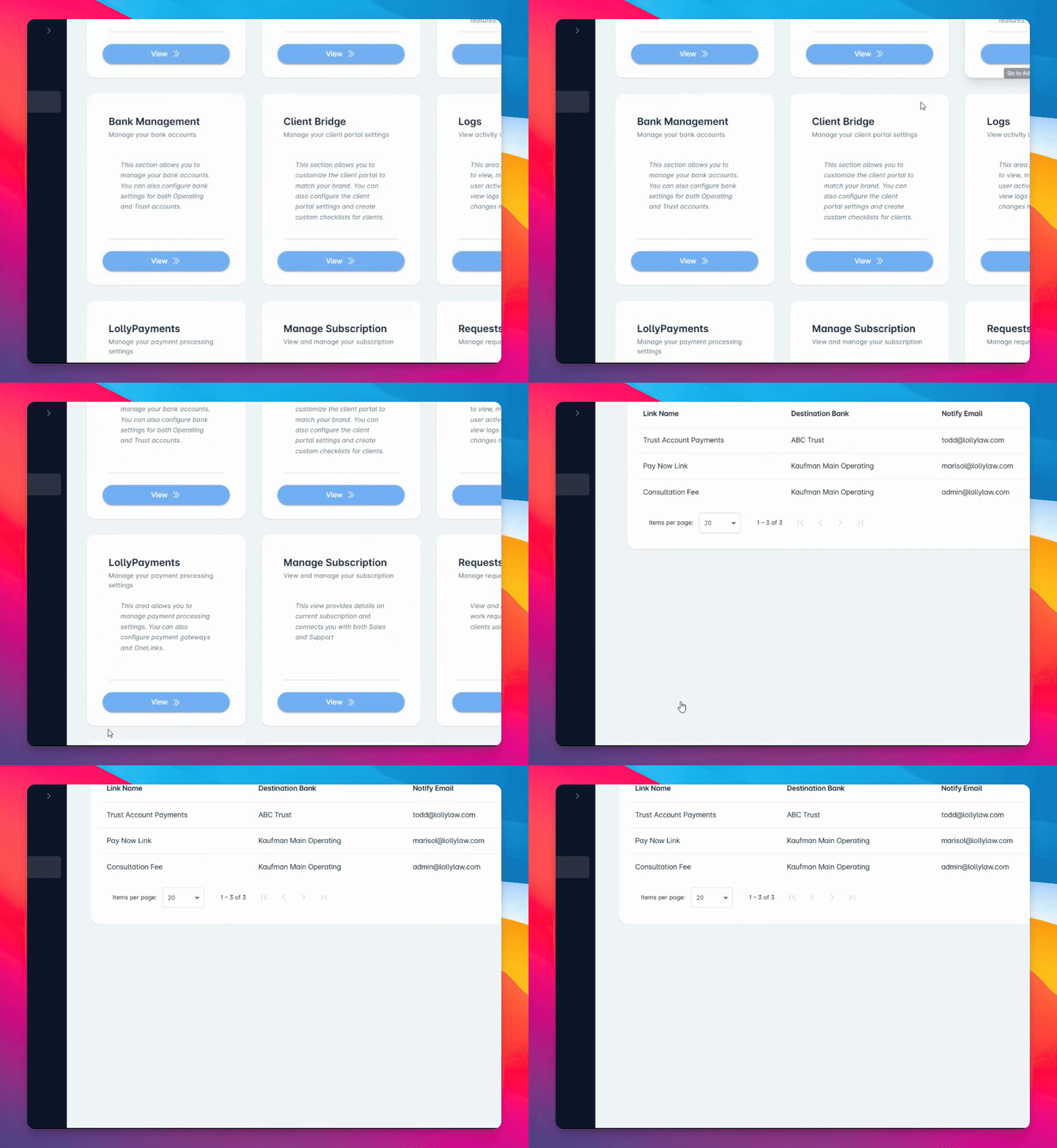
Step 2: Open Lolly Payments
Select Lolly Payments from the available settings options.
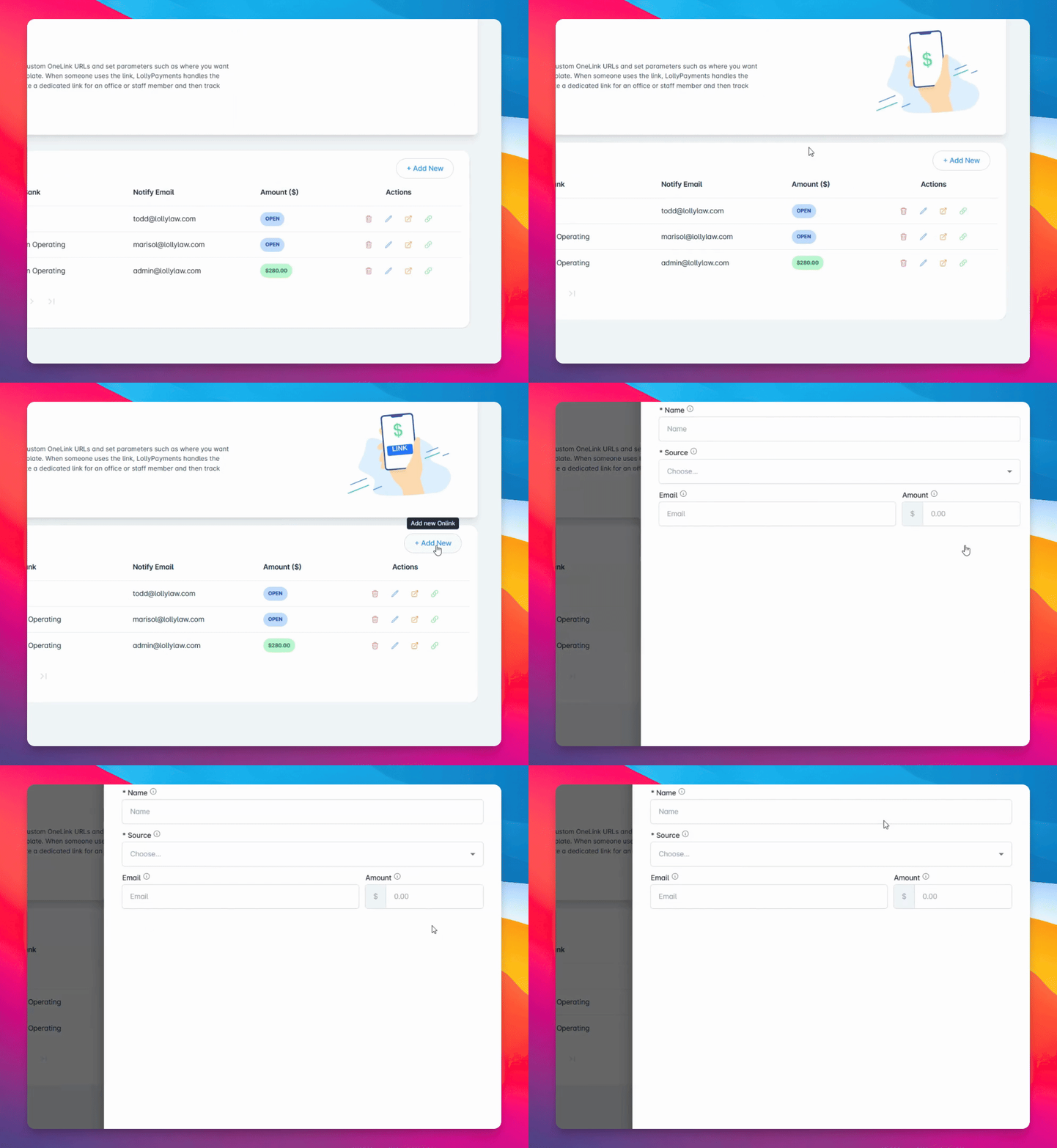
Step 3: Add a New One Link
Click Add New to start creating a new One Link payment URL.
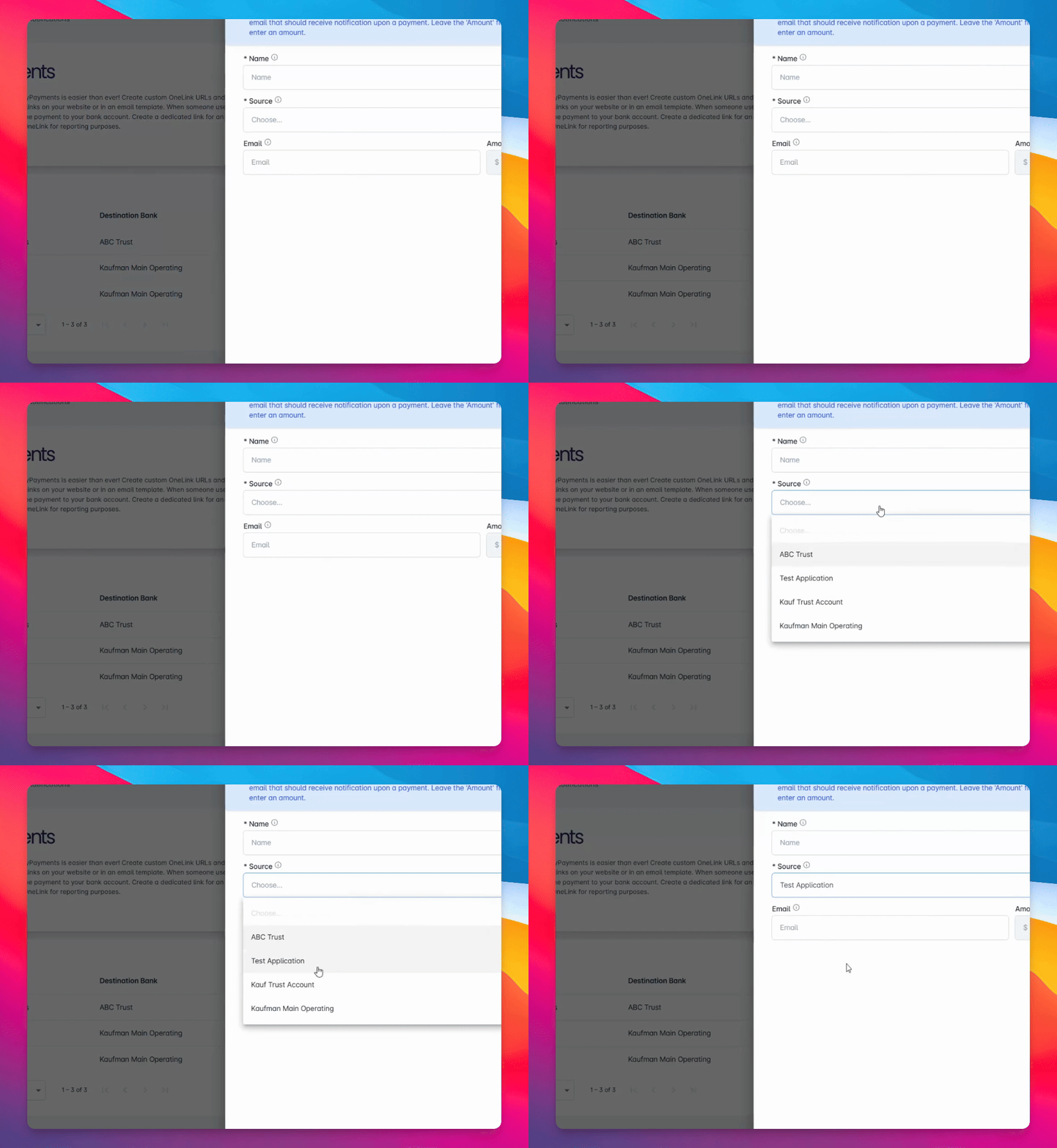
Step 4: Configure One Link Details
Select the destination bank account, set your notification preferences, and choose whether to set a fixed payment amount or allow the payer to enter any amount.
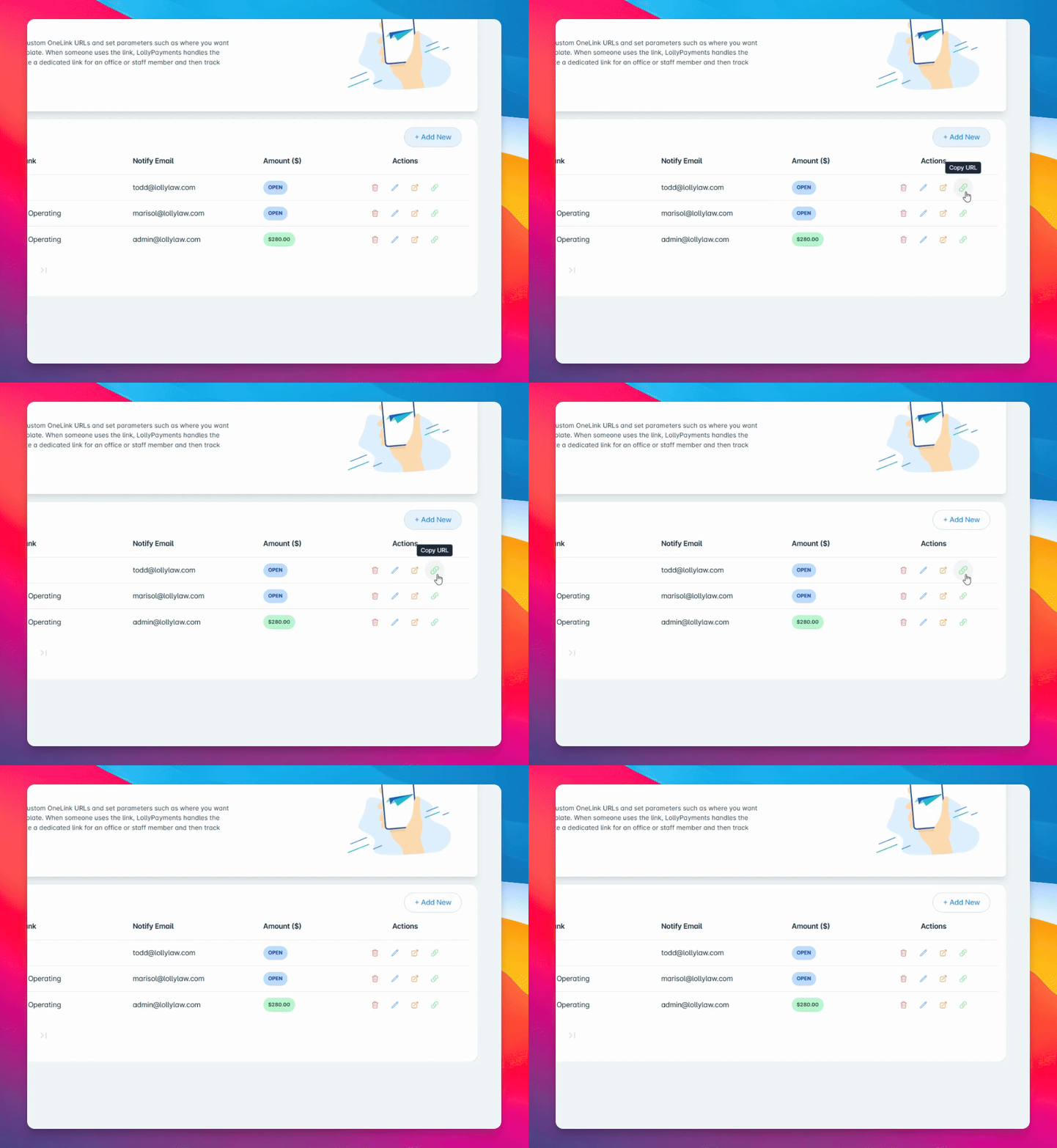
Step 5: Copy and Share the One Link
After creating the OneLink, copy the generated URL and place it wherever clients need to make a payment, such as in emails or on your website.
Step 6: Client Makes a Payment
When clients open the OneLink, they are directed to a secure payment page to enter their payment information and submit it online.
Step 7: Reconcile OneLink Payments
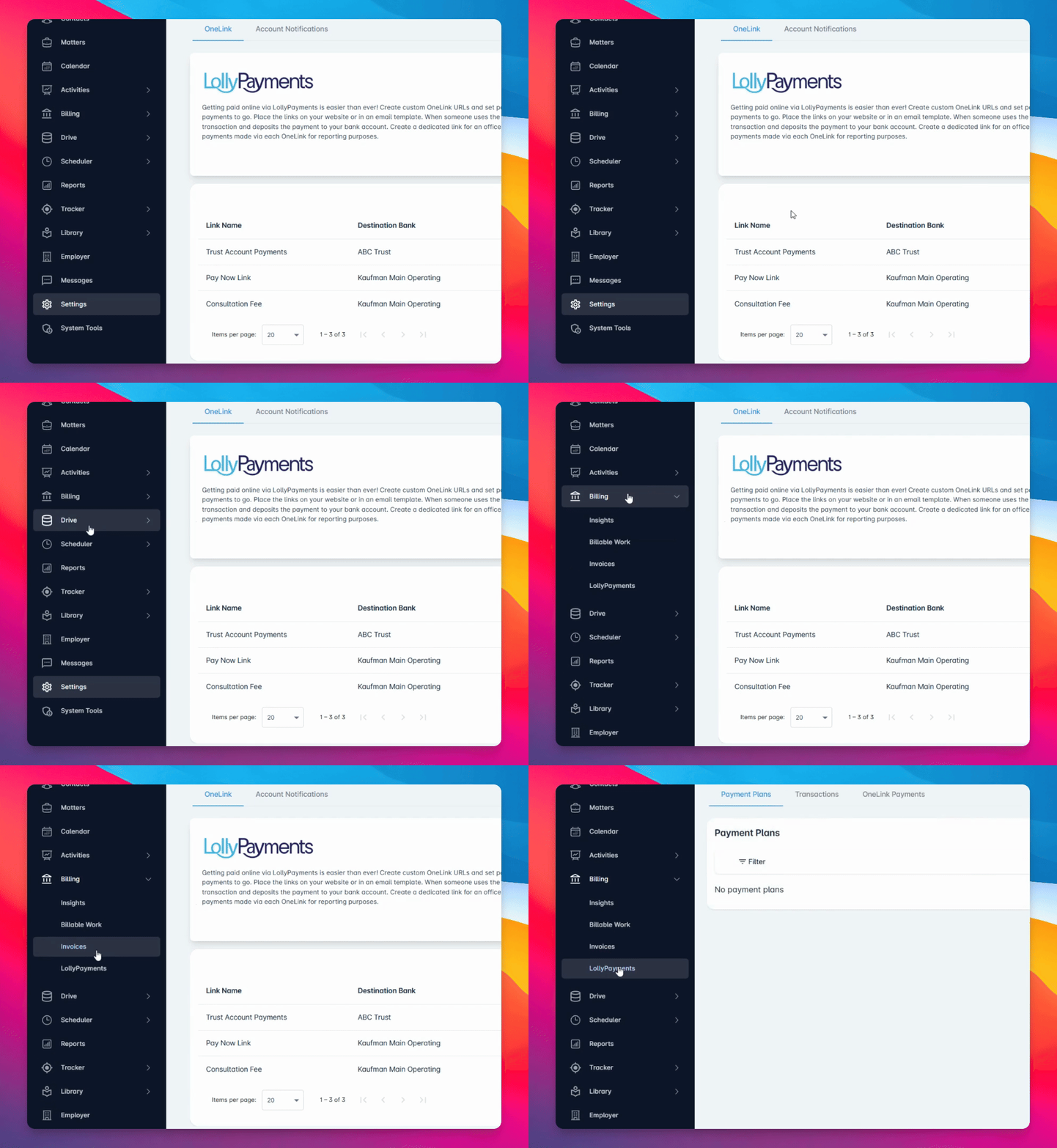
To reconcile received payments, go to Billing, then Lolly Payments, and finally the One Link Payments tab.
Step 8: Review and Link Payments
Review payment details and link each payment to the appropriate client matter or invoice as needed.