

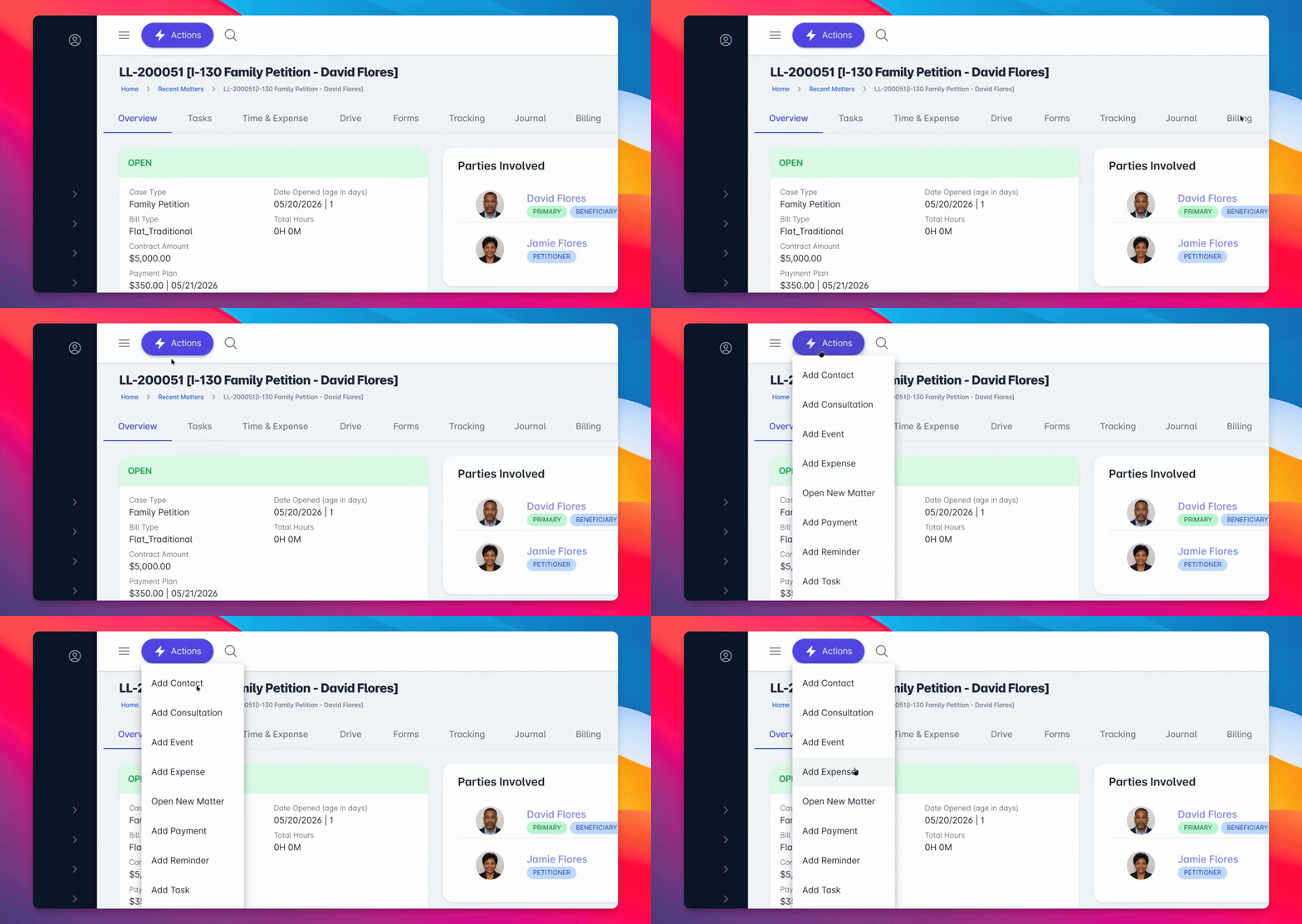
Step 1: Actions > Add Expense
Click the main Actions at the top of your screen and select Add Expense.
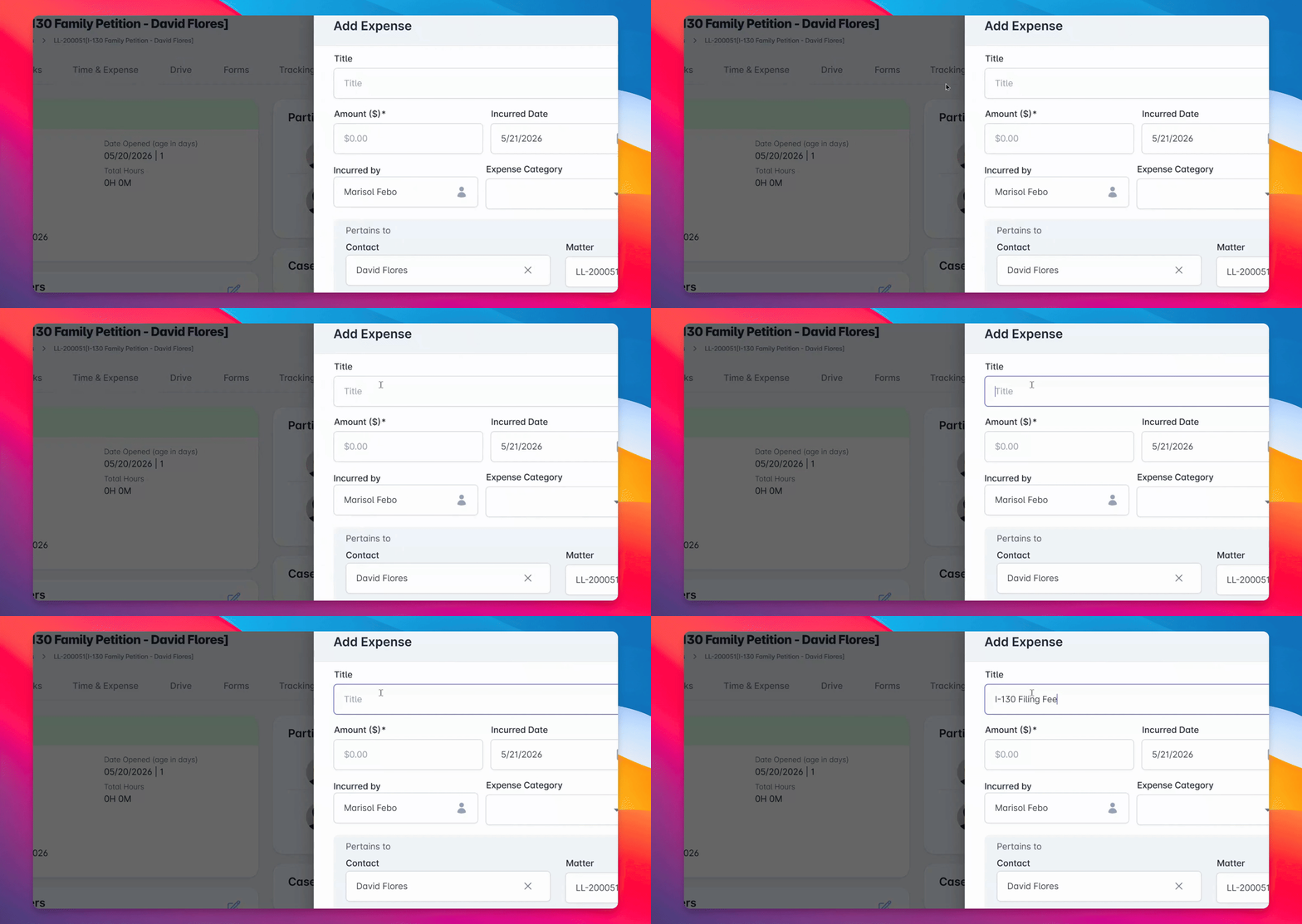
Step 2: Enter Expense Details
Fill in the expense details, including the title, amount, and optionally add an expense category, secondary fee type, and a description.
Once ready, click Save Expense.
Step 3: Navigate to Billing
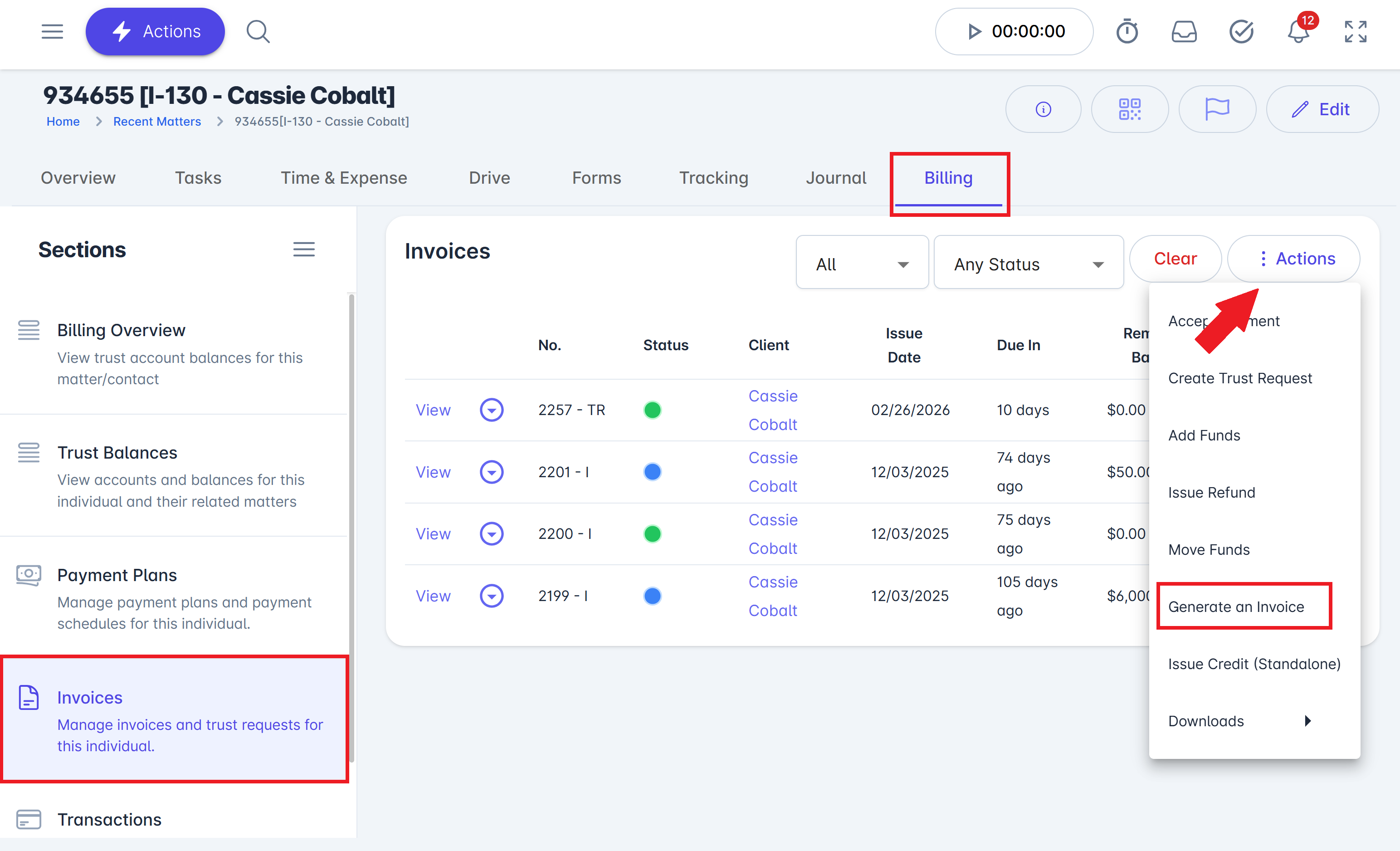
Navigate to the Billing tab, and go to the Invoices and Trust Requests section to generate an invoice.
Step 4: Generate Invoice
Select the Actions button and choose Generate Invoice.
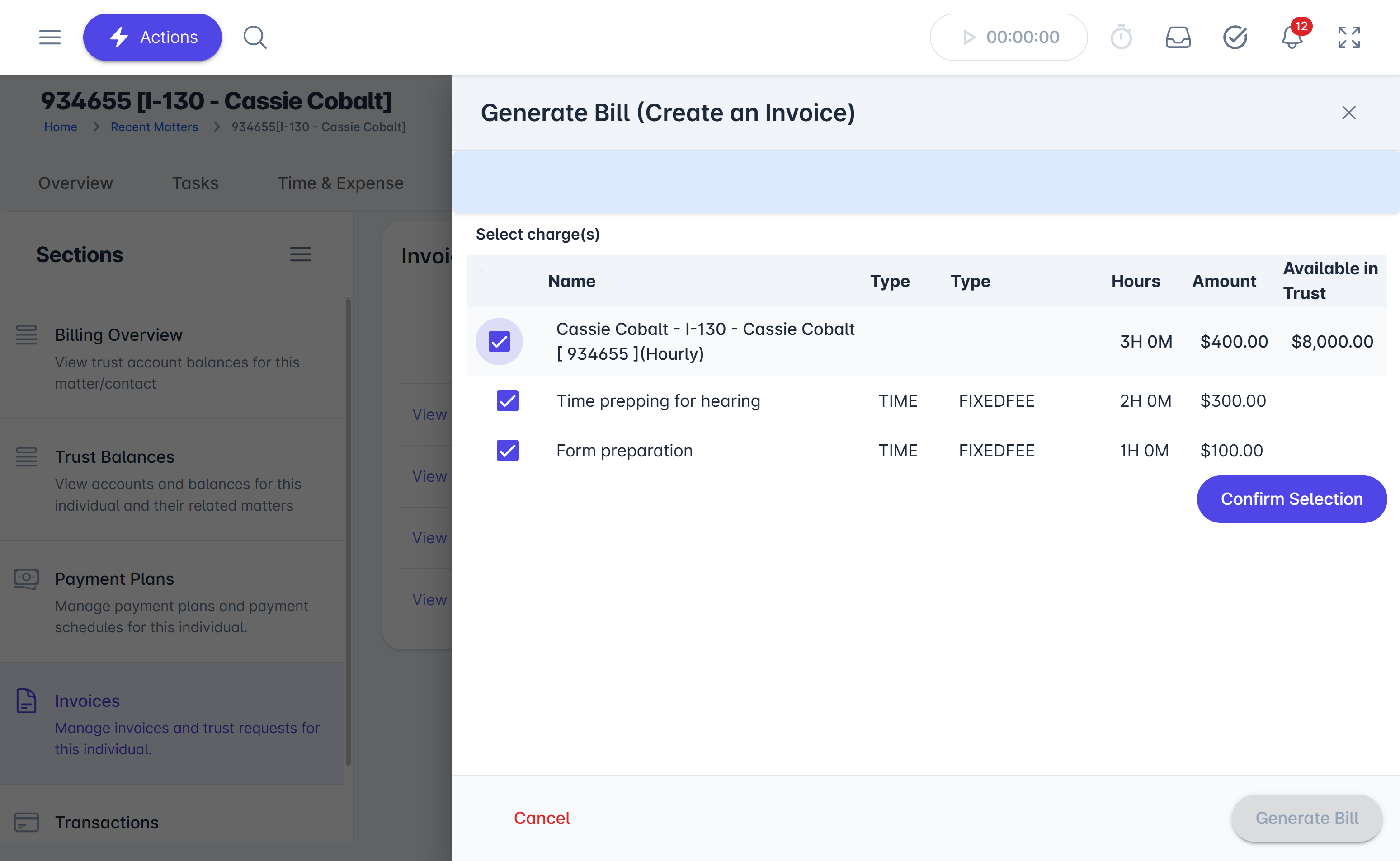
Step 5: Review Expense for Invoicing
The newly created expense will appear and be available for invoicing.
Step 6: Set Up Invoice Details
Configure the invoice by setting the due date, adding a tax percentage, discount, or credit as needed.
Change the invoice detail level, include an account statement, and approve bills as necessary.
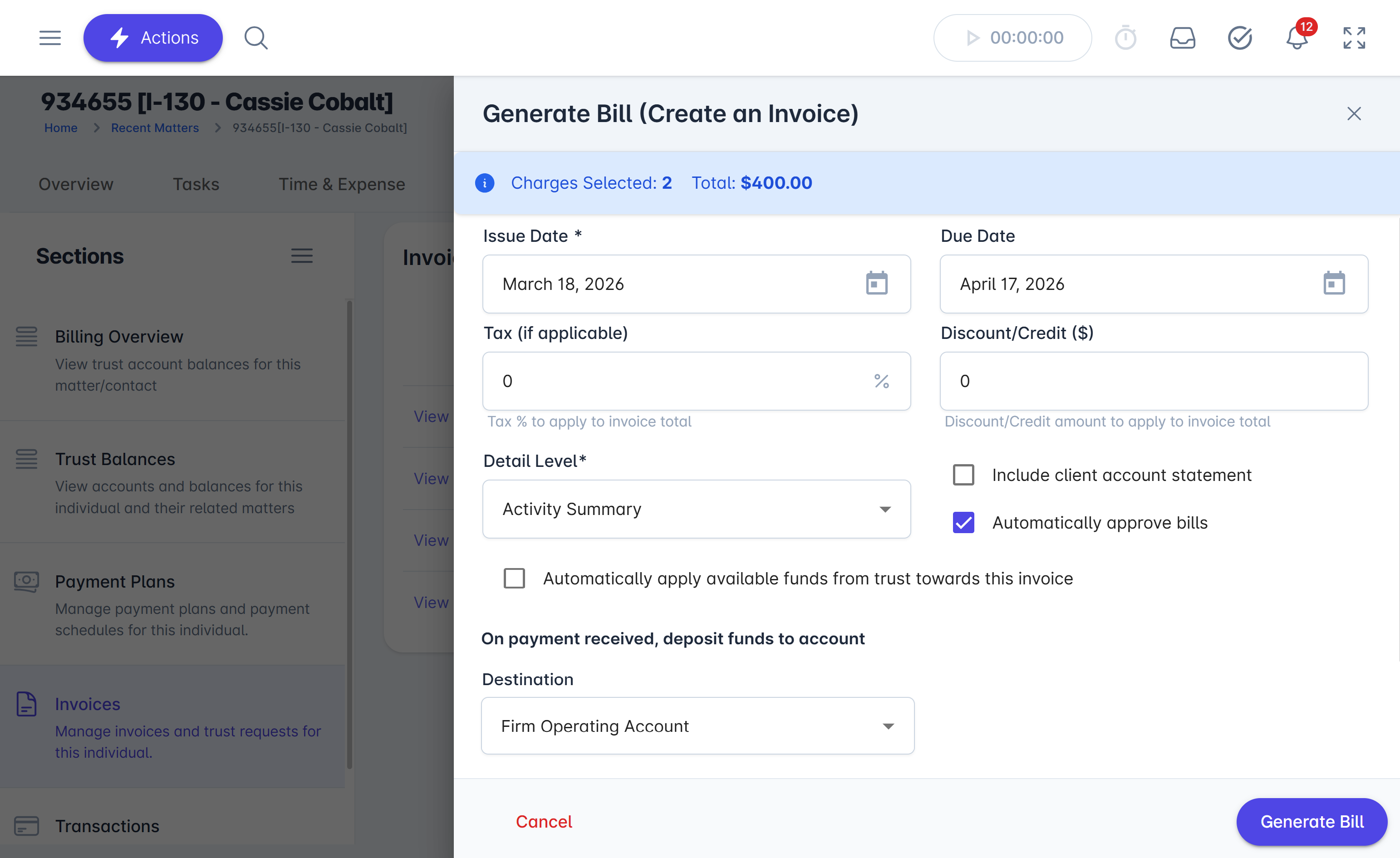
Step 7: Generate the Bill
Once the invoice is ready, select Generate Bill.
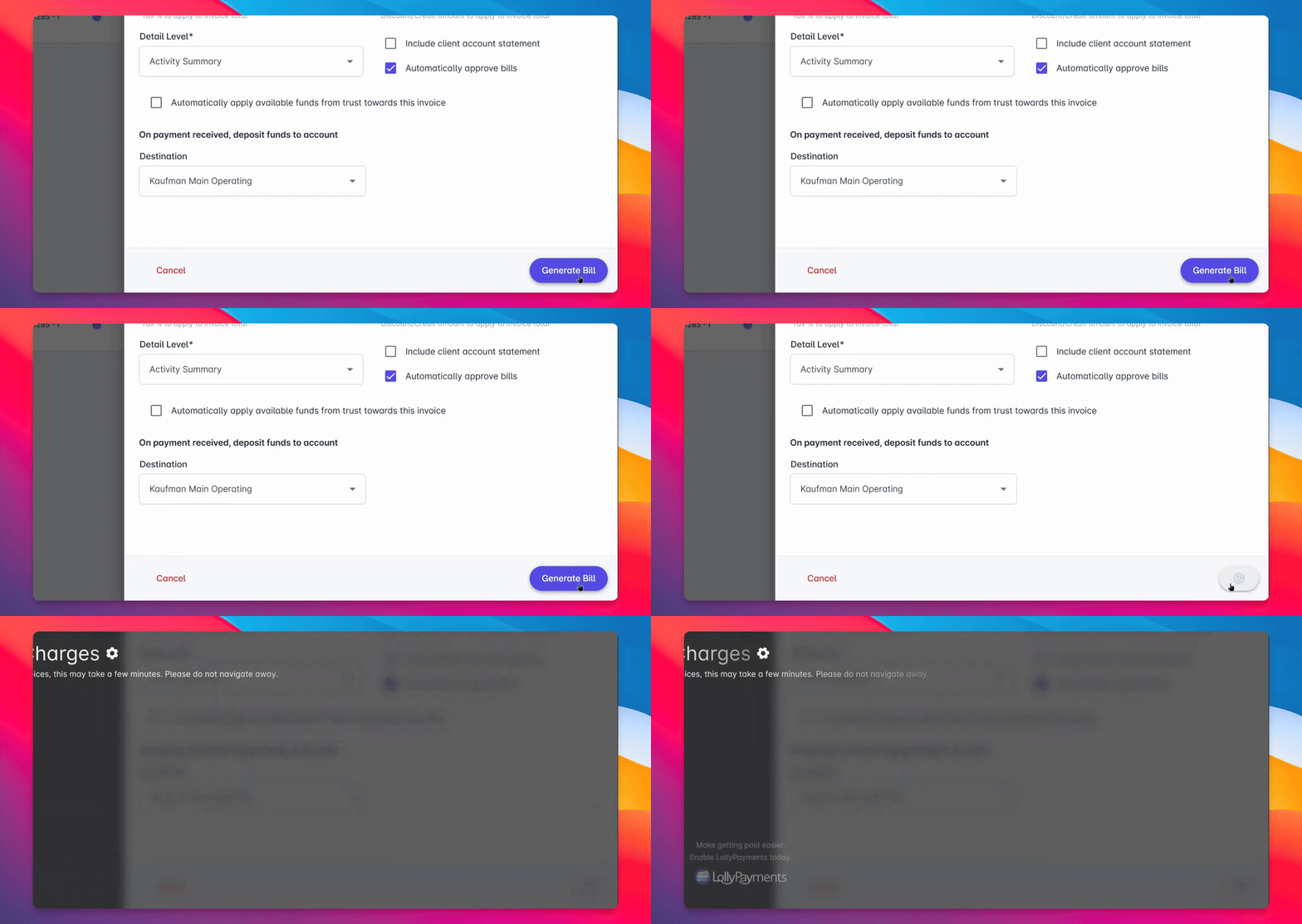
After creating the invoice, your office can send the bill directly to the client, accept a payment right away via LollyPayments, or apply funds from trust.