

Overview
The Drive tab within a contact record provides access to your firm’s connected cloud storage (such as Google Drive).
When a new contact or matter is created, LollyLaw automatically generates a corresponding folder in your integrated cloud storage, keeping your files organized and easy to access.
Jump to Cloud Storage
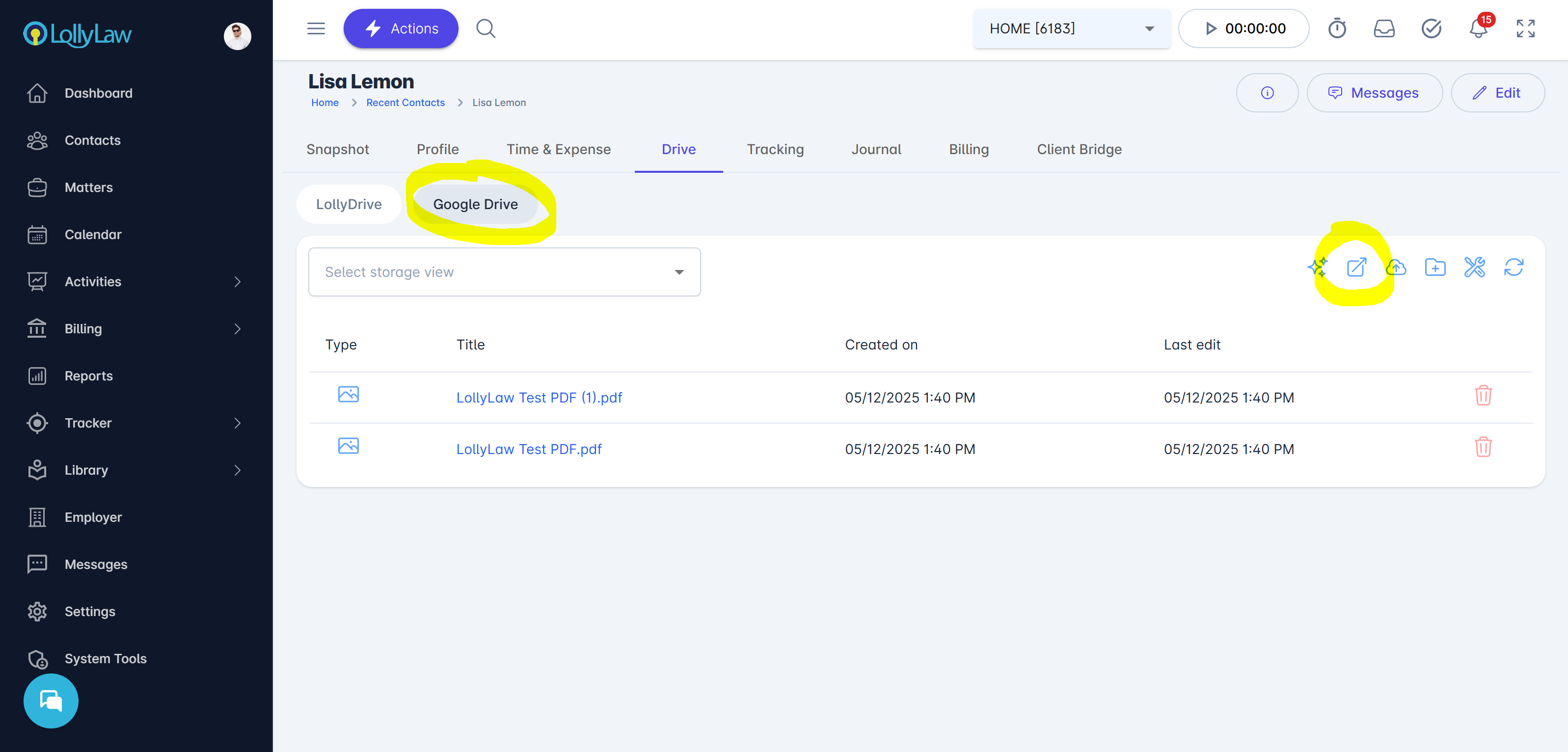
Within a contact record, the Drive tab displays files associated with that contact.
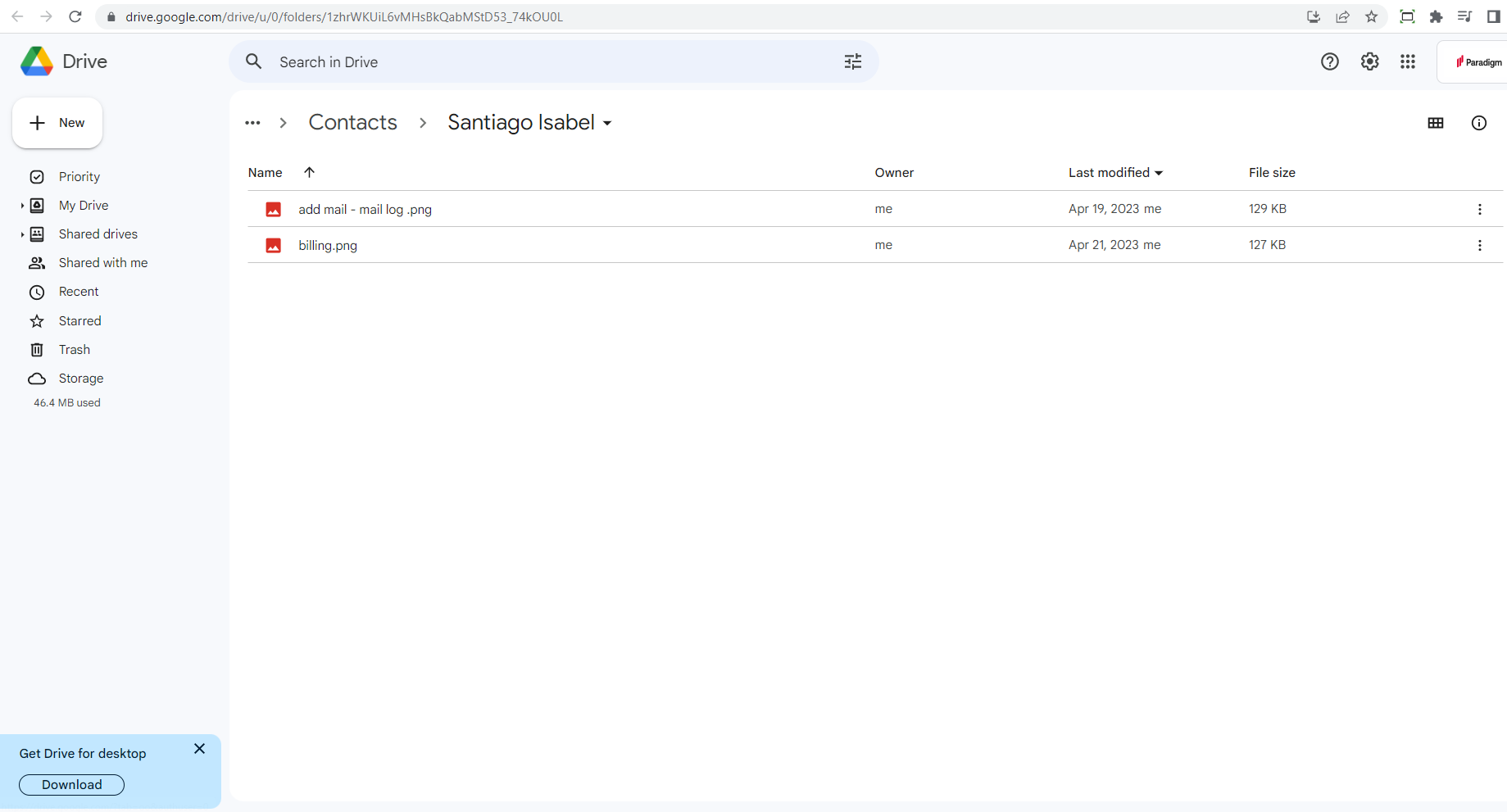
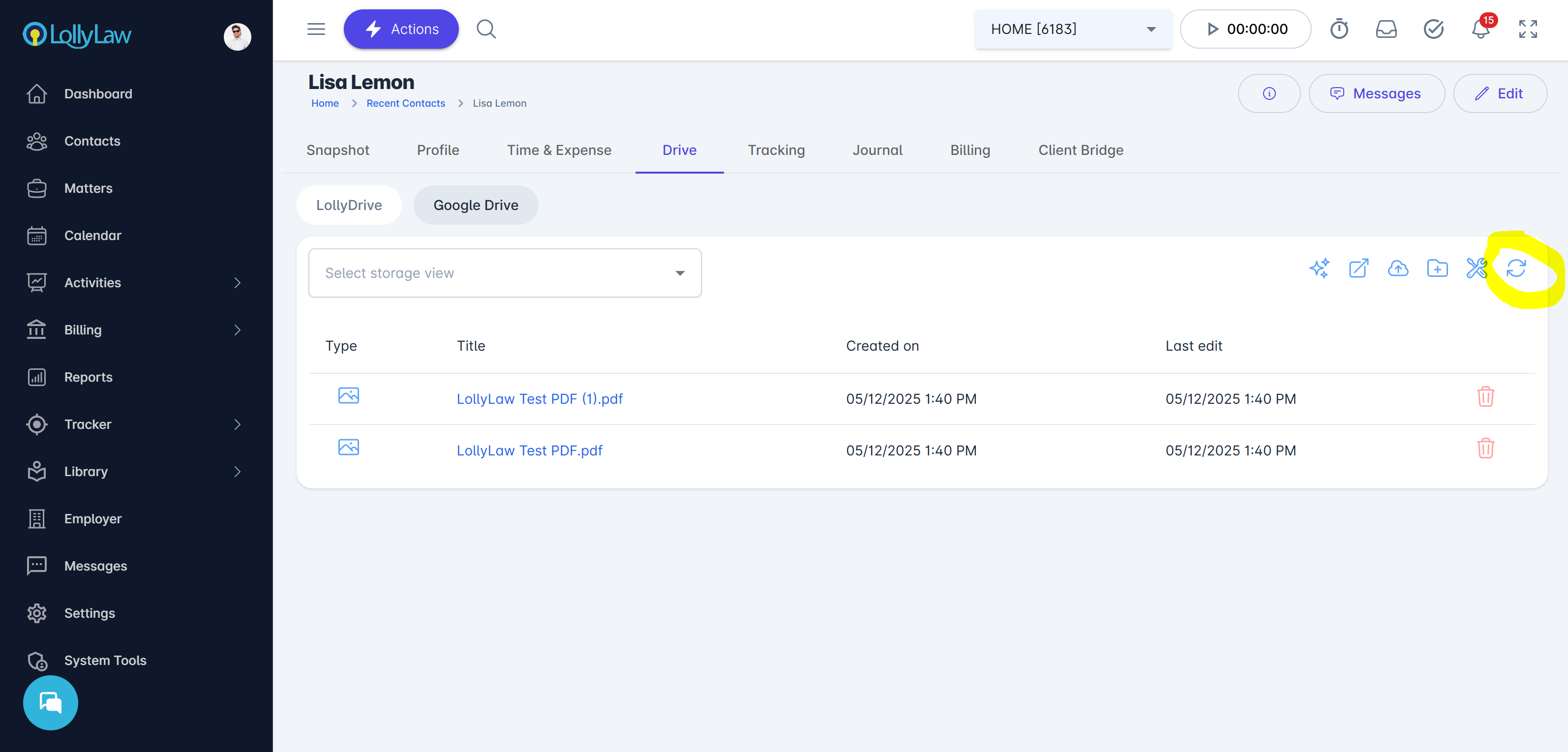
Selecting the “Jump to Drive” icon will open a new browser tab and take you directly to the contact’s folder in your connected cloud storage.
Uploading Documents from LollyLaw
Users can upload documents directly within LollyLaw from the Drive tab.
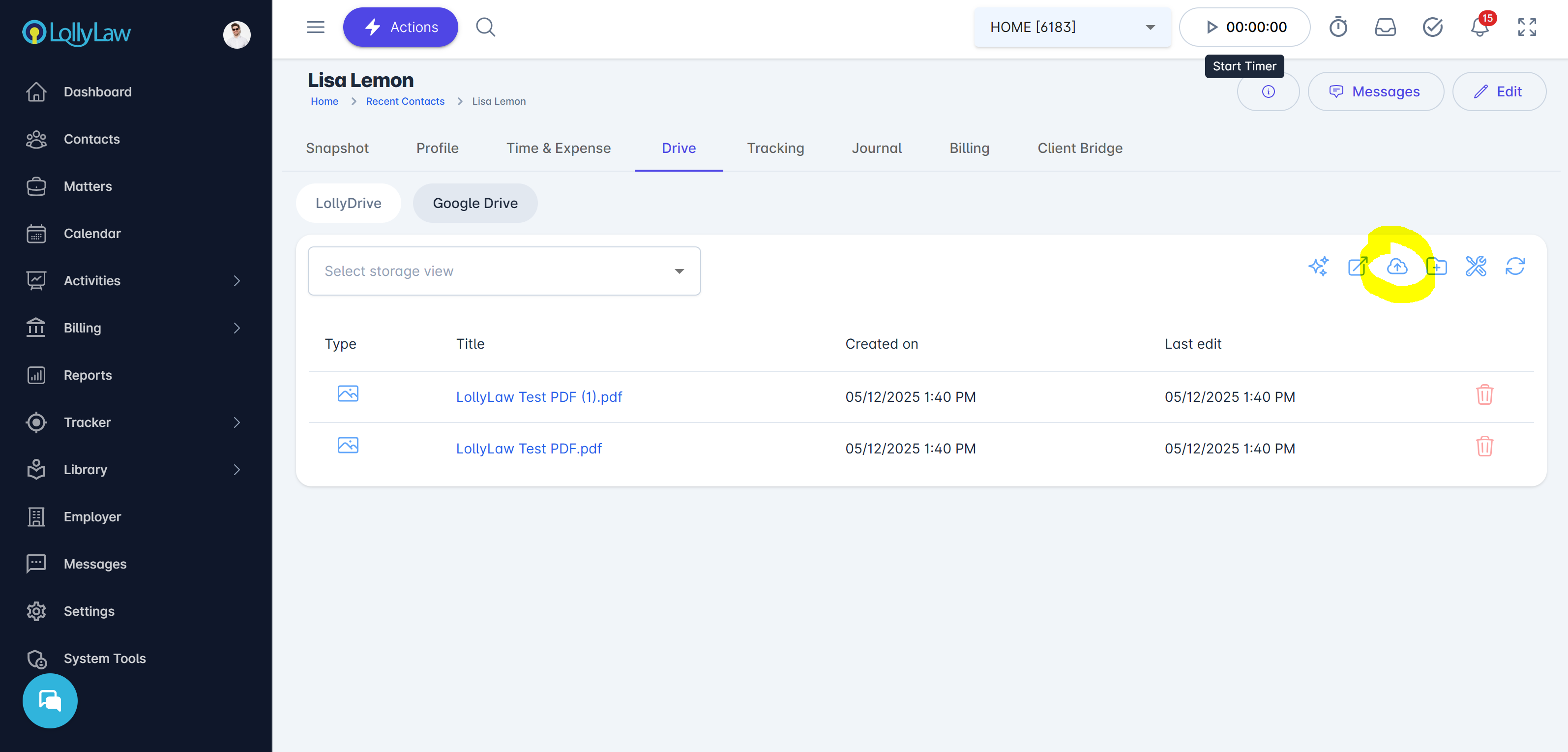
In the Cloud Storage card:
Click the Upload icon
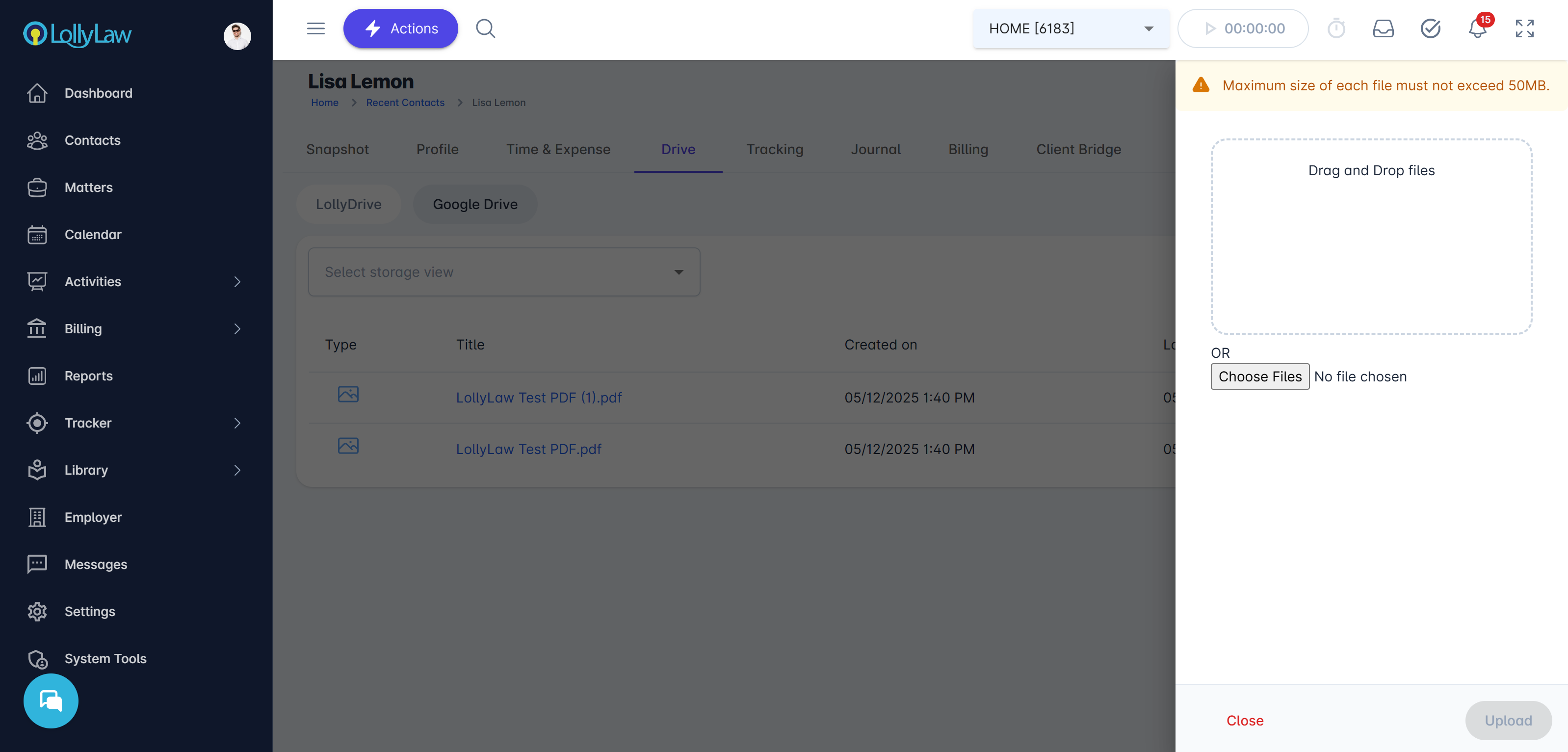
Select a file from your device
Click Upload to complete the process
The file will be saved to your cloud storage and immediately available in both LollyLaw and your connected storage system.
Uploading Documents from Cloud Storage
You can also upload documents directly to your firm’s cloud storage (e.g., Google Drive).
To reflect those changes in LollyLaw:
Click the Sync icon (far right)
This refreshes the view and displays any newly added files
Important Note
LollyLaw does not store these documents. Instead, it acts as a live view (mirror) of your connected cloud storage, displaying files from the corresponding folder.
The Drive tab helps centralize file access while keeping your firm’s data securely stored in your preferred cloud system.
If you need additional assistance, refer to related articles, watch the video at the top of this page, or contact our support team at support@lollylaw.com.