

Overview
Let's Do It Together!
Step 1: Access the Dashboard
Your landing page is the Dashboard.
The dashboard gives you a high-level overview of what’s happening right now—upcoming events, reminders, tasks, and your recent activity. This area is fully customizable and includes a growing set of widgets that you can arrange to match how you work.
Think of the dashboard as your home base and your first stop each day. Many widgets are interactive, so clicking into them will take you directly to more detailed views when you want to dive deeper.
Step 2: Customize Your Dashboard
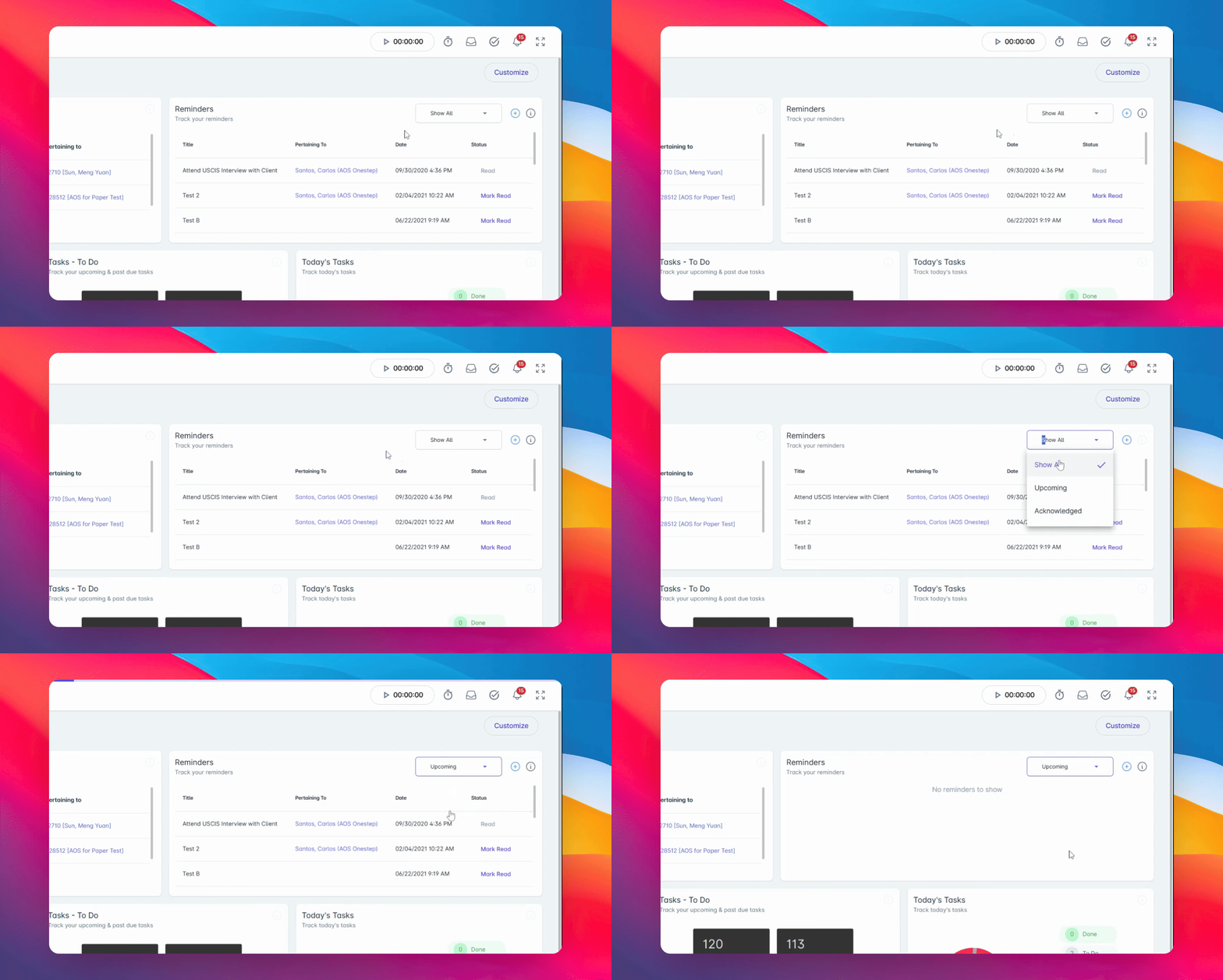
Click the Customize button to modify your widgets.
To customize your dashboard, click the Customize button. From there, you can drag and drop widgets into place and remove anything you don’t need. Don’t forget to save your changes when you’re done.
Step 3: Understand Navigation
Familiarize yourself with the left side navigation and top navigation bar.
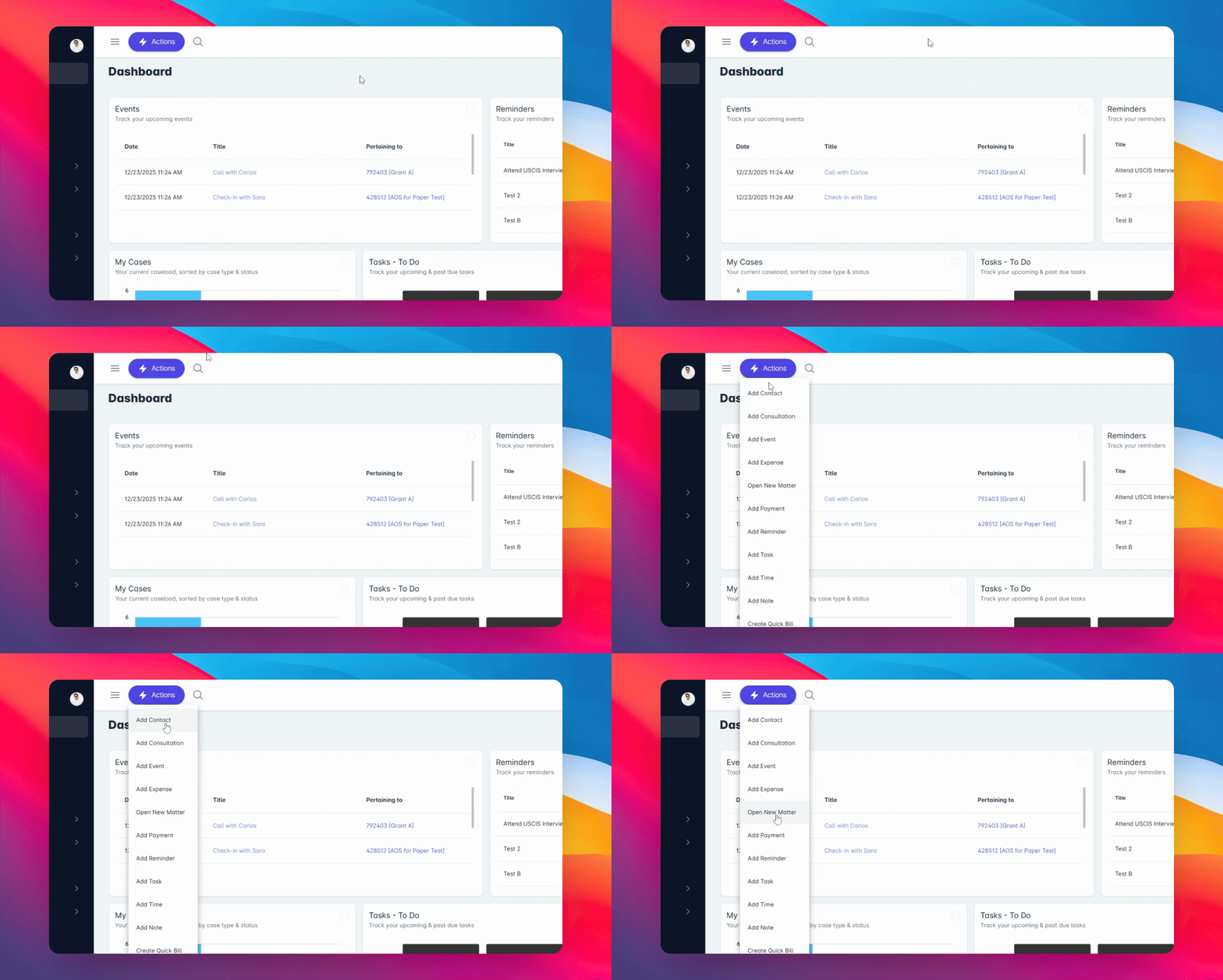
Navigation in LollyLaw is consistent across the entire platform. Between the left-side navigation and the top navigation bar, everything is only a click or two away.
The left-side navigation gives you access to the core sections of LollyLaw, while the top navigation bar lets you create new records—like contacts or matters—without leaving the page you’re on. The top bar also includes quick-access widgets for timers, messages, tasks, and notifications.
Step 4: Explore Widgets
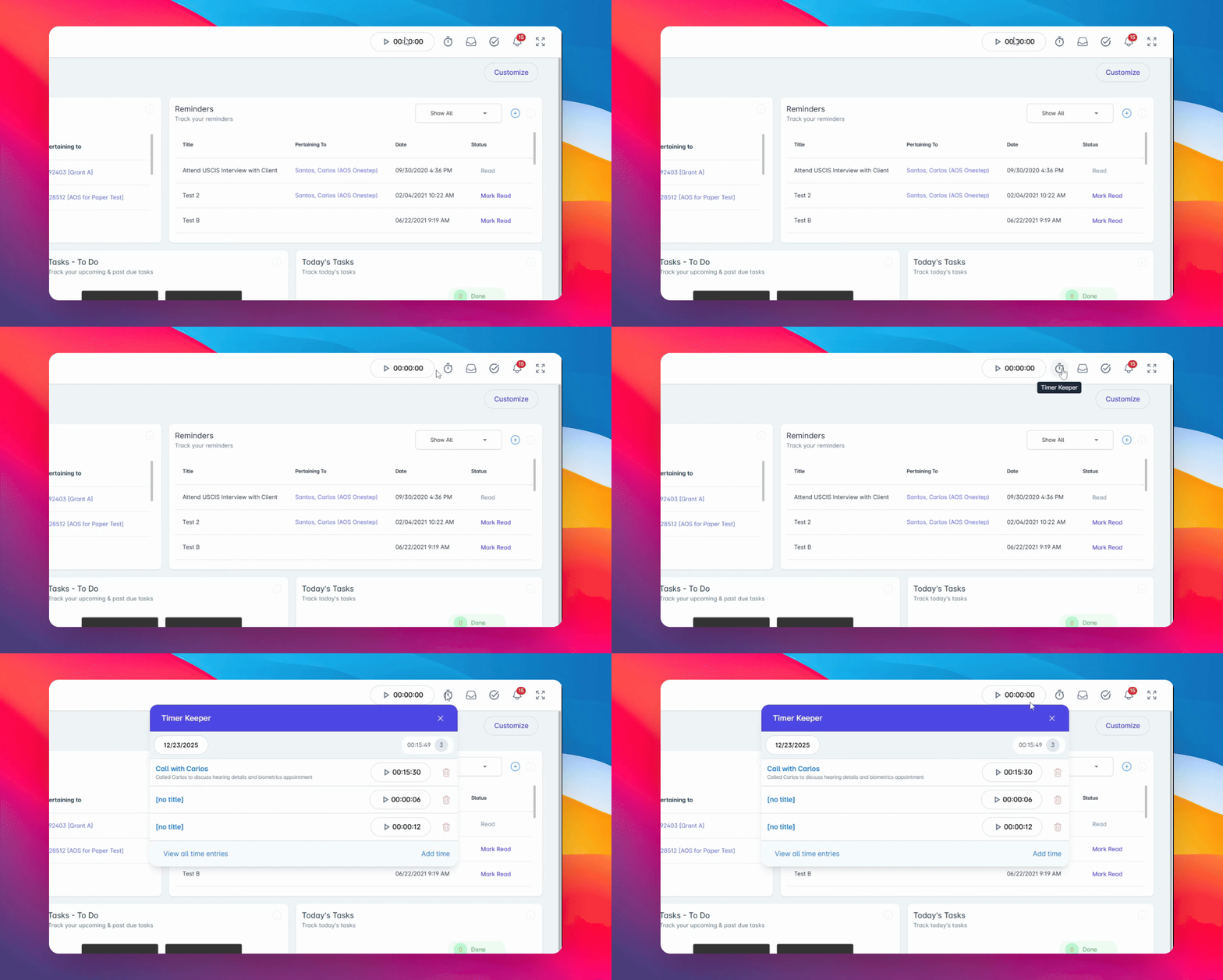
Review the Timer, Messages, My Tasks, and Notifications widgets.
The Timer widget is a powerful tool for paralegals and staff who need a simple, structured way to track time. You can create multiple timers, switch between them easily, and ensure that only one timer is running at a time. When you’re ready, you can log details and save your time entry.
The Messages widget alerts you when new text messages arrive and lets you jump straight into the conversation. This feature requires LollyMessaging, so please reach out to us if you’re interested in activating it.
The My Tasks widget shows tasks that are due today, along with a quick view of any past-due tasks. It’s a convenient way to stay focused, update progress, and mark tasks complete—without leaving your current page.
Finally, the Notifications widget displays system updates and changes related to records you’re involved in, helping you stay informed without needing to search.
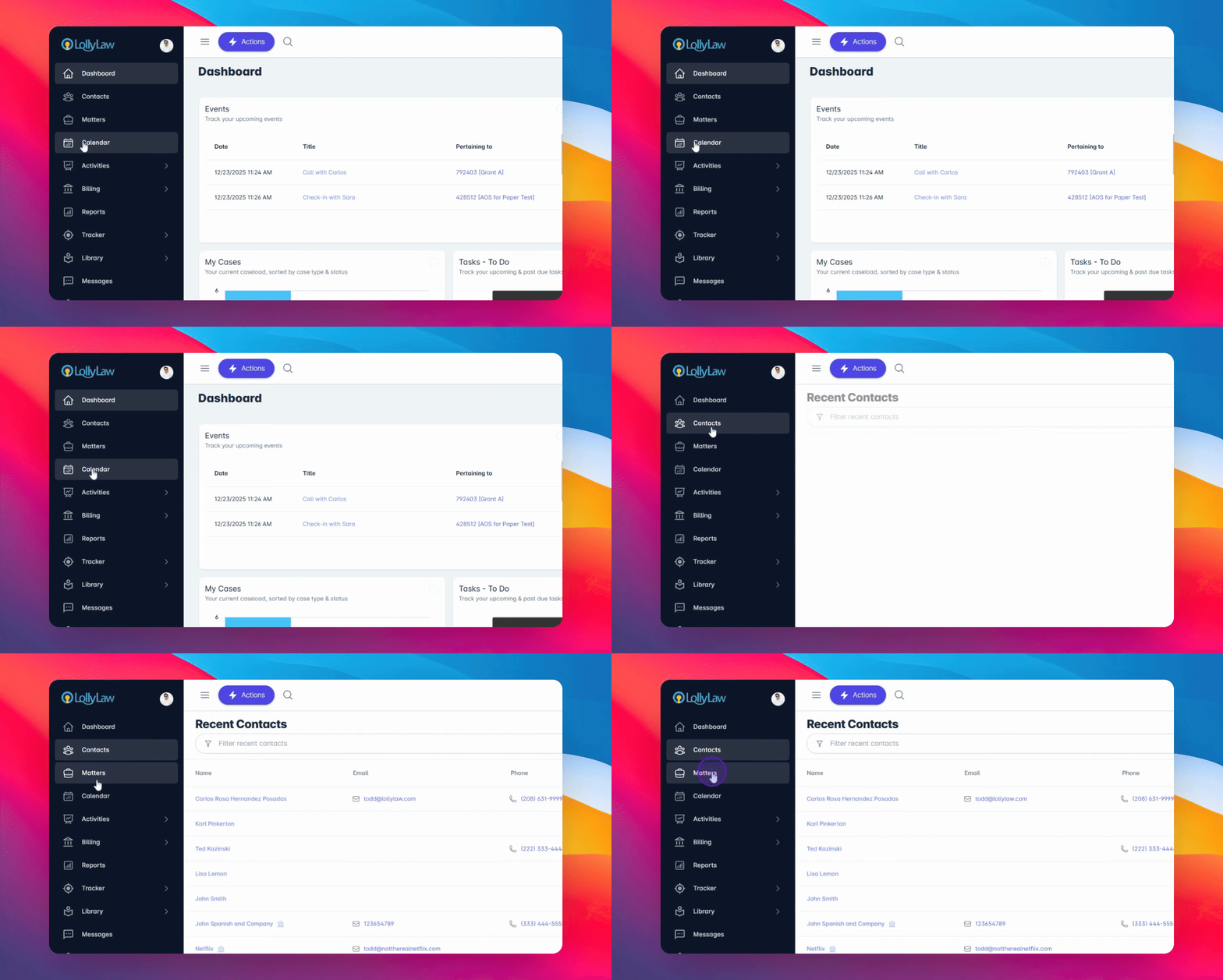
Step 5: Use the Left Side Navigation
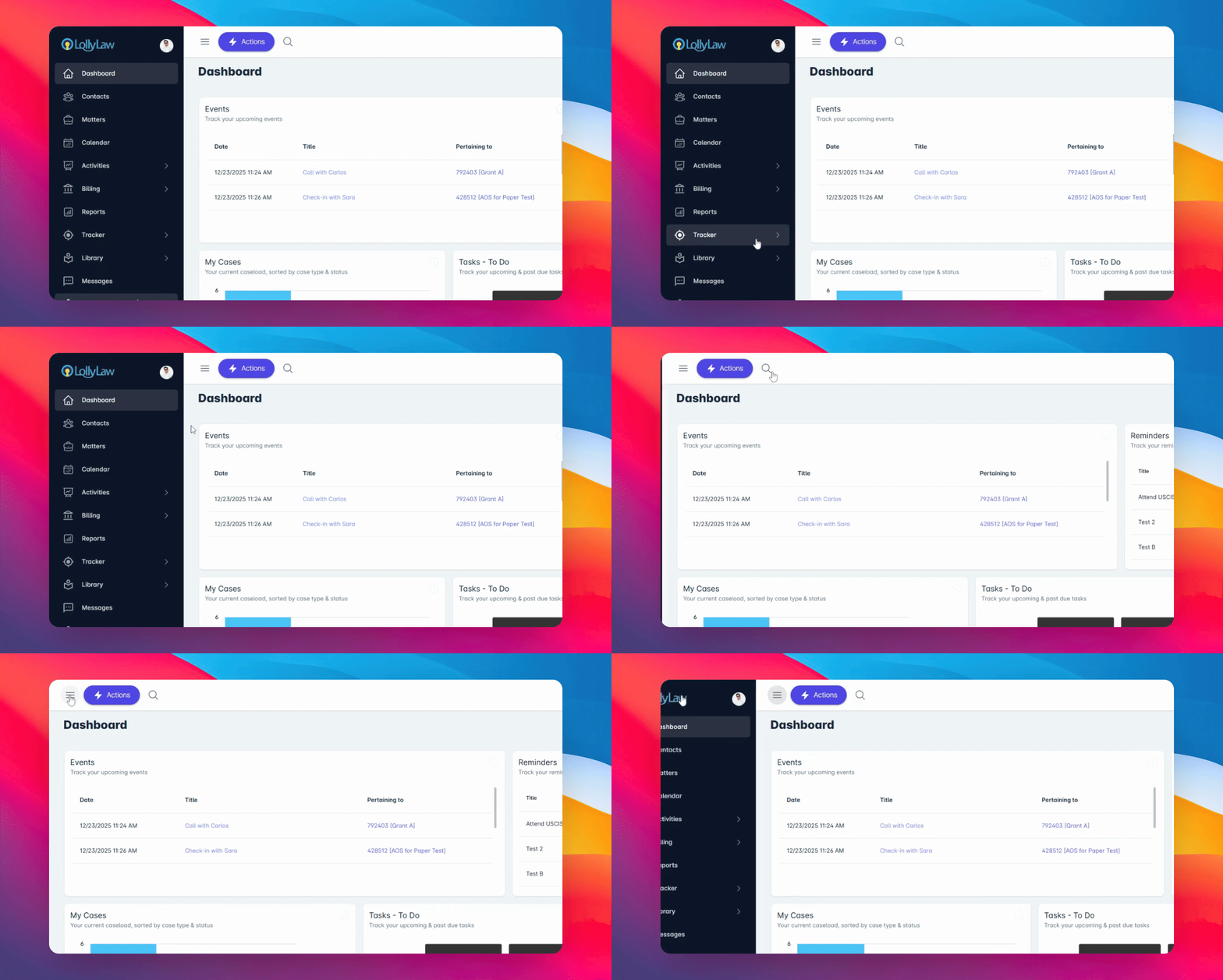
Utilize the left side navigation for easy access.
This panel can be collapsed or expanded to give you more screen space, but it’s always available. It should feel familiar if you’ve used other modern software, and it contains the main sections of LollyLaw.
As a beginner, the two most important areas to focus on are Contacts and Matters. These are the primary records stored in the system.
A Contact represents a person or an organization.
A Matter represents a legal case or immigration process.
Step 6: Focus on Key Areas
Concentrate on contacts and matters as a beginner.
These are crucial for managing your records.
Step 7: Seek Help if Needed
If you require assistance, click the support option.
Take some time to explore the sections you have access to. If you ever need help, click the Support option to chat with us live or search our help documentation.
We’re glad you’re here—and welcome to LollyLaw.